4k显示器怎么设置hdr

粉丝23.2万获赞323.7万
相关视频
 04:20
 00:54查看AI文稿AI文稿
你知道吗,你其实忽略了显示器这么多的设置,新显示器到手,一定要做下面的这几个设置。首先,我们打开显示设置,在显示中选择与你显示器相对应的推荐分辨率和推荐项目大小。这样啊,既满足了正常界面的大小比例,还不会让你的项目图标显得太奇 怪。下两项,打开我们的 osg 菜单,保证让屏幕亮度保持在自适应。这样啊,显示器内置的环境光传感器就可以根据环境来同步亮度和色温。停停停,我的显示器没有自适应选项啊,这个别急,我们可以手动把亮度调到五十到六十, 夜晚可以保持在二十到三十,对比度保持在六十四,整体提高画面的层次感。这样啊,既不会有有害蓝光,也不会有偏色,在护眼的同时啊,又保上了画质健康和生产力啊,两开花了属于是。关注我,带你了解更多显示技巧知识!
706创维创维显示显示器专卖店 01:22查看AI文稿AI文稿
新显示器到手,必做的五个设置,让你的画质达到最佳状态。百分之八十以上的人买了显示器插上线就直接用,大部分只会调下分辨率,但画质没有达到最佳的效果,有些功能呢也白白浪费了。今天教大家如何正确的设置显示器。 第一,开启显示器桌面,右击显示设置,点击显示,在分辨率下拉框选择相对应的推荐分辨率二十七英寸幺零八零 p 与二 k 分辨率缩放与布局对应百分之百二十七英寸四 k 分辨率缩放与布局选择百分之一百五,这样既保证了清晰度,又满足了正常的界面大小比例。 二、点开 usb 菜单,正常调至五十到六十的亮度,那周围环境比较暗时,调至二十到三十,这样对眼睛的舒适度有一定的保障。三、对比度调整到六十四,来增强画面的层次感。四、在明亮度菜单中伽马调制伽马。二、让画面的明暗细节达到最好的 状态。五、在色温这里选择用户自定,然后把红调到五十,绿四十八,蓝色四十,这样既可以过滤掉一些有害的蓝光,又不会觉得偏色,视觉看起来更加的舒适。设置完毕,接下来看一下前后对比, 有没有感觉眼前一亮,那每个人的光感不同,可以根据自己的喜好去自由的调节。今天就到这里关注我,带你了解更多的使用技巧。
14.5万AOC显示器官方旗舰店 00:53查看AI文稿AI文稿
如何正确开启 hdr 功能?买了支持 sdl 的显示器,却不会正确开启 sdr 效果,本期视频我来教你。想要提 sdr 画质,首先要满足三大要素,硬件显示器有线材需要支持 hdr 功能,软件片源或游戏需要支持 ssdo, 系统需要调配置 sdr 模式。我们用 lg 的二七七八五零置台 hdr 四百电竞屏做示范,先开系统右键桌面,点击显示设置,点击使用 sdr, 再打开显示器菜单栏,调配 hdr 模式。最后我们找一个支持 sdr 游戏,在游戏设置里打开 sdr 特效 来看,对比 hdr 开启前后的区别还是比较明显的。 hdr 模式下,游戏画面更加敞亮通透, fhdr 模式画质层次略显寡淡。好了,这期视频就到这里了,如何开选 dl, 你学会了吗?
7782好牛数码专营店 00:59查看AI文稿AI文稿
都说 aj dr 效果要比普通显示器画质要好很多,可为什么打开 hdr 后画面发挥还不如没开启时的状态呢?其实出现这种反作用,第一是因为你的设置不对,第二是你的偏远不支持 hdr 所造成的。那今天为大家分享一下如何在 win 十系统下正确的开启 hdr 功能。第一步,首先要保证显卡升级到最新版本, 连接线材为 hdm 二点零或 dp 一点四,这个时候桌面应急显示器设置显示器支持于 dr 就会看到 hdr, 点开这个开关就可以了。第二步,在显示器中开启 gdr 选项。以上两步完成之后,就可以打开支持 dr 的游戏或者片源了,那非 hdr 片源不建议开启。 可以看到开启式 dr 和关闭式 dr 的区别还是蛮大的。下期为大家分享如何在 ps 游戏机中设置 dr。 好了,今天的分享就到这里,关注我带你了解更多的使用技巧。
5040AOC显示器官方旗舰店 00:51查看AI文稿AI文稿
想必很多买了 hta 显示器的朋友却没怎么使用过这个功能,今天就教大家如何开启 hdr 体验 hda 画质。首先需要准备三样东西,一、你的 hda 显示器。二、支持的线材。我们这里准备了一根 dp, 一点四。三、支持 hda 游戏或影片。 首先我们连接好线材,然后打开显然器设置,点击使用 hdr, 之后把显然器 osb 菜单栏里调到 hdr 模式。 最后打开支持的游戏,前后对比,我们还是能明显的感受到区别 hd 二、作为优化画面功能,能让亮的更亮,暗的更暗,使画面更通透也更敞亮。 游戏中能肉眼可见的天空变蓝了,视觉感到更通透,而 vhdr 的略显寡淡。学会了吗?赶紧去你的电脑试试看!点赞评论关注,带你了解更多显示器操作!
154好牛数码专营店 00:32查看AI文稿AI文稿
四 k 显示器都不清晰,你们也这样吗?牛哥啊,我换了一台四 k 显示器,为什么看电影这么模糊啊?首先我们要查看片源清晰度,要知道四 k 和二 k 相对于幺零八零 p 来说,画质要更加细腻,光感也会更为舒适。 然后我们点开显示设置,再来检查一下分辨率是否设置为四 k 分辨率。开启四 k 后,如果觉得桌面图标太小,可以通过系统设置将桌面图标放大至百分之两百。想了解更多省小知识就关注我吧!
783好牛数码专营店 02:06查看AI文稿AI文稿
今天我们来一起看一下 aoc 显示器的 hdrmo 的功能。首先,大家了解什么是 hdr 吗? hdr 是指高动态光照渲染,相比普通图像, hdr 图像可以提供更多的动态范围和图像细节, 能够更好的反映出真实环境中物体自由的视觉效果。其实简单来说就是更加接近人眼所见的真实画面。 r h d r m 的功能可以对非 h d r 的片源进行效果优化,使普通片员模拟出接近 h d r 般的效果。那么在这款 q 二七 v 五 c e 显示器上, h d r m 的功能有三种情景模式可供选择。 hdrm 的功能需要用显示器背后右下角的按钮开启,按一下之后选择明亮度 hdrmode, 点击即可选择 hdr 图片、 hdr 电影、 hdr 游戏三种模式。这里我们分别在观看图片、视频和玩游戏时打开 hdrmo 的功能进行对比。 可以看到,在这三种模式所对应的三种应用场景下,开启 hdrmo 的功能后,画面都有所改变。 首先可以很明显的看到屏幕亮度变高。其次,在照片、电影、游戏三种模式下,无论是亮处还是暗处的细节都更加清晰,更有真实性。 以游戏场景为例,在未开启 hdrmo 的时,游戏画面整体亮度偏低,暗处更是漆黑一片,看不清楚细节。而在开启 hdr 游戏效果后,画面色彩看起来更加鲜艳饱和,亮度也有所提升,亮出 并没有过爆,反而更加清楚。暗部细节变得明显,墙壁上的枯枝纹理清晰可见,阳光处的阴影部分也有了很好的层次感。 总体来说, hdrmo 的功能对普通片源的优化效果还是非常好的,可以为用户带来更好的视觉享受,提升使用体验。那么本期关于 hdr 的介绍就到这里了,我们下期再见。
727AOC未来视界 01:05查看AI文稿AI文稿
各位好,今天分享一下查看显示器支持 hdr 的方法,先右键开始菜单,打开设置, 在左侧找到系统,点击,在中间找到屏幕后点击进入, 在亮度和颜色下方找到 hdr, 点击进入, 最后找到显示器功能,在下方显示,可以看到这台 显示器不支持 hdr。 好,今天关于查看显示器支持 hdr 的方法就给大家分享到这里。
215飘逸幽谷 01:15查看AI文稿AI文稿
当你买了台二 k 分辨率甚至四 k 分辨率显示器来玩游戏,但却发现游戏画质并没有提高,但实际上新的显示器不是最好的参数,还需要手动设置才能达到最佳。今天教大家如何正确的设置显示器。 第一步,开启显示器桌面,右击显示设置,点击显示,在分辨率下拉框选择对应的推荐分辨率,二十七英寸一零八零 p 与二 k 分辨率缩放与布局对应百分之百二十七英寸四 k 分辨率缩放与布局选择百分之一百五十,这样既保证了清晰度,又满足了正常的界面大小比例。第二步, 点开 usb 菜单,正常调至五十杠六十的亮度,那周围环境比较暗时,调至二十杠三十,这样对眼睛的舒适度有一定的保障。第三步,对比度调整到六十四,来增强画面的层次感。第四步,在明亮度菜单中加码调至加码二,让画面的明暗细节达到最好的状态。在色温 这里选择用户自定,然后把红条到五十五,绿色四十八,蓝色四十一,这样既可以过滤掉一些有害的蓝光,又不会觉得偏色,视觉看起来更加的舒适。设置完毕,接下来看一下前后对比, 不过每个人的光感不同,可以根据自己的喜好去自由的调节。本期视频就到这里,喜欢的小伙伴可以点个关注。
4482ROG玩家国度工蜂电脑专卖店 05:15查看AI文稿AI文稿
my two and three and in the chaos to find mine i can't i feel that can you feel that。
211善 善 00:36查看AI文稿AI文稿
如何调节 hdr 屏幕显示?首先要保证我们的显示设备要支持 hdr 模式,然后选择 hdr 模式下的色彩选项, 鼠标右键点击显示设置,选择玩 hdr 游戏和应用,点击打开。如果使用的是 windows 系统,那么打开 windows hdr card 设置,可以选择流失传输 hdr 视频, 我们的显示设备就可以完整的使用 hdr 播放视频或游戏娱乐。
14艺卓显示器 00:34查看AI文稿AI文稿
为什么我新买的四 k 高刷显示器这么糊,而且还不满屏?那是因为你新买的显示器还没有设置好,让我来教你设置一下吧!首先,鼠标右键空白处,点击显示器设置下滑,点击显示器分辨率,选择最高的分辨率,点击保留更改。 第二步,点击高级显示设置下滑,选择最高的刷新率。然后就完成啦!这两步设置好之后,就可以享受用四 k 幺四四赫兹的显示器玩游戏啦!学会了吗?关注爱泡,了解更多显示器知识!
769iplaoe显示器旗舰店 00:31查看AI文稿AI文稿
不知道怎么开启 hdr 模式?手把手教你设置我以这台三星散热 bg 七五零 nc 为例,它是一台支持 hdr 两千旗舰显示器。右键电脑桌面点击显示设计,点击使用 hdr 并打开使用 hdr, 这时候就能开启 hdr 模式了。之后你就可以进行 享受游戏或者是视频里的 hdr 模式了。在 hdr 两千中,你可以感受到高达两千的峰值亮度,这才是真正的亮明安。细节直接拉满,你学会了吗?
174好牛数码专营店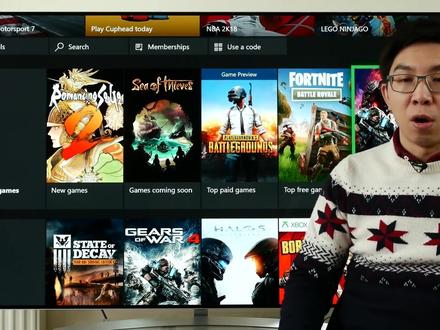 23:12查看AI文稿AI文稿
merry christmas, everyone as you can probably tell from the tv behind me santa didn't really bring me a sony hundred inches at the nine that i've been asking for so i'm slightly disappointed now it's christmas, so i won't really say anything bad about any company so what i'm gonna do today is to try and explain the various video settings on the xbox one x and let you know my thoughts on them what they actually do and what are the recommended settings now i'm gonna use an absent projector to display the information because all these modern tvs that have tested right such as from the likes of algae from panasonic, from samsung and from sony they don't actually display all the information data of the input signal such as the big death the frame rate, the chroma, the resolution whether is in histia or not, but this absent projector i like it a lot it actually displays all these data in an information screen which is very very handy, so i'm happy using the absent projector to try and explain what all of these options do if you switch certain settings on who will the xbox one xp outputting and at the end i will give you a set of recommendations for most users and finally in this video if i have time i mean it's christmas after all, i will try and show you a specific setting on the two thousand seventeen televisions from on the top four brands in the uk, which is lg, panasonic, samsung and sony, i will show you as specific settings on these tvs that you need to actually enable before the xbox one x console will recognize your tv as hdr capable and send a necessary fork hdr signal let's go into the settings of the xbox one x go into the display and sounds that menu and go into video output now i'll set the color dev as it's default off a bead and then the color space that it's recommended value or standard for now and then we'll go into the advanced video settings i'll explain what all these options do now a lot of fifty years you should just leave take because if you are actually in the uk and european countries which is pal and if you set it to off then what will happen is that the xbox one x will be locked to her video refresh rate of sixty hurts which is undesirable if you're actually watching fifty hurts content let's say if you are using the xbox one x to route cable satellite to watch life tv on your xbox one x then it will present a lot of jaddha as you can see from this example that i'm using from the sky q box so if you actually set the xbox one x to allow for fifty herds then you can see that the judder will be removed and the whole scrolling ticker will be much smoother allow twenty four hours again is the same most of the high quality movies all film at twenty four friends per second and if you actually deselected then what will happen is that the icebox one acts will be locked to a fixed video output of sixty hurts which will present some telecitic judge in total for friends specific and movies like what you can actually see in this scene from skyfall where the slow panning shot slow zooming in shot and if you look at the information screen from this absent projector you will see that and the xbox one x is sending out a sixty her signal when what we want is to allow twenty four hurts and then what will happen is that the console will be sending out twenty four friends per second movies as twenty four friends per second which will result in a much smoother cinematic image hello hdr is suffer explanatory if you actually set it off what will happen is that the four k blur is that you play will be played back at sdr and and downgrade that to probably eight bit so switch it on again allow fork is the same as well if you actually untake it then what will happen is that the resolution output of the console will be downgraded to ten eighty p or one nine two zero times ten eighty pixels again this will also at the same time reduce the dynamic range from hdr to sdr so if you play a four k blu ray with either allow hdr or allow for k unchecked then what will happen is that the console will be playing it back as bt seven or nine sdr so i would recommend keeping the on all the time and then this is probably the most important and most confusing option in the whole advanced videos i thinks menu and i want to take some extra time to demonstrate what it actually does so let's examine the effects of allow y c c four to two on a standard ten a d p blu ray which is mastered in sdr rock seven or nine for two zero eight bit so this is a blu ray of skyfall which i really like to use as my reference this is really well mastered with lots of different scenes for me to check out various aspects of picture quality so this is a close up of daniel crick's face and what i'm going to do is to just go into the projector info screen to show you what signal we're actually receiving from the xbox one x console, and you can see there it is four k twenty four herds with a colored death of twelve pete, four two two in bt seven or nine sdr and this is with the xbox one x set to a video output of allow ycc for two now if we actually switch it off let's see what happens right if we go into the projector info screen you can see that the signal it's now sent as eight b r g b so r g b is a component to say four four four and it's still in bt seven or nine sdr, obviously and it's still in four k twenty four hurts so personally looking at this to output there's very little difference if any between eight bit four four four or rgb and twelve b for two two suddenly for ten a p s d r content, but more of the difference will come when we actually play back uh four k blue day, which is mastered in histia b t twenty twenty so let's go ahead and do that ok let's enable allow ycc for two two again and then i've put in a forky blurry of salad which in my opinion is one of the best master outraged blurry with really sharp, really crease, really clean detail with some of the highest bitteries, i've ever seen on an outraged blurry and it's a nearly four kdis well okay now if we click on the projector info screen you can see that the xbox one x console is outputting in twelve bit four two two bt twenty twenty hdr fourk at twenty four friends per second which is what we would expect this is probably the same output that will be delivered by most of the dedicator for cavalry players i said maybe some of them will be going all the way up to twelve beat four four four now let's get out from this info screen and let's go into the xbox one x menu and disable ycc four to two so if you disable it and i think i'll need to restart the disc so bearing me for a while i'll just have to quit the player and then relaunch it to replay the disc this time we allow ycc photo to disable on the console right you can see that the console for some reason is not recognizing this projector as for khdr capable, so it turns out with an arrow message and if we go into the projector info screen you can see that the microsoft xbox one x console is now only sending out eight bt seven or nine sdr in rgb video form format at four k at twenty four hurts this may be specific to this current setup maybe is the long hdmi cable run maybe it's the fact that this projector doesn't have a native eighteen gabbits, prosecca and chipset, but it shows you how important it is to actually enable the ycc photo to option because if you don't enable it and ben will requirement becomes too high because r g b is equal to four four four which is the full highest bandwidth that is required and if you're actually sending a twelve beat ten beat signal then the xbox one s console since that you know there's no compatible edit coming from the projector or the display and so it's just downgrade in the output to eight bit sdr, which is not really desirable because you really want to watch it in hdr, so you should always try and enable what you see for to two on your xbox one x console, that's the message from this short demonstration here and then we'll need to restart the application we restart the application again okay go into the projector in for screen, i can see that it is correctly sending it out at twelve beat photo to bt twenty ninety hdr, at four k at twenty four hurts which is the correct output i would expect from a decent for cavalry player and another thing that i want to actually point out is notice that the coloradoff here is twelve bit for two too even though we have actually only set the xbox one x color deaf to twenty four beats per pixel, which is eight beads so what this says to me is that the xbox one x will automatically switch and y c c for two to setting takes precedence over this video fidelity color deaf setting so maybe if you actually look at this screen here what it will do is that it is sending out eight b four to zero in b t seven or nine s t r on this particular menu screen but if you go back into the movie through the blu ray application then you should see that it will be sending out in twelve bit four to two regardless of what your color that setting was on your xbox one x console, so let's go back to the xbox one x console and send the colorado to a different one i said it ten bit if you said it ten bit what happened is that this manuscript is still at eight bit sixty hurts and if we go to 这木为 again it is still sending it out at twelve bit four to two beaty twenty ninety hdr, so yeah in a nutshell i think that there's no reason not to select it bit on your console because it will also switch to twelve bit for hdr content anyway, we know that the internal video processing of the microsoft xbox one x console is rgb based and all the processing is done in the rgb domain, but rgb inherently requires quite a high band with because it is actually full four four four so let's say if you're actually asking the xbox to send out a ten bit signal let's say a fifty hurts or sixty hurts at rgb or four four four then some hdr cables especially longer runs they wouldn't be able to transmit the data correctly resulting in either loss of signal loss of handshaking sometimes you wouldn't even be able to get a picture at all or the console things that your display is not capable of this higher bandwidth and then downgrade the resulting signal to it be sdr which is what happened in the case of this absent projector so in all cases i think you should always try and allow y c c for two two because if you actually enable y c c for two two on the xbox one x let's say for sdr content the console will be absembling the eight bit four to zero content from ten a t p blu rays to twelve b for two two which is desire because even though the data on tenty people read this is only eight bit four to zero if you actually give it a twelve beat signal again it depends on a lot of factors like your displays and how your whole video chain is set up but in general if you give a twelve beat death for the signal to be transmitted then there will be more processing headroom for the obscure the increment of sampling and things like that which will help reduce the amount of artifacts and noise in the picture again i stressed that this is not a hundred percent guarantee it depends on the display and also depends on your video chain where the twelve beat is more beneficial than i say eight beat not hand beat but in general the reason why some players like the panasonic and the opal dedicated for cable players they like to try and send out to a bit output when possible is because it gives more processing headroom to account for rounding areas so if you didn't really understand a thing i said i'll just go through the probably in my opinion the catch all set up for most displays so under video fidelity leave coloradoff at twenty four bits per pixel a bit color space is standard and then under advanced video settings just take everything but particularly important is to allow ycc for two too and then and i'll go through the specific setting you need to actually enable on various tv brands before you can actually get a proper hdr output from the xbox one x console to your display on lg is twenty sixteen and thousand seventeen sets including their all at tvs if you encounter the screen from the xbox one x console what you need to do is to summon the user menu on your lg tv go into general and then scroll all the way down to hdmi outraged deep color click on it and then you need to enable the setting on whichever hdmi part which you have connected your exposed one x console take on okay and now once you ask your xbox one x to or to detect the settings again you will see that the console will now say that your l g t v is compatible with four k ten being at even fifty hurts and sixty hurts and it supports the hdr video basically with all the takes available for all the resolution frame rate and big death on panasonics to run seventeen for ktvs usually the microsoft xbox one x will be sending all the compatible signals to the television as long as you connect the console to issue my parts one or two but in case you're not actually getting these ticks on all these frame rates and beat death and resolution then what you need to do is to go into setup and then go down into hashtmi hastiya setting and make sure that this is switched on another thing to check is that you need to go into hasty mile to setting and if you're not getting any picture whatsoever just go from either mote one and then mote to to make sure that a picture displays on screen this is to do with the hashtmi or maybe hashtcp version compatibility on the two thousand seventeen samsung tvs including kula televisions if you see the screen from your microsoft xbox one x console what you need to do is to summon the user menu go into general and then go into external device manager and then you need to enable hdmi uhd color for whichever hdmi port to which you have connected the xbox one x console after that go back into your xbox one x set up screen and then get out from here press on four ktv details again to auto detect and tv should be telling you that it supports all the four k uhd ten b fifty hundred sixty hills resolution that the xbox one x is capable of sending from the android home screen go down into settings and then go into external inputs scroll all the way down to haste in my signal format and then sell it enhanced format now notice that this only applies to haste in my pots to and tree so you need to connect your xbox one x console to to either hasty my input two or hasty my input three on your sony television for the ten bid four k usd sixty hurts fifty hurts hdr signal transmission from your xbox one x console okay i hope you have found this video useful especially if you have received a shiny new microsoft xbox one x console has a christmas present if you found this video useful, please click the like button and subscribe to the hdtv test youtube channel for more videos like this these types of comprehensive videos take an extremely long time and a lot of effort to end it and produce so i would appreciate your support now have a good christmas and don't do anything that vini wouldn't do and i'll see you in the next video。
25趣说数码 10:02查看AI文稿AI文稿
当我们兴冲冲地开启 windows 系统的 hdr 功能之后,却发现显示的画面像是蒙上了一层灰尘,这时我们应该怎么办呢?别慌,有我在不得不看的说明书,注意这些都不是 bug! 哈喽,各位小伙伴们大家好,我是喜欢研究各类问题解决方案的耗子。如今 hdr 技术已经成为许多终端显示器的标配功能,就算没有通过 visa 的迪斯贝 hdr 认证,也至少可以顺利的在 windows 的操作系统里面找到开启 hdr 功能的选项。 但是我发现很多小伙伴在首次接触显示器的 hdr 功能时,或多或少都遇到了一些问题。比如在显示器的 ost 菜单里面,明明已经开启 hdr 功能,但显示的画面却一点变化都没有。又比如,明明我们使用的显示器确定一定以及肯定是支持完整的 hdr 功能的,但在系统的选项里面呢,要么就只能找到播放流失传输 hdr 视频这一项功能的开关, 要么索性发现播放流逝传说 h d r 视频这项功能跟着使用 h d r 功能一起消失了。 再比如,在系统选项里面开启了使用 hdr 功能之后呢,要么显示的画面整体发挥, 要么虽然画面里面比较暗的部分看起来还算比较正常,但是亮度稍微高一点的部分就全部过爆了,对比度急剧降低,导致连屏幕上的文字都看不清楚了。针对以上四种情况,我们可以通过三 找来轻松解决在开启使用 hdi 这项功能的过程当中所遇到的各种问题。但在讲解解决方案之前,我们必须首先确认我们所使用的操作系统是否已经至少升级到了 windows 十, 并且使用的显卡、显示器以及显示线材这三个电脑硬件是否全都支持完整的 hdr 技术?只有在系统和硬件全都支持 hdr 技术的前提之下,我们才能同时开启 windows 系统里的使用 hdr 与播放流逝、传输 hdr 视频这两项功能。 在系统方面啊,根据我的经验, windows 十一对于 hdr 的支持是要稍稍优于 windows 十一些些的,所以我个人建议要使用 hdr 功能的小伙伴尽量将操作系统升级到 windows 十一。 在硬件方面呢,一般来说,在二零一六年之后发布的显卡大多都支持完整的 app 功能, 反倒是有一小部分宣传支持 hdr 技术的显示器产品,实际上就只支持播放流逝、传输 hdr 视频这一项功能,并不支持使用 hdr 这项功能。 同时,显示器能显示的画面规格还与显示器显示接口的规格有关。有不少型号的显示器产品会存在只有在连接到特定显示接口的状态下才能开启 hdr 模式的情况。 而为了确保能在四 k 的分辨率下,史比特 hdm 画面的刷新率仍然可以满足六十赫兹的需求,我个人建议大家至少选择 hdm 二点零接口或者 dispropod 一点二接口来开启 hdm 模式。除此以外,我们还需要确认连接电脑主机与显示器的线材是否至少符合 hdm 二点零标准或者 dcapod 一点二标准。 如果我们无法确定手里的线材是否符合相关标准的话,那只要我们能够确定显示器的某个显示接口确实支持使用 hdr 这项功能的话,那一般来说,这台显示器在出厂时自带的这个显示接口的线材就一定符合相关的标准。 而我也借来了一台知识完整 hd 亚功能的显示器莱库 h 二七二零 pl 来为大家进行演示。 莱酷 h 二七二零 pl 是一台具备了二十七英寸四 k 分辨率 ips 面板的终端办公显示器,巨大的屏占比令我这个第一次使用四面 在边框设计的显示器的人感到无比的震撼。而百分之九十五的 p 三色域容积以及原生巴比特的色深也令他的显色性能完全满足日常办公以及娱乐的需求。 最关键的是,莱库 h 二七二零 pl 支持 hdr 四百技术,配合 dcapald 一点二接口,可以开启四 k 六十赫兹十比特 hdr 四十四的色彩模式。 除此以外,莱库 h 二七二零 pl 还支持 ppppip 自动 kpm 重力感应以及手机电脑模式这四项非常实用的功能。 而且它的 usb tappg 接口还支持最高六十五瓦的 pd 供电能力,满足手机以及平板电脑甚至绝大多数轻薄办公笔记本电脑的供电需求。好,现在让我们回到解决 方案上面来啊!第一招,检查显示器是否开启了 hdr 模式。 当我们在 windows 操作系统的设置功能的系统屏幕 hdr 页面当中选择了一台确定、一定以及肯定支持完整 hdr 功能的显示器之后, 有极小的概率会遇到只能看到播放流逝传输 hdr 视频这一项功能的开关,或者索性播放流逝传输 hdr 视频这项功能跟着使用 hdr 功能一起消失了的情况, 而相对于这个小概率事件,在更多的时候是我们在开启使用 hdr 这一项功能之后,却发现画面一下子变得灰蒙蒙的,完全没有显示正常的色彩。如果遇到了以上这两种情况,那一定是因为显示器的 hdr 功能 并没有被打开。对于一些极个别型号的显示器来说,不打开显示器的 hdr 功能的话,他就不会将显示器对 hd 功能的知识情况正确的告知操作系统, 从而导致操作系统认为这台显示器只支持播放流失传输 hdr 视频这一项功能,或者压根就不支持 hdr 功能。 而对于大多数型号的显示器来说,无论是否打开显示器的 hdr 功能,他都会告诉操作系统自己支持完整的 hdr 功能,所以导致 windows 操作系统里面会一直存在使用 hdr 这一项功能的开关。 而当显示器在处于 sdr 显示模式的时候,接收并且处理了来自于操作系统的 hdr 信号的,那显示的画面就会出现色彩的错误。在遇到这些情况的时候呢, 我们只需要进入显示器的 ost 菜单,开启显示器的 hdr 功能,就可以在操作系统的设置功能页面里面看到使用 hdr 这一项功能了。而对于已经开启了使用 hdr 这项功能的操作系统而言,显示器的色彩也会立即恢复正常。 第二招,检查 windows 操作系统的设置里是否开启了使用 hdr 功能。 有时候我们明明已经在显示器的 osc 菜单里面开启了 hdr 功能,但却发现显示器显示的画面却一丁点变化都没有, 这一般是由于我们只打开了显示器的 hdr 功能,但没有开启操作系统的 hdr 功能所导致的。这时候我们只需要进入 windows 操作系统设置功能的系统屏幕 hdr 页面选择。我们要开启 hdr 功能的显示器,将使用 hdr 功能右侧的开关设置为开就可以了。此时显示器会经历一次短暂的黑屏,等显示器再次亮起的时候,它显示的就是 hdr 色彩的画面了。 然后我们千万不要忘记确保播放流失传输 hdr 视频功能右侧的开关也设置为开,否则在播放视频网站的 hdr 视频的时候会显示不正确的色彩。第三招,调整 sd 内容的亮度。 如果我们已经正确开启了显示器与操作系统的 hdr 模式,并且 hdr 游戏和 hdr 视频的画面全都正常,但威诺斯的桌面 以及其他不支持 hdr 功能的程序里的色彩全都出现了明显的错误。最常见的情况就是画面的对比度急剧降低,画面整体处于一个过爆的状态,导致画面里的文字和边框线条全都看不清楚。 这是因为在 hdr 模式下,显示器每一个像素的亮度都将由接收到的显示信号里所包含的 hdr 亮度信息所决定。而 windows 系统的 ui 以及不支持 hdr 模式的应用程序本身所输出的色彩信息里面并不带有 hdr 亮度信息, 只能经由 windows 操作系统转化为 hdr 色彩之后再进行输出。所以一旦操作系统在进行色彩转化时使用了参数,与显示器的显色性能不相匹配,那 sdr 内容的色彩就会出现错误, 解决的方法其实非常的简单,我们只需要在正确开启 hdr 模式之后,在 windows 操作系统的设置功能中找到系统屏幕 hdr 页面里面的 sd 呀内容亮度这项功能,通过滑块将 sd 内容的亮度设定到适合这台显示器的亮度就可以了, 这样当显示器在 acd 模式下显示 sd 内容的时候就不会出现怪异的色彩了。 好了,以上就是小伙伴们在开启使用 hdr 功能的过程当中可能遇到的各种问题,以及应对的三种解决方案。如果小伙伴们在使用显示器或者笔记本电脑的过程当中遇到了什么问题,欢迎在下方的留言区留下你的困惑。 我是喜欢研究各类问题解决方案的耗子,那我们在下一期不得不看的说明书里面再见吧,拜拜!
2111耗子与喵 01:02查看AI文稿AI文稿
怎么感觉我被骗了?这曲低压标志就是个装饰,我们买了支持 hdr 的显示器,却不会正确开启 hdr 效果,啦啦啦,想在双十一买新显示器的朋友记得点赞保存一下啦!想要体验 hdr 画质,首先要满足三个条件,显示器和线材需要支持 hdr 功能,骗 电源或游戏需要支持 hdr 系统的显示模式也要调成 hdr 模式。我们用这款莫比乌斯 ex 二五幺零 shdri 的电竞屏幕做示范, 右键桌面选择显示设置选择 hdi 模式之后,这款显示器就会自动切换成 hdi 模式,也可以通过显示器右下角的 hdii 按键切换成游戏 hdii 模式。 然后我们找一个支持 hdr 的游戏,在游戏设置里面打开 hdr 特效来看对比,都忘记打开加湿器保湿皮肤了,分校拉满,穿一分也拉满,天气干燥用它送给女朋友放在桌面上最合适了。 hdr 模式下, 按部细节非常的丰富,非一体低压模式,画质层次都略为平淡,开启前后区别还是非常明显的。好了,这期视频就到这里,喜欢我的视频可以点个赞,关注一下清洁工吧,拜!
245爱数码的清洁工 01:13查看AI文稿AI文稿
你还在用显示自带按键调节亮度、对比度、内置声音吗?自带按键不舒服,操作不变,那么试试这款软件吧,它可以调节亮度、对比度,内置声音,且完全免费。 微软自带的软件商店就可以下载到。首先打开微软商店搜索,然后安装,安装好后会在开始菜单中找到,然后打开 这个是欢迎使用界面,可以直接关闭,在状态栏中找到他的图标,然后点击设置,在这里你可以直接调整图标和一些设置, 在这里可以看到显示器信息和一些操作设置,在这里可以把对比度和声音调节及获取当前亮度值。打开电源状态就不建议开了,这是定时功能,这是快捷键设置, 这是更新。当设置好后,在状态栏图标这中找到它, 就可以调节亮度、对比度,内置声音,关闭显示器史显示器黑屏,它不是关闭电源,晃动鼠标和敲击键盘就会唤醒显示器。看着不错,点个关注会持续分享好用工具。
628扑格 01:07查看AI文稿AI文稿
神器买到手,如何设置画质最佳?一、右键显示器设置,在显示处设置成推荐的分辨率,同时调整缩放与布局。二十七寸的幺零八零 p 两 k 选择百分之百,四 k 则选百分之一百五,这样回到桌面,观感是最舒服最清晰的。二、打开 ost 菜单,调整亮度到五十到六十,如果周围环境暗,建议调到二十到三十, 我们因为拍摄要有好的展示,一般设置成最亮的一百,个人使用还是按照前面推进来,不然太亮很商业。三、按照上面菜单栏操作,将对比度、画面模式等调成适合的数字,例如选择层次感, 可以把对比度调到六十左右,根据使用场景、眼睛舒适度选择合适模式。我个人比较喜欢 aps 模式。四、色温红绿蓝一般是 五十比四八比四十,这样可以适当的减少蓝光对眼睛的损害,并且不感觉偏色。当然人眼都是不一样的,也可以根据你的感觉来设置。好后,我们通过视频对比一下,你能看出区别吗?点赞、评论、关注,带你了解更多神奇知识!
8633好牛数码专营店
