沃尔玛如何使用URL上传商品

粉丝4197获赞6650
相关视频
 04:06查看AI文稿AI文稿
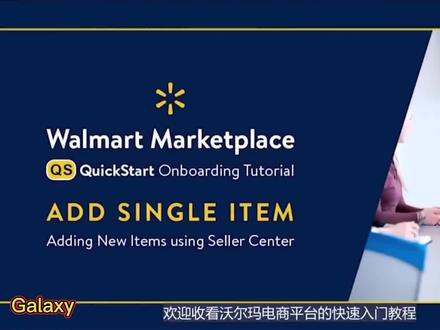
welcome to the walmart marketplace quick start tutorial on setting up a single item via walmart marketplace seller center to start adding a single item click on the add new items link under items and inventory on the left side navigation menu then click on the add single item button on the item create screen you'll first need to select a unique product identifier for the item you'd like to add you may use a g ten isbn or upc code in this case we'll be using a g tin related to an existing product already in our system this will allow for quick setup by product match once you've entered the g tin of the item you'd like to add press enter on your keyboard and we'll search our system to see if the item currently exists in our catalog of products if the item exists in our system click the yes this is it button to indicate this is the correct item you intend to add to your product selection because the item you have chosen to add is already in our system you will see that most of the key product attributes have been pre populated on the item content tab feel free to add any information you think is important in this case we'll only be adding a product skew once the skew is added you'll notice a green checkmark to the right of the item content tab now click on the offer tab to add price shipping weight and product tax code the product tax code is a seven digit code used by tax wear that enables customers to save money on sales tax based on their state of residence and the properties of the product to learn how to select a tax code for your product please visit our seller help page and search for sales tax codes in this example, we'll use a generic tax code click submit to add the item to your product catalog if successful the submit button will become a green rectangle with a check mark now let's see if your item has been successfully processed to do this click on feed status on the upper left side navigation menu please refresh your browser to see the new item feed for the product you just listed it may take several minutes for your new product feed to appear in this case after refreshing our browser we now see that our test item has been added to the feed list and shows as pending one more browser refresh and our test product now shows as processed now go back to manage items and let's see if our test item appears yet in our assortment to do this click on the filter icon and select skew from the left drop down list then enter your skill and click apply and there it is our test item has now been successfully added to our product catalog please keep in mind your item may take a few minutes to appear in your product assortment and seller center but in rare circumstances it may take several hours adding inventory quantity is easy simply click the radio button to the left of the product thumbnail image then click the update inventory button just above the item details enter your inventory quantity and click the update inventory button once you've added available inventory and if your product is published it will generally appear for purchase on walmart com with adminence of adding to your assortment this concludes the add single item quick start tutorial thanks for watching and be sure to view our other quick start videos to learn more about configuring your account setting up your products and selling successfully on walmart marketplace。
60galaxy


