三星note怎么连接电脑当数位板

粉丝25.8万获赞149.1万
相关视频
 04:51查看AI文稿AI文稿
hello, 大家好,我是你们的朋友芒波。那今天呢,又是一个复古节目,什么叫复古节目呢?就是用中古的手机来画画, 这是一台十多年以前的手机,但是速度还是很畅快, 没有苹果系统那么多专业的画画软件,但是他有真正专业的挖矿技术的思维品,他有色差,他一百不到,他系统老旧,他有压杆笔, 他就是三星 note three。 其实这只手机我之前的节目里面已经出现过很多次了,也专门有一个视频节目来介绍他介绍 那个时候呢,这只手机在闲鱼上的价格还要一百多,然后前段时间我看了一下,他已经是在一百以内了。一百以内,一个便携的,有个还算大屏的这么一个移动的画画设备,而且还是挖空技术的, 太划算了,家人们谁懂啊,真的,这个有色差,屏幕小,系统差,这个硬件老旧,这些等等这些看似致命的这些 缺点啊,在几十块钱面前,他还是缺点吗?已经不是了。我建议所有爱画画的同学都去买一只这样的手机啊,等公交车, 车,坐地铁,上厕所都可以拿出来写写画画,而且这个手机是可拆卸电池的,你要是怕续航不够呢,再多买几块电池,其实有个充电宝在就就无限续航了。 当然除了这个硬件呢,软件也非常的重要,我现在正在使用的这个画画的软件呢,叫画世界 pro, 它的软件的功能啊,只会比 procreate 更多,不会比它更少。 呃,当然我指的是画画的能力,做动画的能力就不一定了啊,因为我不太会使用这方面的功能,所以我只评价画画的股份。呃,旁边呢有个快捷键盘,这个快捷键盘的话,如果在桌面上使用有他在的话,会方便很多。嗯, 这些快捷键呢,会比去屏幕上操作更加的方便,更加的快捷。呃,当然,如果你在外面的话,我是不建议你再带这么快键盘了,因为这个便携性就差了吗?这个小手机的这个 最大的一个优势就不存在了。呃,这个画世界 pro 呢,是支持保存成 psd 分层文件的,所以在这个手机上完全可以打一个粗稿。在有灵感的时候呢,把你的想法快速的记录下来,不一定要画的多细,但只求把当时的那个想法给他记录下来, 或者说你看到什么漂亮的风景,漂亮的色彩,想要把它概括住,把它留住呢,都可以掏出它来干这些工作。但是他有一个画画的人很难接受的痛点,就是他的屏幕非常的艳丽, 也就是说他的屏幕有欺骗性,你现在画完的,和你倒出来到电脑上看的话,呃,色彩是不一样的,完全不一样的,倒出来的会昏暗很多,饱和度低很多。因为屏幕的算法 把它加载的更硬了,所以你画的时候以为,哎,差不多是这样的话,其实不然,所以这这是个很大的痛点。但是可以后期在 ps 里面调吗? pst 的原文件呢,有一个好处就是它的宽容度很高,就算你把它这个调一下,这个饱和度啊,自然饱和度把它直接往上拉,也不会显得特别的突兀,画质也不会有损失, 所以就多一个步骤。那还有一个呢,就是他的这个机能啊,确实是有点 拉胯,你不可以建太大的文件,像我这个的话,就是一个就屏幕大小的一个文件,所以它的流畅度呢,还算可以,但是如果你要建一个 a 四 a 三这么大小的文件的话,你要是 大笔说话就会有点吃力,这没有办法,这是个十一年前的手机,不过呢,大尺寸是没有意义的,因为这个手机的屏幕你也画不了太精细的细节,该说的也差不多都说完了。 行了,别看我点个赞,赶紧去买吧,一会咸鱼涨价,宇宙的尽头是。
51忙波 04:54查看AI文稿AI文稿
hi, everyone welcome to my channel today, i'm going to show you how i make digital hamilton notes on my laptop using one note this is a really cheap alternative to buying an ipad and you only need two things the first thing being a laptop or whatever you use at home and a graphics tablet which comes with a pen so one note is basically a veteran notebook which you can download for free and i'll just start off by going through the basics of one note so i've highlighted the notebook that i'm using which is my final year medical notebook and then you also have sections within your notebook and for me these are different specialties and then i have the pages which are within each section highlighted there so now i'm going to play i'll give my graphics tablet and show you how i make my notes so to start off with i thought i'd just show you that you can change the page color on the view tab and you can also change the paper style this is really useful for graphics tablet users as it forms a nice guide for where you should via i prefer using the grid lines for note taking because it helps me keep my handwriting more consistent and you can also change the color of your lines so now i'm going to move on to talk about how i actually write the notes the most important tab you'll be using is the draw tab and i'll really quickly just show you what the pens in the markers i like here's the pen in different thicknesses and the marker in different thicknesses and then we have the highlighters and personally i like to use the more muted colors it's really good because it highlights underneath the text so it doesn't actually cover any of the text so it's really useful the lasso tool is probably one of my favorite tools on here you can easily move around bits of writing just to make everything look a bit more perfect or if you find that you've got things in the wrong place you can move your notes really easily without having to rewrite stuff and you also have the insert space tool which is also released for because if you find you want to add something to your notes you can make space really easily when it comes to writing the notes zooming and can really help with hand by as it gives you more control over what you write and you can always move things using the lasso tool that i'm doing here so it really can feel a bit unnatural making notes using a pen tab that if this is your first time but it does definitely get a lot easier over time and it becomes more of a second nature to make writing on your tablet a little bit faster and easier it's probably best to make use of the buttons on your pen so you can go to your settings on your device and find your tablet settings and on there you can choose what each button does so there are so many options to choose from you can choose whether you want your pen to become eraser you can choose whether you want it to become a right click or whether it will signal a certain command on your keyboard such as undo and you can even get it to signal for opening and application such as google chrome i personally use one button as an eraser so you can erase without actually having to click on the eraser tool, so you can just press it and your pen comes on the race up and my second button is a pan tool so with that button i can move my screen around and since i like to zoom in when i'm writing it's great because i can just stay zoomed in and just keep moving my screen around as i write and it just made frightening on pen tablets and lots easier you can even customize settings on how the tip of the pen actually feels so this kind of affects the pressure of the pen that you're using and so if you play around these settings you might find that you have a setting preference with this you can also change the orientation of your tablet if you also have buttons on your graphics tab that you can change those settings here too so on one note you can also add different shapes which is really useful if you make handwriting notes because adding boxes or other shapes to your notes can really break up your notes and make things look a little bit more structured。
653Wacom 04:55查看AI文稿AI文稿
hi, everyone welcome to my channel today, i'm going to show you how i make digital handwritten notes on my laptop using onenote another great thing about digital notes is you can add images and when you're using a pen tab that you can easily annotate those images which is really really useful if you're a visual learner so i thought it'd be good to mention that there are loads of different ways to add images so for mac users using command control shift in four means that you can drop copy and paste images directly onto your one note this is especially useful because as far as i know i can't crop my images on one note so this does that for me if you are a windows user, you might find the snipping tool quite useful because because it can print screen and also crop at the same time which is very similar to the shortcut that i just mentioned for map users there is also a screenshot tool on the onenote app itself but personally this isn't something that i use a lot because i prefer using a keyboard shortcut because it's a lot quicker so the next thing i want to show you is the tags feature and this is really really useful for studying because you can create your own tags and as you can see i have a few there such as easy g changes antibiotics and chest x me finding so you can add those tags to parts of your notes and then afterwards you can just search for that tag this is especially useful if you find certain things hard to remember so you can tag those things you find difficult to remember and then simply go through that tag before your exam and so you can see me search for hla and sometimes i find it kind of tricky to remember the different hlas associated with different conditions and so before my exam i can just search up the hla tag and quickly go through my notes and test myself so it's also really easy to search through your notes so you can search through typed and written notes although it's not perfect at detecting your handwriting but a lot of the time it does work for me another useful tip for organizing your notes in making use of the subpages that you can create so this is really useful for organizing your pages because you can create one pages and main page and then create loads of sub pages within mapped and finally i'm going to talk about making lecture notes using onenote so as you guys are probably aware a lot of us are having to move online for our lectures and for our teaching sessions and so using onenote alongside your zoom calls is actually really useful so all you need to do is go to the insert tab and click on printout and there you can insert your lecture notes directly into your one note from there you can anti your lecture slides as you might normally where you can highlight and draw on the slides so this is really really useful to do because if you split your screen and have one note on one side and your zoom call on the other side you can make your notes alongside the lecture and the best thing about it is it's really easy to stop through your notes afterwards and you have everything all stored in one place so overall making notes on one note is actually really really useful and i've been doing it for over a year now it is something you do have to get used to which can be a bit frustrating at the beginning but once you do get used to using it it can be really beneficial for not only your scorn it's, but you can use it for loads of other things too so for example i use my tablet to fill out forms and i can email my forms to people now without the need to print things i also use it for online shooter ring, i use it to draw sometimes, and i even use it to make these videos so it's really really useful and overall i would definitely recommend people use this method if you can't buy a ipad or a touchscreen laptop the tablet of using this video is the budget wacom tablet and it costs around 35 pounds i think and it's definitely worth the invest and it costs nowhere near as much as other options you can pay for to make handwritten notes so that's it that's how i use one note to make my digital handwritten notes on my laptop。
43鑫绘智电子产品 00:50
00:50 00:29查看AI文稿AI文稿
新手小白学插画应该准备什么工具和软件?价值五千左右的台式机价值五千左右的笔记本 显示器色预值在百分之九十以上。价值二百到五百左右的手绘版常用绘画软件 pss i a i 想了解更多插画入门知识,请私信留言哦!点赞、评论加关注,获取更多插画入门小知识!
280绘梦CG插画 04:50查看AI文稿AI文稿
本期视频是更换一个三星 note 二零 auto 的电池,这个电池是漏液了啊,可以在充电口位置闻到一点味道, 然后电池是淘宝购买的,附赠了一个配件包啊,我额外的话使用了酒精还有热风枪去拆的啊,另外就没有其他东西了。 热风墙我是开了一百四十度,然后风速开满,这样慢慢去加热。 这个原装的不是原装的,他后盖是被拆过,然后后期换这个胶吧,有点粘,我来回刮刮了好几遍才才给他拆下来,还不敢暴露下。我也是第一次拆这个手机, 这个后盖他是玻璃的,嗯,也不能硬敲,只能是一点点的给他里边的胶切掉。 这个位置我的操作也是有些问题,应该先把电池的排线电池接口给他断开。呃,要不然带电操作的话可能会把这些东西给干坏。 这个位置的排线的话我当时是不知道怎么去拆他,然后我把我就把喇叭下边也给拆掉了,把排线两边都扣起来,然后折到边上了,顺便也找一找那个电池的电池应该怎么拆。 这个地方我已经是安装好,然后把排线电池的排线插口那块给他用金手纸胶带包起来的,防止他呃在主板上短路什么的。现在安装的这部分是喇叭部分的, 他需要往里,他是有个小卡扣,需要往里插,然后再扣上。刚开始我把这一步给搞错了, sorry i didn't catch your name earlier。 在此之前呢,我已经把那个机身那边的胶已经抠掉了,然后是抠一下,抠了一下后盖这边的胶,防止他太高,然后我也没有去整胶什么的,我打算呃,过几天等原装的胶到了,我再把原装的胶给他安上。 现在就是测试了一下基本功能啊,看这个前后摄像头,然后边胶都正正常的, ok。
194阿肖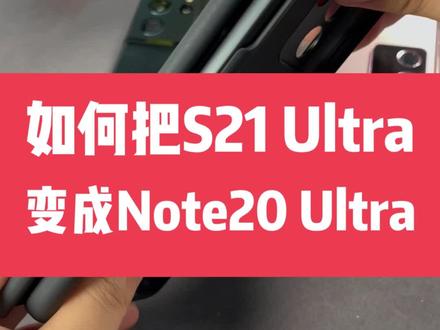 00:27查看AI文稿AI文稿
如何把三星 s 二一 out 用出 note 二零 out 的感觉?一个官方配件就能解决这个 s 喷保护壳套装,这三星针对 s 二一 out 定制的配置了一根笔,跟 guto 二零奥首的那个除了外观几乎没有什么区别,同样支持四零九六级压感保护壳设计了侧边底槽位于机身左侧,右撇子表示强烈不是,不过用起来还是很丝滑的。今年做的系列缺席多少是有点遗憾,这个配件算是小巧弥补了一下,还真有点那味。不过目前只有 s 二零欧首支持, s 二一和 s 二一加目前是无法使用的。
1674闪小白APP 00:22查看AI文稿AI文稿
三星手机打开五 gs 开通的方式,首先点击屏幕设置按钮,进入连接, 选择连接按钮下的移动网络,打开其中的五 g s a 开关,即可使用五 g s a 网络。
269白起是只猫 00:59查看AI文稿AI文稿
呃,这里看一下这个,这个拿到这个遥控器和这个怎么进行配对啊?这个出厂的时候显示 l 杠杠, l 杠杠表示没有这个,那个。 呃,配对好,那么我们现在开始配对。配对的话这个上面这这个地方,这个地方是喇叭,这个正下方的有一个键叫做设置键,我们把它按住不动,他会进入设置状态。 好,他进入设置状态。显示遥控器这边也有个设置,按着不动进入设置状态。 好,进入设置状态。我们调整上下键,调整中间键。确认,我们现在调整一下。好,现在一号,我确认。 好,现在已经设置成功。 好,现在变成 l 零一。
15Venom 09:58查看AI文稿AI文稿
大家好,现在教大家更换这个三星 note 五内置电池更换视频教程,本视频由我们江顿旗舰店提供,江顿电池提供, 希望大家帮忙转发一下视频,关注一下主播。我们在更换之前呢,一定要先把手机关机,我们确认关机后的关机之后才能进行操作。 大家看一下我们关机之后呢,我们找家里的电吹风,用热风吹这个玻璃后盖,吹四周,我们这样子 吹四周,吹四周之后呢,我们找吸盘看一下能不能吸出缝隙,从这个玻璃后盖的底部这样子吸住,然后往上拉, 用力往上拉,拉的时候借用我们的指甲往里面塞,大家看一下他还是拉的出缝隙的,这样子往里面塞,如果拉不出缝隙,我们就找家里那个刀片或者水果刀再往里面塞, 这样子只要塞只要出现缝隙就都好办了。大家看一下这样子出现缝隙之后,我们使用这个滑动他四周, 大家看一下我们滑动四周之后,他 我们这个玻璃后盖就可以慢慢打开了,看一下这样子就可以打开后盖了,等一下我们一定要把这个胶全部清除干净, 因为如果不清除干净,等一下重新涂胶的话,他就会出现缝隙啊,或者凹凸不平的现象,所以我们要记住。 然后呢现在我们打开后盖之后呢,我们大家看一下,购买我们江门电池的,我们都会赠送这一整套的这个更换的工具,然后我们使用取卡,取卡针一定要把卡通 拿出来,大家记住一定要把卡通拿出来,然后他这里还有一根这个手写笔,一定要把手写笔拿出来,大家看一下这样子手写笔拿出来,然后再进行操作, 然后现在呢把所有螺丝全部拧下来就好了,大家看一下,看一下他是整整一个结构,他这里有两颗金属的,他这不是螺丝哦,我们不要拧,他这是信号的发发好像是信号发射器, 这两个位置有点金属的,我要拧其他全部拧下来,大家看一下,他这里有一颗隐藏的螺丝,贴着这个三星的标志, 在这个位置,我们使用螺丝刀捅一下,拧一下就好了,把这一颗螺丝拧下来,隐藏螺丝,一定要记住这这里有一颗螺丝,我们这样子把螺丝全部拧下来, 然后我们把这个手机卡跟这个笔拿开之后,我们螺丝拧下来后,现在可以把这个中框拿下来了,大家看一下这样子摆出一条缝隙, 大家看一下这就是中框,然后现在可以看到这个电池排线了,我们直接把电池排线扣开,用直角比较好,大家看一下这样 这样子就把电池头面抠下来了,抠下来后呢怎么拆卸电池呢?大家看一下我们使用这个卡片,我们拆卸电池呢,绝对不可以使用这个尖锐的比如螺丝刀物品来拆卸电池,因为这些都是有危险的, 所以我们只能使用卡片这种形状的来拆卸电池,这样子我们塞进去, 大家看一下,塞进去 之后往上抬他,他这个就可以拿下来了,大家看一下这样子,然后现在拿出我们的江顿原装正品电池, 大家看一下这个是电磁胶,维修专用的电磁胶,然后这是产品合格证, 用户说明书检验合格。大家看一下我们的全新的原装正品电池,我们上面都有这个生产日期,我们将个电池保证所有的电池全部都是最近生产出来的电池发货给大家的,也就是说最新批次全新的最近两个月, 然后这下面有个防伪标签,刮开图层查询真伪,扫描二维码查询真伪,看一下这样子拿出 出来,拿出来后开始来使用这个电磁胶双面胶,这个使用方法呢大家看一下,按照我这样子操作,他这 边有两条白色,这边稍微蓝色一点,我们从这边这边大家看一下两条白色,最右边这样子撕开,撕开之后贴在电池背面这样子, 然后我们把这空气啊气泡挤压掉,然后把这个电池胶拉手,双面胶拉手贴在这个位置 就好了,然后他就会弹出另外一层保护层,我们把它撕开,然后这里面如果有一些胶的话,残留的比较明显的话,我们就用指甲抠开, 然后现在开始把电池放进去,大家看一下这样子放好,然后把电池排线按进去就好了,我们对准再按,一定要对准,再按, 大家看一下这样子就按进去了。或者在安装电池之前先把排线按进去,再把这个电池放到卡槽就好了,然后现在按紧, 然后现在把它装回去,大家看一下这样子,先从先从上面对准位置,大家看一下这样子, 我们一定要把它四周摁紧,这样子对准摁紧, 然后现在把它所有螺丝全部归位,我们想购买这 高端的电池,持久耐用的电池,请认准我们的店铺,江顿旗舰店江顿电池,我们江顿电池十年品质如一,一直被模仿,但是品质跟质量方面从未被超越过。我们我们在 拧螺丝的时候,一定要这样子用力按压一下,这样子拧会比较精准,比较到位,这样子把螺丝全部拧到位,然后现在开始来装这个玻璃后盖,怎么安装呢?大家看一下,我们使用胶水,使用胶水从这里戳个洞, 然后用这个胶水,大家看一下,我们在安装之前呢,要把这些残留的胶全部清除干净哦,不清除干净的话,他四周等一下会出现缝隙啊,或者凹凸不平,然后我们使用胶水涂在这个玻璃后盖四周,这样子 大家看一下这样子涂好,涂好之后我们把它盖上,这样子先从上面对准位置,大家看一下,然后我们用手指挤压一下对准,然后现在我们使用橡皮筋绑住,因为他这个刚滴上去的胶水他还没有 那么快速风干,所以我们需要固定固定他,协助他风干,这样子就会比较精准,这样子绑差不多三个,三个小时左右,然后我们再把橡皮筋去掉,手机就可以正常使用了, 然后按一下开机,大家看一下开机一切正常,然后现在呢我们把这个手写笔,他把它归位,这样子把它放回去, 然后还有这个手机卡卡托,然后我们现在这个整个视频就教大家换好了。
184将顿官方旗舰店


