德声声卡F998怎么连接电脑

粉丝1.2万获赞5.3万
相关视频
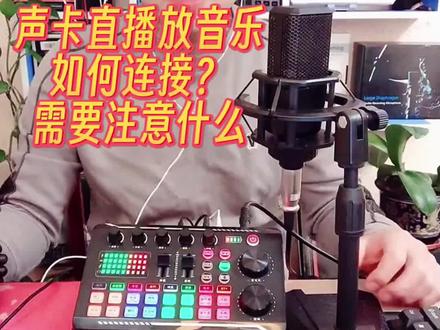 01:05查看AI文稿AI文稿
嗯,说一下这个,呃,直播声卡啊,直播的时候用电脑放音乐,需要注意的地方啊, 首先说呀,这个如何去连接?首先啊,把这一条伴奏线 啊,插到声卡的伴奏接口啊,另一端插到电脑的耳机接口啊,这是第一个方法哎,第二个方法啊,用咱们的 usb 线啊,用 usb 线也是一个道理啊。 呃, usb 一端插在声卡的电脑接口,另一端插在这个电脑的 usb 接口啊,两种方法啊,需要注意的地方来了,这两种方法 只能用一种方法,两种方法不能同时用,同时用啊,会有。呃,这个干扰电流的声音啊,需要注意一下子,这一点尤为重要,大家一定要注意啊。
8千千_ 06:11查看AI文稿AI文稿
no matter which audio interface you're using there are four basic steps you'll need to take in order to set it up in this video i'm gonna cut right to the chase and show you how to set up your audio interface for recording streaming or video conferencing the first step is to connect your audio interface to your computer this will usually be done with either a usb or a thunderbolt cable before going any further it's a good idea to test the connection to test your interface with a windows pc click the speaker icon in the bottom right hand corner of your screen and select your interface as the output device to test the connection on a mac go to system preferences click sound and select your interface as the output device if you don't see your interface listed search google for any drivers needed for your interface this can be easily done by typing the name of your interface followed by drivers in the search bar after installing the necessary drivers you should see your interface in the list in the audio options in order to hear sound you're going to need either a pair of speakers or a pair of headphones setting up headphones is easy most interfaces have a quarter inch trs headphone jack for headphones if you're using headphones with a three point, five millimeter or eighth inch plug you can use one of these adapters which i'll provide a link to in the description of the video most audio interfaces have left and right quarter, inch trs or xlr outputs for connecting to studio monitors you'll need to connect the left output to the left speaker and the right output to the right speaker quarter, inch trs and xlr are essentially the same thing just a different shape so if your interface and studio monitors both both have quarter inch trs connectors great you can use a quarter inch trs cable to connect them if you need an adapter from xlr to quarter inch trs or the other way around you can find a link to that adapter in the description below it's okay to connect your interface to your speakers with a quarter inch ts instrument cable if that's all you've got, but it will be an unbalanced connection which might lead to some unwonted noise don't worry too much because it's not a big problem at short distances now let's connect a microphone to the audio interface you'll need to use one of the mic level inputs on your interface line level or instrument level inputs won't work usually xlr and combo inputs like these are mic level inputs while quarter inch inputs like these are line level inputs that can't amplify microphone signals you're probably using either a dynamic microphone that doesn't require an external power supply or a condenser microphone which does require one if you're using a condenser mic you'll want to turn on phantom power by pressing the plus forty eight button on your interface this will supply forty eight volts of direct current to the microphone this is the preemp knob and it controls the input level of the signal you can get a rough level using the meters on your audio interface just aim for a healthy level without causing the input meter to turn red if your audio interface doesn't have meters i'll show you a better method for this later on in the video now let's configure your recording streaming or video conferencing software to use your audio interface as the audio input and output device feel free to use the shortcuts i've provided in the description below to skip to the correct section depending on which kind of software you're using if you're using a doll recording software like audacity, reaper, fl studio or pro tools the steps will be pretty much the same in reaper click options and then preferences then go to the device tab under audio and select your interface as the input and output device the next step will be to create a new track you need to set the input of the new track to one of the physical inputs on your interface i'm going to choose input one in most daws when the track is armed to record you'll see input levels from the microphone adjust the preempt knob on your interface until the peaks of the signal are at about minus eighteen to minus twelve db full scale on the meter within your software the last thing you want to do is allow the signal to reach zero db full scale because you'll start to hear the sound of clipping now you're ready to record if you're using your interface for a video call in microsoft teams or zoom you'll need to set up the software so that it uses the microphone and speakers connected to your interface rather than the speaker and microphone built into your computer this is very simple in most software in microsoft teams, i'll click the three dots next to my name in the top red corner and click settings then i'll go to devices and at the top i see a section for audio devices for speaker i'll select my interface and for microphone i'll select my interface in zoom the process is very similar right hand corner there's a gear icon to access settings it'll open a new window i'll click the audio tab and at the top i can select my interface as the system speaker and just below that i can select my interface as the system microphone i can even see levels here as i speak into the microphone the process for setting up your audio interface for streaming varies a little bit depending on the software you're using setting up your youtube, facebook or twitch stream is very similar to setting up a video conferencing app i get the option to change my camera and audio settings just before going live on the other hand setting up a streaming software like obs is more similar to setting up a doll click the plus button under sources and select audio input capture then select your interface in the pop up window if you found this video helpful hit the like button and watch the next video to learn more about getting the most out of your audio interface i'll see you there。
2德声科技 03:08查看AI文稿AI文稿
老铁们大家好,有好多的客户在收到了这款一百九十九秒杀的声卡产品之后啊,到家不知道应该如何的进行安装和使用,这个视频给老铁们做一个详细的讲解。首先咱们把所有的东西都拿出来,找到咱们的声卡,并且呢找到咱们一条咱们的直播连接线, 把直播连接线啊一头咱们插到咱们声卡的直播一接口, 那么另外一侧呢,插到咱们直播或者是拍摄的啊这个直播手机之上。然后呢第二步找到咱们的话筒连接线,把话筒连接线一头插到咱们声卡的电容麦接口, 另外一侧呢连接到咱们手持一三百的话筒之上。然后第三步找到咱们的监听耳机,把咱们的监听耳机一端插到咱们声卡的耳机 接口,切记啊,一定要插到耳机接口,不要插到咱们的耳麦接口,这样会有一些销教。然后咱们声卡后面只连接三条线啊,直播线插到直播手机上,耳机插到耳机接口,带上耳机进行监听麦克风插到咱们的话筒连接上啊,就可以进行聊天说话了。 然后里面呢会给老铁们带一个这个声卡的充电器啊,咱们可以一端插到手机的充电器头,另外一端呢连接到咱们声卡的进行充电啊,没电的时候咱们可以充电,另外一条呢是咱们的多余的备用连接线啊,咱们用不到。 然后最后一步找到咱们的手机,进入手机的设置,进入手机的蓝牙,开启蓝牙开关,他会自动搜索,搜索出叉五零,咱们点击叉五零连接即可,这边显示连接已成功,咱们就可以直接返回到咱们的酷狗音乐进行播放歌曲了, 那音乐的声音大小呢?在手机的音量键上进行调节,唱歌呢,咱们放到百分之八十的音量,聊天听歌的时候放到百分之五十音量,然后在这边搜索歌曲,想唱什么歌就搜索歌曲的名字,加上伴奏两个字,这样呢咱们播放的就是一个伴奏 声卡的调试方法,咱们把咱们话筒的高音的指针搁到咱们中午的十二点方向,指针从上中音效果指针搁到中午十二点低低音效果放到咱们下午的两点半左右。 并且呢把咱们录音音量的指针放到咱们的三点钟指针方向,把咱们的特效音量放到指针三点钟的方向,并且呢把咱们伴奏音量和咱们监听音量放到最大,然后呢咱们麦克风音量放到最大,咱们在聊天的时候可以点击咱 咱们的专业效果,混响音量放到咱们的中午十二点方向,唱歌的时候选择 ktv 模式,把混响音量放到最大,就可以实时的进行唱歌了。然后呢点击闪避效果,我说话音乐会自动变小,我不说话音乐会自动变大,是主持聊天的时候进行使用的, 然后带上咱们的监听耳机啊,进行监听所有效果,并且呢通过直播手机开启咱们快手直播或者是录制作品的手机直接开播就可以,然后麦克风进行说话,蓝牙伴奏,手机进行播放伴奏,就这么简单,你学会了吗?学会的朋友们记得双击加关注。
13小煜声卡 06:11查看AI文稿AI文稿
no matter which audio interface you're using there are four basic steps you'll need to take in order to set it up in this video i'm gonna cut right to the chase and show you how to set up your audio interface for recording streaming or video conferencing the first step is to connect your audio interface to your computer this will usually be done with either a usb or a thunderbolt cable before going any further it's a good idea to test the connection to test your interface with a windows pc click the speaker icon in the bottom right hand corner of your screen and select your interface as the output device to test the connection on a mac go to system preferences click sound and select your interface as the output device if you don't see your interface listed search google for any drivers needed for your interface this can be easily done by typing the name of your interface followed by drivers in the search bar after installing the necessary drivers you should see your interface in the list in the audio options in order to hear sound you're going to need either a pair of speakers or a pair of headphones setting up headphones is easy most interfaces have a quarter inch trs headphone jack for headphones if you're using headphones with a three point, five millimeter or eighth inch plug you can use one of these adapters which i'll provide a link to in the description of the video most audio interfaces have left and right quarter, inch trs or xlr outputs for connecting to studio monitors you'll need to connect the left output to the left speaker and the right output to the right speaker quarter, inch trs and xlr are essentially the same thing just a different shape so if your interface and studio monitors both both have quarter inch trs connectors great you can use a quarter inch trs cable to connect them if you need an adapter from xlr to quarter inch trs or the other way around you can find a link to that adapter in the description below it's okay to connect your interface to your speakers with a quarter inch ts instrument cable if that's all you've got, but it will be an unbalanced connection which might lead to some unwonted noise don't worry too much because it's not a big problem at short distances now let's connect a microphone to the audio interface you'll need to use one of the mic level inputs on your interface line level or instrument level inputs won't work usually xlr and combo inputs like these are mic level inputs while quarter inch inputs like these are line level inputs that can't amplify microphone signals you're probably using either a dynamic microphone that doesn't require an external power supply or a condenser microphone which does require one if you're using a condenser mic you'll want to turn on phantom power by pressing the plus forty eight button on your interface this will supply forty eight volts of direct current to the microphone this is the preemp knob and it controls the input level of the signal you can get a rough level using the meters on your audio interface just aim for a healthy level without causing the input meter to turn red if your audio interface doesn't have meters i'll show you a better method for this later on in the video now let's configure your recording streaming or video conferencing software to use your audio interface as the audio input and output device feel free to use the shortcuts i've provided in the description below to skip to the correct section depending on which kind of software you're using if you're using a doll recording software like audacity, reaper, fl studio or pro tools the steps will be pretty much the same in reaper click options and then preferences then go to the device tab under audio and select your interface as the input and output device the next step will be to create a new track you need to set the input of the new track to one of the physical inputs on your interface i'm going to choose input one in most daws when the track is armed to record you'll see input levels from the microphone adjust the preempt knob on your interface until the peaks of the signal are at about minus eighteen to minus twelve db full scale on the meter within your software the last thing you want to do is allow the signal to reach zero db full scale because you'll start to hear the sound of clipping now you're ready to record if you're using your interface for a video call in microsoft teams or zoom you'll need to set up the software so that it uses the microphone and speakers connected to your interface rather than the speaker and microphone built into your computer this is very simple in most software in microsoft teams, i'll click the three dots next to my name in the top red corner and click settings then i'll go to devices and at the top i see a section for audio devices for speaker i'll select my interface and for microphone i'll select my interface in zoom the process is very similar right hand corner there's a gear icon to access settings it'll open a new window i'll click the audio tab and at the top i can select my interface as the system speaker and just below that i can select my interface as the system microphone i can even see levels here as i speak into the microphone the process for setting up your audio interface for streaming varies a little bit depending on the software you're using setting up your youtube, facebook or twitch stream is very similar to setting up a video conferencing app i get the option to change my camera and audio settings just before going live on the other hand setting up a streaming software like obs is more similar to setting up a doll click the plus button under sources and select audio input capture then select your interface in the pop up window if you found this video helpful hit the like button and watch the next video to learn more about getting the most out of your audio interface i'll see you there。
4德声科技 08:03查看AI文稿AI文稿
in this video i'm gonna walk you step by step through the process of setting up your audio interface for the very first time i'll show you how to connect your interface to the door and your computer i'll show you how to connect speakers to your interface and i'll demonstrate how to record a microphone into guitar i'll use a focus right starlet two i two interface for this demonstration but the steps in this video will apply to nearly every interface on the market if you're new to this channel i'm tyle you can learn audio production online by checking out the weekly videos i post to audio university online com if that sounds interesting subscribe below when you open the focus right scarlet two you find the interface itself and the usb cable for connecting it to your computer the first step is to connect the interface to your computer using the included cable you may need to download the most up to date driver for your interface you can find this easily with a quick search in this case i'll search focus right scarlet two i two drivers the first result is a link to the manufacturer's downloads page that lets me easily search for software related to my interface the focus right control app is the only download available for the focus right scarlet to i too however some interfaces will require the most up to date driver to work properly with your computer if you're using a new interface or picking up an old interface for the first time in a long time it's worth a quick search to see if there are any updates to the current driver on your computer if you want all of the programs on your computer to play audio out through the interface select the speaker symbol in the corner of your screen for mac users search sound in system preferences this will allow you to control which speakers are used for audio from web browsers or music applications select your interface as the audio output device you may need to additionally select the audio interface as the input and output device of the software on your computer called a digital audio workstation or daw, this process is very similar in most dawes i'm going to show you in reaper that it's probably a similar process no matter which software you're using in reaper i choose options in the top menu bar and then preferences in some software preferences can be found in the edit drop down menu you want to set the audio hardware for the doll to the audio interface you're using the next step is to create two tracks in your doll you can usually find this option under track or add in the menu bar i'm adding two monotrax so that the inputs to the audio interface will be recorded separately on one of the monotrax i'll select input one and on the other monotrack i'll select input two if i configured it so that both physical inputs input one in two on the audio interface recorded to a single stereo track i would probably end up with one input on the left and one input on the right and i don't want that that's why i'm choosing to select two monotrax and configure it so that input one is routed to track one and input two is routed to track two now that we've connected the audio interface to the computer, it's time to get audio in and out of the audio interface the first thing i'll do is configure the output devices my headphones and my speakers if you just want to use headphones simply plug them into the headphone jack on the front panel this small knob controls the output level of the headphones this larger monitor knob controls the output level of the quarter inch outputs on the back panel i can use a quarter inch trs cable to make a balanced connection to both of my speakers at this stage you can test the audio output by playing audio from the web browser or another program on your computer such as a youtube video now it's time to record i'll use input one to record assure s in fifty eight as a vocal microphone and i'll connect a condenser microphone to input two for recording acoustic guitar if your interface has a mic level line level switch switch it to mic level the condenser microphone needs phantom power, but the sm fifty eight doesn't need phantom power there is only one switch on the two i two that turns on phantom power to both inputs, but don't worry phantom power won't damage a dynamic microphone like the sm fifty eight before recording a microphone make sure to turn the monitor knob all the way down to prevent a feedback loop from forming between the microphone and your speakers you'll want to use headphones for this step inside your dough you'll need to arm the tracks that you plan to record this can be done by selecting the red circle next to the track once both circles are illuminated start to increase the pre amp。 gain knob on each microphone while singing or playing the guitar turn it up until the meters on the screen peek at no higher the negative twelve decibels full scale or db fs aim for the signal level to average at about minus eighteen dbfs you may notice a significant delay when listening through the daw, this can make playing impossible the two i too has a cool feature called direct monitor which routes the microphones directly to the headphones with very low latency i'll switch this function on so that i can hear the microphones through the headphones if you're using the direct monitor feature on your interfall face mute the tracks within the daw, so that you don't hear an echo once you've set your levels and you see the signal on each channel meter in the daw, it's time to press record after you record you should see waveforms like this rewind the track turn off the record arm on each channel and press play if your audio device settings in the daw are correct you should hear the recording playing through your speakers if you don't hear your recording playing through your speakers at this point you should go back to step two and make sure that the audio output device for your daw is set properly okay, so i've got a basic guitar and vocal recording let's say i want to go back an overdob and electric guitar on top of these two tracks first, i'll make a new track let's select the input of this track as input one on the interface i'll unplug the old microphones and turn off phantom power plug in my electric guitar directly into input one with a quarter inch ts instrument cable i'll make sure to set the line instrument switch to instrument the process is the same as recording a microphone from this point this time i'll only arm the track i'm recording to which is track three i want to offer you a free home studio checklist to make sure you've got everything you need to make professional sounding recordings at home you can find this checklist absolutely free at audio university online com free home studio checklist if you got value out of this video hit the like button check out the next video that's coming up and for more content like this subscribe to audio university。
9德声科技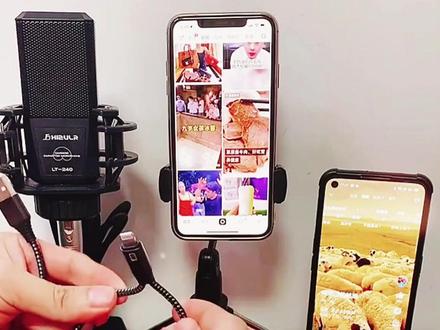 01:00查看AI文稿AI文稿
声卡你会玩吗?手机没有耳机圆口, otg 连接应该如何去安装?首先我们找到 otg 的连接线, type c 扁口单头插在声卡后方带有 otg 标识的插口上。 otd 连接线另一端双头的可以直接插在咱们前方开直播。手机 usb 插在手机的充电器上,可以给手机声卡阳台同时去充电。麦风连接线,大头连接麦风,小头三点五的插在声卡后方,带有电容麦标识插口。 监听耳机插在声卡后方带有耳机标识的插口上。另一端我们开直播,戴在耳朵上去做监听使用。找到第二部播放音乐的手机,在手机里打开我们的设置蓝牙, 把蓝牙开关打开,最下方可用设备搜索 f 九九八,点击连接 配对,连接成功之后,我们就可以直用直接用第二部播放语音的手机去播放音乐。前方手机开直播了,你学会了吗?
23小煜声卡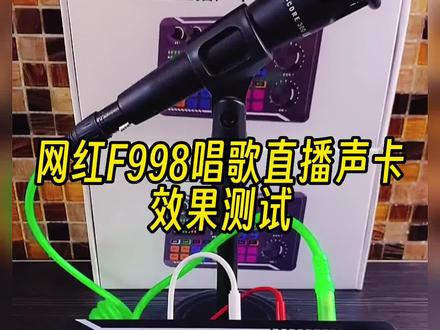 01:32查看AI文稿AI文稿
哈喽好朋友们大家好,今天呢给老铁们测试一款新款的调台声卡直播设备啊,咱们先测试本场效果。 哎呦我的妈,哈哈哈哈哈哈么么哒么。哦吼,我太难了。 大哥大哥欢迎你。感谢你来我这里。哈哈哈哈,欢迎光临本直播室,请继续关注。 现在呢,是咱们的变声一,咱们的变声二,然后呢?咱们的变声三,嗯,还是咱们的 变声器。那么此款声卡呢?拥有 ktv 电音以及 mc 喊麦流行专业录音棚,原声效果一键切换啊。并且呢支持蓝牙手机无线播放歌曲。闪避打开说话的时候音就会自动变小,不说话的时候音就会自动升起。并且呢点击消音可以把手机播放的歌曲进行消除。原声麦克风静音模式啊。 此款声卡的高中低音可以按照每个人的声线不足进行一个完整的修饰。包括呢咱们直播间音量大小,特效音量大小以及麦克风和混响的音量均可调节。 声卡的后面接口啊,是非常的丰富啊,充一个小时电,使用时间四到五小时。连接电脑接口可以进行电脑直播电脑播放歌曲,并且可以三部手机同时进行开启直播。有线无线蓝牙播放歌曲。包括咱们的耳机接口,耳麦接口,话筒连接接口。
18千千_ 01:12查看AI文稿AI文稿
过声卡和准备买声卡的家人们,这个视频教大家收到声卡后如何连接手机直播或拍视频。首先我们把耳机插声卡的耳机接口,再把话筒线大头插到话筒卡农接口,小头插到声卡的电容麦接口。 最后拿出直播线,一头插到声卡的 otg 电脑接口,另一头插到我们用来直播或拍视频的手机。插手机之前先把手机保护套取掉,这样我们直播手机就接好了。还有另一种情况,如果你是有缘的耳机孔的手机, 那就拿出这条三点五毫米接头的音频线,一头接声卡的直播一或直播二,直播三都可以,另一头插到手机的圆的耳机孔就行了。伴奏放音乐怎么接?如果你要用另一台手机放音乐,我们拿出另一台手机和一条音频线, 一头插声卡的伴奏接口,另一头插手机的耳机孔就可以了。我们也可以不接线,用蓝牙无线连接来放音乐。 直接打开手机的设置,找到蓝牙,打开蓝牙,搜索到我们声卡的蓝牙信号 f 九九八,点击连接。那这样直播的手机和放音乐的手机都连接好了,都学会了吗?选声卡。
 00:52查看AI文稿AI文稿
咱们用电脑来播放一首歌演示一下。比如说唱歌的时候可以打开 ktv 或者其他的模式,你喜欢的模式,你觉得合适的模式都可以。 哈哈哈哈哈哈哈哈哈哈哈哈 光临本直播室!
11懿农库 00:52查看AI文稿AI文稿
哈喽,老铁们好啊,下面呢,给老铁们录制一个咱们的 f 九九八声卡平台 o t g 连接应该如何连接?首先呢,我们找到我们的 o t g 线,两头都是 type c 扁口的,一端插在咱们声卡的 o t g 电脑口,另一端连接我们开直播手机上就可以了。 找到我们的麦风线,大头连接麦风,小头三点五插在声卡后方带有电容麦标识插口, ok, 插在上面。找到我们的监听耳机, 一端连接咱们声卡后方带有耳机标识插口,另一端戴在我们自己的耳朵上去做监听使用。可以了,声卡阳台后方就连接三根连接线,一根麦克风话筒,一根监听耳机监听,一根 odg 连接啊, 非常简单,连接成功之后,我们声卡同台按住三秒开机,开机之后我们可以找到第二部播放音乐的手机,无线蓝牙连接声卡播放音乐,你学会了吗?
7千千_ 00:43
00:43 00:35查看AI文稿AI文稿
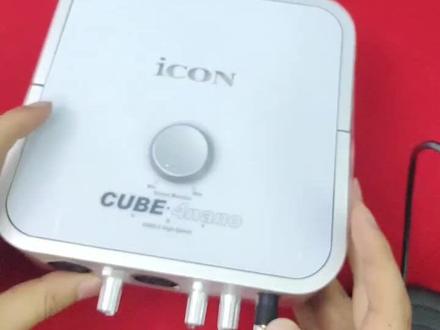
雷他专业版声卡操作方法,麦克风插到电容,麦耳机插到耳机孔,直播线插到直播一、直播二、直播三都可以。直播线另外一头 插到转接线,再插到我们的手机充电接口,或者有耳机孔的手机可以直接插到我们的耳机孔,注意硅胶皮套条,把它取掉,以免插不到位,接触不好,影响我们的直播音质。 f 九九八有 otg 直播口,我们把 otg 线插到我们的直播 otg 接口另外一头插到我们的手机充电口,就可以通过 otg 直播线高清直播。
 00:46查看AI文稿AI文稿
他的一个接口是怎么样的呢?他是一个多功能的一个卡龙口,为什么说是他是多功能呢?他既可以插啊,那种四十八伏电容,还可以插动圈的啊,还有就是你插动圈,那个四十八伏的开关不要开,开了就少了。还有一个啊,六点三五的一个插头, 我们动圈一般是六点三五的,我们可以直接啊插到这个插口里面,这就是动圈的啊,动圈记住不要开四十八伏供电。 这个就是我们木头的卡龙口啊,我们直接给他插上啊,这种话筒一般都是需要四十八伏供电的啊,因为咱们这个是一个专业声卡嘛,你要用也是用大增膜的一个话筒,不可能用小增膜的啊,这个就可以同时插一个大增膜的电容啊,一个洞圈话筒。
10海乐音频 02:29查看AI文稿AI文稿
今天给大家测试手上这款九九八声卡,咱们造就啊,原来的那只麦克风,加上声卡通过 ot 机线转到手机里录音, 你们在直播间听到的效果应该和这个是一样的,咱们觉得这个声音好听的,在评论区打个好听不好听呢?咱们在评论区打不好听。接下来咱们测试一下这个声卡的混响效果啊,找个伴奏 专业模式 流行。 这款声卡呢,他有两个优点,第一个优点呢是可以分别的独立调节,高音啊,高音调节, 中音中音调节啊,还有低音低音调节,分别独立的都能调节,但是幅度稍微小了一点啊,但是能调能调啊。然后第二个优点呢,他有独立的这个啊,特效音的音量调节啊,我们把这个试一下啊, 哈哈哈哈哈哈哈哈哈。最后咱们说一下这个声卡的小小缺点,那第一个缺点呢,就是说他这个 只能插一支麦克风,可能是因为价格的原因吗?这个声卡比较便宜啊,他只能插一支麦克风啊。那第二个呢,就是说我们把降噪关闭。
 07:09查看AI文稿AI文稿
saragassi shamoqui cannibita, hojikominsamuajistrak walker tutorial paspega via grande leenik from a fun sunna kristamakina, i'm acting a mole to say implicit ozara in manuala and more to complete the ostivo hiku monka disori, turfan, seonisono and disarma developed the autopreme demand queen d nonjisono probably me parentaroto lizara hit bibit the tutorials bigger and polological difference in them into the lama kina boy paranda and the detail of your main tv concilio, i'm a discarried carola to humantosiana get put to the trovata the pajina, the bibit casitor of a sue, woo woo woo boonto and metrotino live boonto form navarioling partiamoda logic a difference in a mentor that will be beat it be beat commissapete eriproduch back in tracks finosa, this tarachi mono in cma partia audio queen in cm aparta delabic in tracks audio koriprodorahanke unvideo synchroniza tokula musica hey, when file the formatomedi capable containera lavare in formath unique, they wanna should call out a short palko paradata missadio landsada system yes, cruisini, i varied the vice cube to the yamapolonos performance quindy, how do you video immediately crisisrono, he filed principalic personness rosarticon he'd be bit of your maintain alivale defil audio he formatisrono variati push your monday down same present petra stereo on file investing format to wave or totally altered uh, it was in the defilao ducon and diversity formatic sonology disponibility popular demi file multi threat queenie very approprifile due to sono tracese parathe like when the persianos register could be bit callamashima de berthao in una, when una dequested trasha portraiser mixata, i was the pha made just on the famous say you sheet the separate okay personal in the restart evaluate canalyale should mix this other 妈哎 tutor parking one of the more the principal pear thrush varier it material out your video immediately i'll intern on the vivid lashutana attravas route is the computer okay do you come into levo strategia audio saran karakatama what is that this saran kaku is through it if you come into cone computer with a samophire quality passage and institute to coma she called a bibital computer she's on a diversity modalita alarm modalita push aim pressure equal a decoligualdi retiment condit kabok in a four needle a package on kabo durate giving a colleague after the retirement our computer quandu computer are lingerasudirate peter revolt because lingerasudirate represent a poor posha motilizer on a bucket potter bass rank more democraconos reach consented the edge steeral arit and internal because of austria an internal austral studio inquest to casual utilizama ponto questo harbordirator insider i'm going they'll be beat hey in question moment it'll be beat a colleague to an nostril computer latter model it up alcoliga, it'll be beat equal a duty is that a lapena wi fi k on optional it'll be beat an optional for need to dim live okay, see insuration and lose lot the decato simpson panel that's to the bibita a threshold appender wi fi pushama kuligarchi, alarita wi fi de kaza or the retirement halla halla happichi queenly this i'm okay quest the diversion with a little permit to know who not share the flesh abilita canada can be added at the travibit a computer on a party from the entirely the bibit sour softer is you can a bibit manager and softer kjrcr sopuchi kasumak appear democraticatoloprima scaramata then moment in koeyandiama colaga in nostrobibit, al computer chaos peter hila softer your computer andra are provar an elerator in bb koligat bilivato he'll be beaten across the ponto poshamokoligatic on its software hey peditica inquest to kazu here or la visual is the theon a dequelly cash on a project audio cash on a present tell internal debit in question modelita he'll be beat sustantial mint in the internal device per seat work in the in a control lot of total mental computer to tell your parents unique about your father and the question i'm into employ should computer verano derek thraspheree that should be beat queenie see your, but also currently projectiatio say photopathiera on a playlist say organizo no show what's your sea your parasitic factual internal little software being a death mental trust varita should be beat quini recapitalando cristoprem apart relative alcona shioni persimmo hulaga will be beat the traumatic caveduret here at the middle computer or trauma nab opura attroversiolarita wi fi utilizando questa penna ko not so sorio this bonibi in a cataloguam alive she came a hemapen keep wester to lisa suvari productim life and k should be beat with the panel sql league are hilaratic we need parameditifier questo scambio of your mentor said missionartos video and archiv your corposal giga giga the materiala he could liga me into yakarvo and more to puberlata respect to jalapen pharaoh hmm the parasinitos vermindush profile tranquila maintaic on a pen hmm net persimmo tutorial whether a more kome she personalized theory file echoma rangon crosseverity file that computer director mental internal division but when we went to wearing graph here and solo to them alive。
3德声科技 00:49查看AI文稿AI文稿
会调声卡吗?其实根本不用调,长按这个红色的按键,三秒钟他就会开机松手。然后呢,把这一个话筒线插在声卡,写有电容麦的接口,耳机插在声卡第三个接口,写有耳机的接口。 这是直播线一头插在声卡的直播接口,另一头插在手机的耳机接口。这就可以了,不用调试。蓝牙连接手机播放伴奏。
82钱多多百货


