filmic pro最全教程
hello and welcome to the filmic channel filmic prov7 is finally here on both ios and android, and we are so excited to share it with you now let's dive in and take a look at what's new informed prov7 starting with the redesigned interface when you first launch filming pro v7, the first thing you will notice is the beautiful interface redesign and it has been fully optimized for both the landscape and portrait orientations so unlike v6 there is now complete feature parity between landscape and portrait our signature focus and exposure reticles are still front and center, but now use a beautiful and rather fitting tangerine color when unlocked and have improved lock and unlock animations to make the reticles stay even clearer v7 also better utilizes the negative space on wide aspect devices which is now home to familiar elements like the imaging button, audiometer and record button as well as two brand new elements the mode and audio buttons if i tap the mode button it will present the new mode cam and cam is sure for quick action model this is a brand new signature element available throughout the seven that sits at the bottom front and center of the interface giving you quick access to core functionality without requiring you to die through settings looking for it the mode came allows you to quickly switch between three discrete focus and exposure modes without relying on hidden gestures which are still there by the way for mixed reticle states to dismiss a cam just tap outside it to close the audio button will reveal the audio cam which allows you to set your microphone input adjust the game by the input game slider and offers the ability to enable and disable automatic gain correction you will notice that b7 by default uses a simplified audio meter it still has an integrated game slider so you can adjust your audio input game directly on the meter itself, but if you tap on the vu meter, you can now switch between simple and pro audio meter presentations now let's have a look at the main viewport in the lower left is the all new lens picker cam which allows you to quickly switch lenses by the slider or dedicated buttons it also includes a beautiful field of view indicator and lens descriptor readouts next to it is the remote cam which allows you to quickly enable support free the remote control or just sent a clean fee to a second device running our companion out filmic remote for monitoring purposes the medallion has also been streamlined in v7 and when tapped offers brand new rgb histogram and wayform visualizations in the lower right is the brand new live analytics cam which will help you attain perfect focus and exposure through our signature assist visualizations that are applied in the preview only zebras have been updated to offer a lovely animated visualization false color is now more advanced and uses the same scale as high end cinema cameras and the focus peaking analytic has been fine tuned for an even better experience the settings menu has been relocated to the upper left of the viewport with some submenus being consolidated for a better experience for example the video menu is now home to both encoding and frame rate settings you can tap anywhere outside of settings to close and brand new to lee 7 in the upper right of the viewport is the custom function button every filmmakers needs are unique and this feature allows you to assign a custom function of your choosing for lightning fast access right in the main ui after a clean installer film pro just tap once to assign either one of the nine top level presets or for a full list of all available functions tap the plus button in the upper left here related functions are grouped for convenience and each includes the description you have dozens to choose from my personal favorite is play last clip which when press will automatically play back your last recorder clip full screen great for ensuring you got the shot if you want to map a new function to the custom function button just long press to reveal the picker again you can expect the support of custom functions to continue to expand as v7 evolves one of the most popular requests web received from filmmakers is the ability to monitor key values while recording like iso shutter, speed white balance and more as a result thelmic prov7 adds the action cider which can be revealed by tapping the chevron in the top center of the interface this provides a real time readout of your iso shutter speed white balance available record time remaining in minutes based on your current shooting configuration your current capture format and lastly your selected gamma curve as your scene changes these values will update in real time ensuring you know exactly where things stand lock states are also indicated here if i tap to lock the exposure reticle these values are clearly displayed as being locked in the action slider and the same goes for white balance if i lock that under the imaging panel this is reflected in the action slider too, but the action slider isn't just a static readout it also offers access to an incredibly powerful suite of new quick action models tapping iso will reveal the iso cam which supports three input methods you can use the cider at the top tap on one of the eight iso presets with the base iso supported bio lens in first position and by popular demand film mcprobe seven now supports numerical keyboard input simply tap either iso value readout to type in your desired iso this makes it easy to jump to the exact value you need just tap the tick to accept tapping the shutter speed value will open the shutter cam what is really nice about this cam is that you get both your shutter speed readout and the equivalent shutter angle just like with the iso cam you can use the slider to make adjustments or choose from one of the four presets which includes a 180 degree shutter for cinematic motion blur and of course you can tap the shutter angle indicator to input your desired angle via keyboard or tap the shutter speed readout to input your desired shutter speed numerically by the keyboard stopping the white balance element in the action slider will reveal the stunning new white balance cam on the left you have a matrix coordinate visualization that will respond dynamically to temperature adjustments made with the temperature, the coven slider and the tint slider beneath it running along the bottom are four predefined presets two custom user presets and of course the awb button that lets you cycle between order white balance in blue locked white balance in red an autolog record in orange and just like the iso enshutter cams the white balance cam supports numerical input 2 just tap the calvin value or the tint value to type in your desired setting minutes remaining and capture format do not have a dedicated cam the tapping either will take you directly into your video settings which can of course be used to extend or short and available record time based on your chosen resolution, bitrate and capture format lastly tapping the gamma curve element in the action slider will reveal the curve cam which quickly lets you choose your gamma curve if you don't need a constant readout of these key values just tap the chevron again to hide the action slider and lastly one of the key improvements in v7 is around manual controls with brand new manual sliders replacing the arcs from v6 offering a more responsive user experience and greater fine green control over manual exposure if i tap the mode button and select manual mode from the quick action model it will reveal the new manual controls on the left hand side we have a manual slider that offers control over four discrete values the first is zelvie and this should be familiar to all filmmakers who have used the prior version of filmic pro here shutter speed and iso are adjusted concurrently making it ideal for quick adjustments we provide a real time readout of your current iso and shutter speed next to the slider to the left of the slider we can swipe to switch to iso control this will control iso only the iso value display to the right of the slider next we have s which stands for shutter speed and this allows you to input your desired shutter speed without it affecting your iso value and lastly we have z or z which allows you to control your digital zoom using the slider on the right hand side of the viewport is the dedicated manual focus slider that makes focus adjustment abreeze on both the zoom and focus sliders you will also notice our new very bright and bold pullpoints which allow you to automate focus pulls and zoom moves to automate a focus pull start by setting your first focus point then tap the centi yellow position marker which will snap the closest pulled point into position next set your second focus point and tap the centi yellow marker again to snap your second pulled point into position now tap either scion or magenta pullpoints to automate the focus pull we hope you enjoyed this first look at what's new in film mccrovese v7 dot zero lays the foundation for an incredibly exciting future road map of new features that will be added regularly to the app so make sure you subscribe to our youtube channel to be notified as their release along with other exciting announcements thanks so much for watching and we look forward to sharing more content with you soon。

粉丝905获赞1370
相关视频
![[Filmic Pro最全教程]4 设置菜单](https://p3-pc-sign.douyinpic.com/image-cut-tos-priv/8d7ffeb761a445e12149efb19de85d98~tplv-dy-resize-origshort-autoq-75:330.jpeg?lk3s=138a59ce&x-expires=2096478000&x-signature=bQptYlL4IFHyl4V74kqOZIWpAOg%3D&from=327834062&s=PackSourceEnum_AWEME_DETAIL&se=false&sc=cover&biz_tag=pcweb_cover&l=20260611032647F3F3618C2C0E6CAD2D8D) 14:27
14:27 03:12查看AI文稿AI文稿
今天呢给大家介绍一下我们手机直播常用的手机镜头控制软件 filmet pro。 那么 呃,拿到软件之后呢,我们首先第一时间要去做一些设置,首先打开我们左上角的一个小齿轮标志,他是我们的一个设置菜单,我们可以在里边去做一些基础的设置。视频我们选择幺零八零巴比特, 帧速率我们根据我们的需要选择六十或者三十帧。那音频模式我们可以去选择我们的音频记录格式和我们的采样率。音节设施呢,我们一般要把清洁的 hdmi 输出给选择,把它 去重新做一个设定。好, nice, 设备里面呢,我们选择把方向锁定给打开, 稳定性这块呢,如果说是我们是三脚架去做拍摄,那么选择把它关掉。预设呢是,如果说你是多场景,可以把它去做一些保存, 其他的一些参数呢,一般我们使用不多就不再介绍。好,看一下如何去快速的操作, 首先中间的圆形我们去点一下,可以去锁定,包括方框也可以去锁定,圆形是控制我们的曝光,方形呢是控制我们的变焦,在我们的上方我们也可以去点击锁定它,并且去 去弹出的快捷设置里面去选择不同的一个参数。好,这边呢是色温,我们可以去调我们的画面的一个色温,还有我们的一个冷暖。 其他的呢,可以在我们的,也可以在我们的一个注册小方块里边去做我们的一个设置,包括这里的。呃,下边会有一些不同的白平衡和色纹模式。 好,以上呢就是我们常用的一些设置方法和参数。好,我们我们的一个左下角有一个镜头的一个选择器, 大家可以在里面选择不同的焦作镜头,广角和长焦可以根据自己的画面做不同的选择。 那么我们的还有我们的右上角有一个快速控制的一个呃按钮,控制他,我们可以去选择我们不同的一个对焦和控制模式,就是中心模式和我们的手动模式。手动模式呢,他会在两侧跳出我们的快速的一个滑块, 你可以去通过控制这个滑块快速的控制我们的对焦和我们的 iso 和我们的快门等等一些参数。 好,以上视频就给大家分享到这里,更多内容请关注我,谢谢大家! bye bye!
 00:53查看AI文稿AI文稿
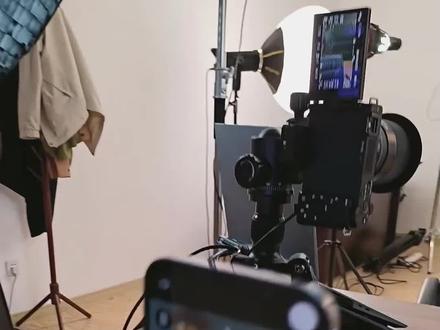
我们的软件名字叫做 fail mac pro 啊,那这个软件可以调整哪些参数给你们看一下啊?可以调节你画面的亮度,我们点击 iso, 那如果说你希望你的画面亮一点怎么办?你可以去把 iso 的数值呢往上去拉一拉。 如果说你希望你的画面暗一点怎么办?可以把 iso 的竖直呢往下压一压就可以了,然后还可以调节快门色温颜色,你去点击右下角这个彩色的小方块,在这里呢,你可以调节饱和度,然后还可以调节 高光和阴影,然后在这里还可以调节它的色温和色调啊,色温是调整我画面冷暖去用的,色调可以调节你的画面偏红一点还是偏绿一点都没问题啊。 然后刚给大家演示的三颗镜头怎么选的问题是不是,那怎么选呢?你可以点击这里啊,长焦用来拍坐播,广角用来拍站播,超广角用来拍虎外就可以了,三颗镜头你可以分别进行选择。
327贸登专业直播间搭建 00:26查看AI文稿AI文稿
你用这个软件还能够顺带把哪些问题解决掉?你手机直接开播,没有办法去调整亮度的问题,没有办法调整颜色的问题,我们怎么调?我们调亮度,点击 iso, 我们调颜色,点击小色块,可以调色温,可以调色调, 还可以调高光,还可以调阴影,还可以调饱和度,还可以选择不同胶段的镜头,还可以调快门。兄弟们啊,这个软件好不好用?
 02:16查看AI文稿AI文稿
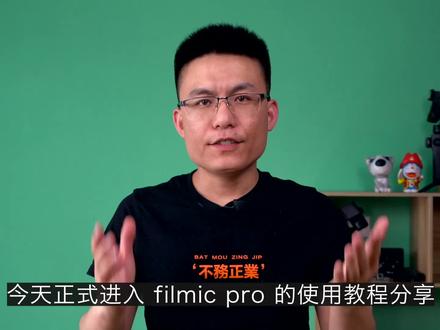
今天正式进入 feel max 实用教程分享,大家好,欢迎回到酒鬼短视频延禧社,我是梅晓东,你看到的主界面可能是这个样子,也可能是这个样子, 区别在于左右两侧是否有额外的显示条。这个主要是由你手机屏幕的长宽比来决定的,如果长宽比是十六比九,就不会有显示条。如果长宽比大于十六比九记 所谓的全面屏手机就会出现显示条。左侧显示条中分别包含当前码滤、可拍摄时长以及当前的色温值。 右侧的显示条实时显示音量大小, l 是左声道, r 是右声道。音量表下方的 int 表示当前使用手机内置麦克风收声,外接麦克风时会变成 ext。 页面中的圆圈用来控制曝光, 方块用来控制对焦,单击他们可以锁定曝光对焦,双击则可以进入自动模式。右侧是快速缩放滑杆,可以实现数码变焦效果。 主界面左下角的三色圆环是成像面板,可以调整白平衡色调、色彩特性以及启用 logo 模式等。总之,和色彩相关的设置选项被整合在这里。 沉香面板的右侧是切换手动控制的按钮,点击可以调出手动控制快门速度、 so 以及手动控制对焦点。画面缩放了滑杆。 手动控制按钮右侧是实时分析选项的呼出按钮,点击他,页面的顶端就会出现四个选项,这些选项需要配合手动曝光、手动对焦一起使用,用来更加精确的调整曝光和焦点。屏幕下方中间区域则是重要的参数显示区, 这里会显示当前的增速率、分辨率、片段拍摄时长、电量以及剩余存储空间等。轻轻点击该区域,还可以切换直方图、 rgb 直方图、波形图。 这里有一个经常被人忽略的小滑杆,是用来手动调节麦克风的争议。如果滑动到最左侧,你拍摄的视频就会没有声音。 参数显示区的右侧三个按钮分别是设置菜单、素材管理库、录制按钮。下期我们会分享各个功能的详细使用方法。如果你喜欢我的作品,记得三点,本视频我们下期见。
536九尾短视频研习室 01:15查看AI文稿AI文稿
hi, my name is cassius, rainer and i'm a filmmaker and i friendsomatographer so today's video is gonna be about filming interviews how we use the mobile phone and the filmic pro app and in particular we're gonna look at some of the methods that i use in the way that i actually capture interviews so let's dive straight in so as many of us probably already know mobile phones have a lot of issues on the low light and it's a all about how much light source you need to control the environment you're filming in so this is where different aspects of lighting comes into it three point lighting or using a single light or even if you're going to use natural light source may be coming from a window, so the basic principle is with three point lighting is that you have your key light, your fill light and your back light, but there's also a fourth and a fifth light which i tend to use in that particular situation if i happen to be shooting a three point lighting setup and the full flight i use as my prop light, so i'm looking for maybe something on the location that i can use in the background。
60九尾短视频研习室 00:55查看AI文稿AI文稿
连接 fiumeic pro 为了匹配 smoo4, 你需要连接 app, 保证手机蓝牙开启,但请注意不要连接智云 app。 打开 fiumeic pro 的 app, 打开设置菜单,点击 higware 开启智云。 smoose, 开启后所有 smoose 都会出现,点击你的机型进行匹配, 匹配成功后屏幕顶部会出现通知。模式介绍 fumicro 和苏斯的兼容精髓在于有三种拍摄模式,通过拨盘中间的模式切换键自由选择,匹配成功后默认式标准模式。在 fumicro, 方框是对焦框, 框是侧光框,你可以分别调节两个参数,让拍摄更加随心。侧光框和对焦框为白色,代表焦点和曝光。没有锁定任何一个框,都会随着任何变化而变化。点击拨盘上的左按键可以锁定侧光框,锁定后为红色。点击拨盘上的右按键可以锁 锁定对焦框,这种设定有利于拍摄过程中避免出现曝光过度或者失交。再次点击拨盘上的左按键解锁侧光框,点击右按键解锁对焦框。
2060智云
![[Filmic Pro最全教程]6 filmic其他app](https://p3-pc-sign.douyinpic.com/image-cut-tos-priv/4f80fd27b338593d61ed5876ee88fccb~tplv-dy-resize-origshort-autoq-75:330.jpeg?lk3s=138a59ce&x-expires=2096478000&x-signature=jSknYHS5H4OjBShxn1Y2i8CqBLA%3D&from=327834062&s=PackSourceEnum_AWEME_DETAIL&se=false&sc=cover&biz_tag=pcweb_cover&l=20260611032647F3F3618C2C0E6CAD2D8D)


猜你喜欢
- 239野渡