
粉丝1247获赞1.8万
相关视频
 03:34查看AI文稿AI文稿
hey guys in this video i'm spending the show how to connect the smooth controller to a ps4 or a row of ps posting so for the time you need to have this table so you need to get this cable? this is usb type b so you can see this lettuce here usb type b and it should be like this so this is the cable actually you need so i'm taking this and i need to insert this first with this usb type cable so in order to connect right to ps4 so i need to connect this then now i need to connect this so already i have insected the cable right so i have ps4's name and pro so i need to insert it once insert that right you can see whether it is charging or not this red light should blink if it is blinking means it is charging properly so now i'm going to try to connect this so now once it's blinking right i need to again connect this i need to press this yes butter now you can see my monitor i'm in tv i'm pressing this i think it's connected to log into the particular user i need to press hagging this ok button this is ok button this ok button i need to press it so now you can see is just charging actually, so it's charging you should charge at least turn out to take complete backup and i'm going to do with another one i have another use with ib cable it is available in amazon so same thing i need to insert and you can set this cable so another cable i'm going to insert it so another cable i'm going to insert it so you can see this linking so i'm gonna just kind of how i'm going to connect with that same way i need to press this ps button here so now it's changed so which user id you want to use it just saying okay so both are charging as well, so see these two cable right i can move forward also you can wear finger whether the move controller is connected so you need to go to settings by pressing x and go to this devices here at the bilbo buck, there is this you ever selected so two motion controllers has been added here so this is bill if you want to disconnect this press and disactive and then that's it now i am able to connect hope this video is very much so thank you so much for watching please for the comments and feedbacks made it well, thank you bye。
36许昌洋洋电玩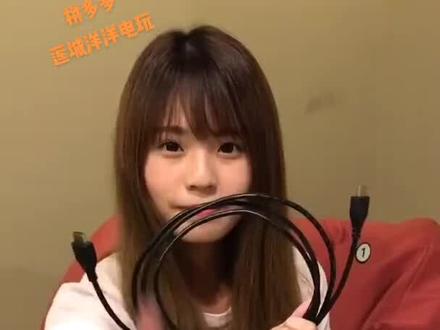 01:11
01:11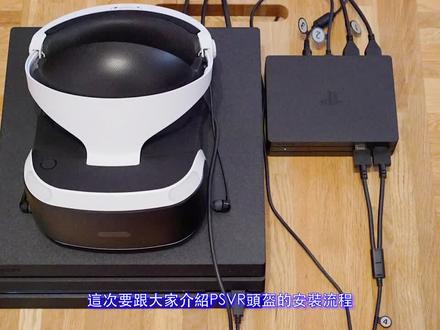 02:26
02:26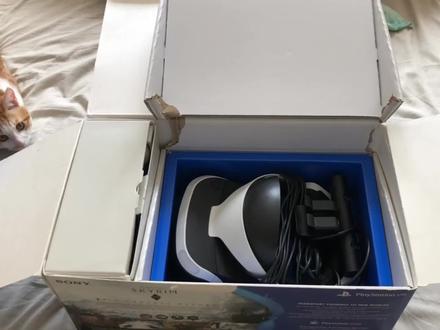 06:10查看AI文稿AI文稿
大家好,给大家分享一段关于 psvr 连接手机玩游戏、看电影的视频教程, 本视频无需使用 ps 主机,无需链接 ps 摄像头,支持任意姿势的设备使用与视角对焦。 第一步,设备准备 设备一,苹果转接头用于与苹果手机相连,安卓手机雷同 设备二,苹果数据线 用于给苹果转接头充电。 设备三, psvr 信号转换器 此设备为 pcvr 套件设备之一。 设备四, psv 压头显此处视频 我们采用 ps vr 二代设备。 第二步,设备链接将 hdmi 及高清多媒体接口分别于手机转换头 和 ps vr 数据转换器相连, 其中 psvr 数据转换器 接口为 ps 四接口。 第二步,将 ps vr 口险与 psvr 数据转换性相连, 注意区分左右, 此处能够正常插入即可 接通电源,接通 psvr 转换器电源, 接通苹果手机转换头电源。 第三步,设备使用 此处连接苹果手机, 输入苹果手机密码或指纹,打开苹果手机桌面,安卓手机内同 打开 psv 啊头显电源, 戴上头衔即可。 四,姿势变换及视角调整 由于 psvr 为三百六十度视角, 通常在播放高清视频时,屏幕无法跟随姿势的变换而自动调整视角。 处理方式如下,方案一,调整好姿势, 将 头显戴于头部, 关闭投显电源,重新打开 头剪即可自动对焦,将视角切换到屏幕中央。方案二,调整好固定姿势, 将头显至于头部,将头显向上推至四十五至五十度, 再向下放入平视位置,此时视角将会自动对焦到屏幕中。 ok, 大家现在可以在家里任何位置,用任何姿势看大片、玩游戏,甚至学习工作, 花了几个小时做的视频,希望有帮助的同学点个赞哦!
289Jason 00:41查看AI文稿AI文稿
很多玩家都在问,我们以前的 ps vr 一代,连接那叫一个麻烦,又是摄像头又是转接盒的 ps vr 二连接会不会很麻烦?会不会又是有很多线材,完全不用担心这个问题。 ps vr 二自带一条约五米长的 usb 转吸口的连接线,要连接 p u 主机的时候, 直接将数据线插入主机前面的 type 七口即可,接着就可以在主机里面设定了手柄,用数据线识别一次。和 psdr 一相比,安装方式简单又快速, 伙伴们怎么样,是不是很方便?现在点击头像进入直播间,提前预定 ps vr 耳机手柄座充,更有精美好礼相送!
 17:47
17:47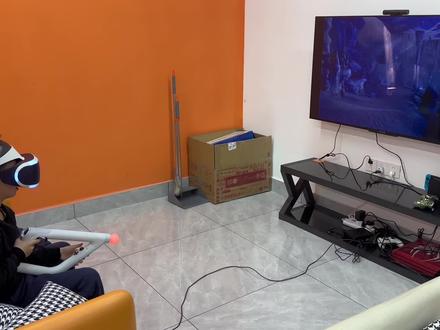 00:19
00:19


