爱思唯尔科研出版服务打不开

粉丝520获赞3286
相关视频
 00:30查看AI文稿AI文稿
你的论文审稿状态是否仅显示审稿中,无法实时跟踪详细的审稿进程呢?那就快来试试艾斯维尔科研出版服务微信小程序吧!点击查询稿件进度,输入稿件编号、通讯作者姓名,点击查询,即可显示稿件最新详细进度。 可以查看稿件目前的详细状态,已完成评审、已接受评审以及已发出评审邀请的数量,还可以查看到最近一次评审完成的时间,快去试试吧!
2022科研修行者-小陽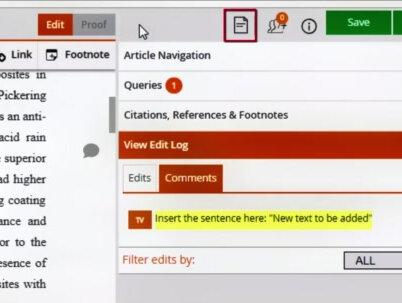 15:02查看AI文稿AI文稿
proof central a quick walkthrough welcome to this video tutorial about proof central elsevir's primary proofing tool in this video i will quickly walk through proof central features and functionalities and give you as an author a glance of how proof central works after you have received an email from else of your staff and clicked on the web link that is in the body of the text you will be guided to the landing page you see here this page holds basic information about your article such as the article title, the name of the corresponding author, the journal title, the article reference identifier used for internal reference within l severe and lastly the date when your proof became available apart from this information there are some general instructions and best practices that will help you to go through the proofing process smoothly click the green proceed button and the approval be opened in a new tab this way the landing page will remain available to you and will allow you to navigate between your proof and the landing page so you can refer to the best practices for your proof at any time after you've clicked proceed you will enter the proofing environment the first time you access the proof screen a virtual tour guide is displayed that briefly walks you through all the features the proof central provides similarly to what we aim to do with this video so for now we will skip the tour this is your article page here you can find the article you submitted presented by the proof central tool allowing you to make direct edits in the screen you can add and remove text and your changes are being marked not happy with your change you can easily undo your edit simply click on the edit and then click the undo arrow in case a copy editor has reviewed your article you can also see these edits displayed and even undo them if you feel the edit is incorrect when you click on a figure or graph it will open the image in a high resolution view mode providing you with a full quality view of the image and allowing you to zoom in and out the same as possible if you want to make an edit to your image, but for this you need to click the annotate image box in order to go into annotation mode and apply an annotation to your image if the entire image is incorrect you can also re upload a different image to replace the current image making edits to interest in a table is also very easy simply click inside the cell and remove or add data in the table cell you can also edit the text above or below the table directly you can even change the table format by clicking on the pencil icon this will allow you to insert or retract rows or columns and also gives you the option to merge and split cells and to adjust the text alignment in a table cell keep in mind though the layout is indicated by proof central in this html edit view is not how it will appear in the final version to get an idea of what it will look like you can click the proof view at the top of the article page, but we will come to that in a minute it is also possible to edit your equations when you click on the equation a math editor will open and proof central will allow you to edit the equation using a math editor tool or using law tech coding this includes inline equations as well if your equation was submitted as an image you are only able to make annotations to the equation similar to how you annotate regular figures proof central also makes it possible to change the author list including the affiliations and the associated footnotes to do so click on the pencil icon to open the edit screen in the right pane here you can add remove or edit author names the author's associated affiliations and footnotes changes made to the offer group will always be reviewed by the journal editor to make sure no invalid correction is being made by the corresponding author as an author you are also given the possibility to make changes to your reference list, but we will come back to that once we go into the citation's references and footnote section when you need to add a special character to your text you can do that simply by typing in the correct ascii or unicode for the character or click on the special character box at the top of the article page here you will find a preset list of standard special characters to choose from, but you can also pick more uncommon ones from the extended unicode list if you want to make a comment about something in your text for the editor or master copier to review then you can do so by clicking on the line where you want to place your comment? then click on the comment box at the top of the screen and enter your comment you can even attach a file to support your comment when you enter your comment a small speech balloon will appear on the location where you place the comment the actual comment will then be mentioned in the edit log, but we'll get to that later next to the comments box you will find the link box sometimes you might want to change or remove the url mentioned in your article or even add a new one in order to add a new url select the text you want to link and then click on the link box to open the link menu where you can enter the url? you can also edit or remove the url again by clicking on the linked text which brings you back to the linked menu proof central also allows you to add an article footnote or edit existing listing ones again place the cursor in the text where you want to add an article footnote? then click the footnotes link and the footnote menu opens up allowing you to place footnote text you can also edit or remove this length using the citations, references and footnote section we'll come to that in a minute the paint on the right hand side can be used for navigating through your article in the article navigation area you can navigate through your article on a section or figures and tablespaces next corrections in the text copy editors can also indicate queries they have for you as the author in most cases these queries require your confirmation on key parts of the article or on internal interpretations made by the copy editor in the queries section you can reply to these queries and the master copier will make sure that your input on these queries will be followed for the final version of the article remember i mentioned you can edit references and footnotes, citations references and footnotes is the section where you can make this happen looking on the reference in the references section of your article that you want to make a change on will bring you to this area automatically and showcase the reference to you here you can edit or even delete the reference, but you are also given the possibility to go to the citation of this reference in the article directly it works similarly for footnotes where you simply click on the designated footnote at the bottom of your article to go to the citation's references and footnote section apart from editing or deleting a reference proof central also allows you to insert a new reference you can add the reference as free text or let proof central generate the reference for you by adding all the reference details if you want to change the location of your reference citation you can also do this to do this click on the citation of the reference in your article here you will be given the option to delete the reference if you then want to add a new location where the reference should be cited simply place the cursor on the location you want to site select the checkbox of the citation and click site references the newly added citation location can be viewed when you expand the citation so you can easily navigate through your reference citations pro central will not allow you to submit your article without having all of your elements cited to accommodate this you can click on show unsighted all the unsighted references will be indicated allowing you to cite these references at the correct location in your article you can do the same thing for citing figures, tables, equations and footnotes off the edits made by you or other actors in the proof environment such as potential copy editors, co authors, journal editors or managers are logged in the view edit log tab every change made is marked with initials of the person who made the edit clicking on the edits will also help you navigate to this edit directly the same also applies for any comments that were made in the article e extra content tab displays the content that will be added to your article as an extra online content in this area you generally find highlights, graphical abstracts or other e only content you can provide your edits in the same way as you provide corrections to the text or images in the article page, the supplementary tab shows the epinnesses to your article you can download a supplementary file for your review if any corrections are needed or if the file needs to be replaced you can place a comment which also gives the possibility to upload a new file once your article has been corrected to your satisfaction you can preview your corrected article in the page central environment by clicking the proof tab in this proof few your article will be rendered in the journal layout displaying the corrections that you have made this preview is however, just an indication and shouldn't be considered an exact match with the final version of your article as typesetters will still need to do some layout corrections it is also possible to download this version of your article for your own administration by clicking the pdf button for a number of journals the page central service is not available instead proof central provides the author with the opportunity to download the original pdf and also to switch from the html editing mode to a pdf annotation mode by clicking on the viewproof button on the first page a link to the pdf annotation road can be found in this mode authors can download the pdf make annotations to the pdf using pdf annotation software and then upload this annotated pdf back to prove central next to the proof view you can also download a session report which is a pdf that displays the html view of your article including the corrections that have been made you can use this report as a reference to see all the corrections that have been made in your article listed in its actual article context one of the newest features in pro central is the collaboration feature as corresponding author you can now provide access to your article proof for additional co authors to also make edits to the proof clicking on the invite co author icon will bring you to this sub menu where you can enter the necessary details of one or more co authors including the proofing duration period and a personal message the menu also shows you whether your co authors have provided their input and how much time they still have left to make corrections proof central doesn't allow multiple editors in the proofing environment so when a co author wants to access an environment that is currently in use by you or a different co author that co author that tries to access the proofing environment will see a message in the screen that someone else is in the proofing environment, this co author can then ask to receive an email once the proofing environment is available for use you can save your article anytime you like by clicking the save button but proof central also automatically saves your changes in the background just to make sure you never lose any progress once you are happy with all the changes you have made you have answered all of queries and there are no more unsighted elements you can submit your proof by clicking the submit button your corrections will be incorporated in the final version in a few moments you should receive a confirmation email from proof central confirming the submission of your corrected proof if you are looking for more in depth instructions on how to use proof central you can make use of the help menu in the top of the screen or check our channel for other instruction videos if you still have a question, you can always contact our support team through the general help option at the bottom of the general instructions web page thank you for watching this proof central walkthrough。
82浅飞 00:541.1万科研小助手-瑞欣文化
 00:31
00:31 00:521998科研小助手-瑞欣文化
 00:59668科研小助手-瑞欣文化
 02:21查看AI文稿AI文稿
二零二三年三月二十八日, elsavir 公布了最新的二零二二中国高背影学者榜单。二零二二中国高背影学者总共上榜五千二百一十六人,包含了五百零四所高校、企业及科研机构的学者, 覆盖了教育部十个学科领域八十四个一级学科,其中生物学、化学、材料科学及工程以及临床医学是高倍引学者最多的几个学科,分别有三百五十五、四百一十六、二百九十八、二百六十八人, 占比八十四门一级学科中的比例分别是百分之六点八、百分之七点九、百分之五点七和百分之五点一。化学类高背影学者是上述几个学科中最多的,共有四百一十六位。材料科学与工程、物理学、生物学、临床医学、计算机科学 学与技术等几个学科高背影学者均超过二百位。所有机构和高校中,中科院位列第一,总上榜学者五百零一人,去年四百五十八人,对比去年有明显上升。国内高校中,清华大学位居第一,共有二百四十五人上榜, 浙江大学位列第二,共二百零四人。北京大学第三,共一百八十五位。上榜第四五名是上海交通大学和复旦大学,分别是一百五十九人和一百三十八人。与去年相比,武汉大学上升明显,排名第九,入选高被引学者有九十四人。 二零二二年高倍影学者完整榜单如下,艾斯威尔二零二二中国高倍影学者榜单评价标准以 scopus 作为国内学者科研成果统计来源,此榜单基于以下条件分析国内学者的学术 水平。 scopes 收录的科研成果发表署名机构为中国机构的作者,且现职工作单位在中国,包括非中国级和非华易学者。一、仅统计通讯作者或第一作者科研成果。二、根据 scopes 一级学科体系进行分类, 各学科上榜人数与 scopus 收录该学科中国机构署名的作者数量相关。三、上榜学者需要满足以下几个条件, 收录文献数超一篇以上被收录文献总背影次数要达到本学科预值至少有一篇全球前百分之一高倍引文献。另外也可以作为通讯作者或第一作者发文量,整体 fwci 要高于一。
3得辅学术


猜你喜欢
- 1575娟王娟🔥