小米7pro手环怎么截图换壁纸
今天是最棒的一天,对吧?海绵宝宝?

粉丝1176获赞2.5万
相关视频
 02:31查看AI文稿AI文稿
小米手环带计时钟表盘怎么设计?今天两分钟教会你全程干货,耐心看完,如果有问题的话截图发评论区,主播看到的话尽量回复讲解,这是主播自己常用的全金手表带,不得不说这个表盘搭配这个表带简单,而且切换其他颜色也 不影响搭配,感兴趣可以进我橱窗下单。不管了,现在开始。首先我们手机上要准备自带的小米运动健康 app 和表盘自定义工具 app, 表盘自定义工具,按不知道在哪里下载的,可以直接在我粉丝群直接找到安装包下载就行了。第一步,手环连接向运动键,连接好后同步点击右下角我的网下来, 点击观影,再疯狂点击这个图标,直到这里弹出提示,点击确认,这里要是有提示什么权限,全部点击同意,然后关掉小米运动健康按进程打开表盘自定义工具,这个软件首次使用需要自己先注册一下, 然后注册登录完点进来,然后右下角我的点进来,找到试用见证者功能,这里先试用一下就可以使用它的所有功能。完成后点击弓箭,点击 l k 读起弓箭,点击开始读起。 复制我们需要安装的手环的密钥,今天以这个小米手环型来举例,直接复制小米手环型的密钥,复制完点击首页探索, 注意右上角这里需要切换到对应型号的可以在搜索框搜索,待机时中搜索到这个表盘,然后点击箭头,点击蓝牙一键安装,然后开始搜索,选中需要安装的设备, 这里等一下,等它弹出配对进行配对,直到显示连接成功,点自定义表盘 id, 点安装手环, 立马会有转圈提醒,这样安装完成后,这里显示安装完成就会得到这个表盘。如果需要切换颜色,长按表盘,然后点击齿轮向下滑动,就可以切换到其他颜色,总共有四个颜色可以 选。目前机器小米手环十块九系列。如果这个视频对你有帮助,麻烦帮主播点一个小心心,感谢大家支持!
34马铃薯铜鞋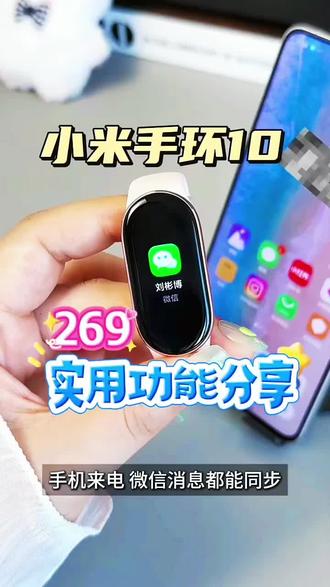 01:30查看AI文稿AI文稿
小米手环时隐藏功能大揭秘,打工人学生党叫我新人速进!一、隐蔽录音手机壁纸页面下滑 找到录音机,点击进去,点击这个小红点就能一键开始录音,录完还可以一键同步到手机上,一键录音转文字,超方便。二、自定义照片表盘在小米运动健康爱文版表盘商店找到照片表盘,选一个喜欢的模板,点击下载并使用。 点左下角编辑表盘添加照片,一次性可以添加八张,设置好后点击保存并使用就可以了。三、小游戏在小米运动健康 em 的 设备页面点击应用设置,应用商店有超多好玩的小游戏,直接点击下载就可以在手环上畅玩了。 四、遥控拍照手环能当手机拍照,遥控器还能设置三秒或五秒倒计时,架好手机,摆好棚,手环一点咔嚓搞定。五、小 同步手机来电、微信消息都能同步大家小米手环要点击设备点击通知设置,在通知设置里打开消息通知,还可以自定义消息通知,勾选需要接收消息的应用就可以了。六、找手机手环上点找设备,手机就会立刻响铃,反过来手机点找手环,手环也会震动加亮屏,再也不怕找不到手环和手机了。 七、音乐控制跑步健身不想掏手机手环直接控制音乐,切歌暂停调音量会自己掌握。八、无感闹钟在设置闹钟时打开智能唤醒,用轻柔的震动把你从梦里摇醒。 离线支付,没带手机也能手环扫码支付,绑定微信,设置好每日限额和扣款方式就能离线支付了。十、 nfc 功能在卡包里面可以选择所在城市交通卡,就能免费开通公交卡了,还能添加门禁卡,便截图直接拉满你还有什么好用的功能?欢迎分享在评论区。
 00:35查看AI文稿AI文稿
没想到小米表盘都有这么多好玩的呀!字母小猫自定义,长按可以自定义编辑,不管是几个字的名字都有展示。右滑就能选择不同的字母,点击就能选择想要的字母, 标签自己的名字还是放哪个爱豆的名字呢?萌喵课程表在手环上用课程表是什么体验?直接长按点击选择时间段的课程就能进行选择你的课啦!这下课程表都不用背下来了呢,真的太实用了啦!
 00:39查看AI文稿AI文稿
小米手机七种截图方式,最后一种你一定不知道,第一种,背部轻敲。第二种,屏幕双击。第三种,下滑截屏。 第四种,锁屏加音量键。第五种,下拉三指第六种,三指长按局部截屏。 第七种,小爱截屏小爱同学哎! 西安市恒生小米之家欢迎您的光临,感谢您的观看,记得点赞和关注哦!
6711恒升小米未来家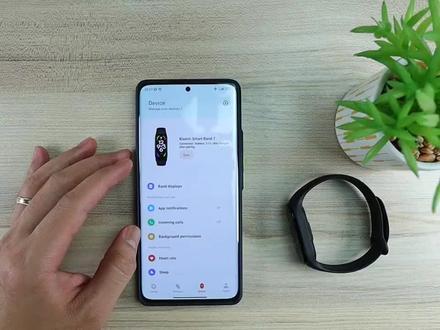 11:14查看AI文稿AI文稿
now let's move on to the app the app that it's using is actually the shaomi fitness app but you have to switch the region to china because currently this is a chinese version it's not available yet on the global market so once if it's available in the global market then you will have an option to add this device on the shami fitness app so currently i'm already connected alright, so let's move to the very first thing that we see here which is the display so this are the displays or online bands that it can actually download it has more than one hundred and thirty displays that you can download and you can also customize the if you want to add your picture you can also to do that on the bend and all right so what or how to download it's pretty straightforward you just have to you can select from here or you can just go to more and into the more there are like more other options of the watch face all right, so if you want to change or have a photo added or your personal photo to be added you can actually choose one of this photos on the band once you select one and then you can actually have a custom photo all you have to do is just probably select a photo let's have a look okay, so i've chosen a photo to add all you have to do is to align the photo where you wanted to be centered and then hit and continue so now you have the photo and the band and also it has an always on display if there's an always on display available for this type of watch face then it would have it over here so all you have to do is to apply it it's going to download depending on your internet speed it would the speed would depend on your internet speed so currently it's now sinking all right, so will you look at that in a few seconds you'll have the personalized photo which is quite easy look at that so it's quite easy and straightforward to do you might have to do adjustments in your photo as you can see it's hardly visible the time and the dates because of my photo all right, so other other watch bands you can find it here you can actually choose from the one on the on the list so there are quite a few that's available total b one hundred and thirty that is excluding any photo that you upload on the watch face so next option is we have the app notification this is where you set up your app notification probably you want to turn on or turn off your notification the app and next we have the incoming calls alerts under the band so still you can add talk on the band this doesn't have a microphone or a speaker so it has a vibration you can also an option to to silence and known colors all right so one new feature that i like is the reply with message so this would allow you to send a quick message reply you can actually have your quick responses from here you can have the default ones there like five or you can actually add it over here you can just probably alright and then from there you can already choose that if someone someone sends you a message then you can have that as a quick response as you can see it's been added and that is quite useful a lot of people are actually looking for that quick response option not even the most expensive the xiaomi smartwatch s one have this feature so i'm glad it is actually included now on the shami smart band seven all right next option we have the background permissions which you can mendices available on the one last time this would depend on the on the phone that you're using so it would give you those options next would be the heart rate you can also change the setting on the heart rate monitor so you have the sleep monitor as well you can see from here advanced monitoring this will allow you to have a frequent data increase hardware monitor if you can say to get more data and also the breathing score this is just this is still a beta version so it might not be that accurate but it's good to have that they already included the breathing score that is checking the quality of your breathing while you're asleep and other features you have your settings for your blood oxygen level and then you have your stress monitor and next you have the standing alert so you can actually might switch it on or off the reminder to stand up and have a walk probably so can also set the start time at the end time that it does the reminder and also you can set a do not disturb as well so other than that you can set your goals this are this are included on the previous versions as well can have the alarm can set the events of sink events plan for the next thirty days so this would actually show you on the band as well and also your events over here and whether next you have the standing alert so this is where you can actually turn on or turn off the reminder what time it will start what time it will end also you can have a do not disturb option over here you can see schedule it as well and next is we have the goal alert so once you hit a certain goal based on what you set on this app will be notified on your device and you can add the alarm from here as well or you can also add it on the device so there are options that you can see here like events you can actually sync events up to thirty days on your device and you can add your events from here so you can just repeat the reminder set the reminder so which is pretty straightforward adding the events, but if you have any events on your calendar maybe that would be a notification your phone which you can just switch it on so it will not fall under the events and then whether in terms of whether you will find or you can add locations from here you can actually add up to five locations for your weather and you can also change the unit from degree sauces to fire and height and then another thing is the widget so widgets these are the shortcuts when you swipe from left to right or right to left so these are these shortcuts so i remove the alipay and the wechat pay because i don't use it, but if anything that you want to add on the top all you have to do is just hit on the press plus sign and then you can just drag it if you want to like drag and drop it if you want to sort the order and then just press the check mark and then it's going to save it so it will be updated on your device so next is we have the sort apps if you don't want the order from this apps over here all you have to do is to go to the sort apps and you can just drag and drop it so that would be very useful if you want to reorder or reorder the list of apps and then race to wake you can also set it from here you can set it from the device as well just like what i showed earlier on the device and then vibration it's quite i find it quite innovative because on the vibration you can either leave it as default or you can actually customize a vibration by just adding a new vibration all you have to do is to tap and on the screen let's just say if you want to have probably this a certain morse code that you want to have pattern on the vibration you can actually recorded from here so once you stop okay, so, and then you can play so that is the vibration that pattern that you want for this particular notification so you can also do that so that is quite innovative actually so night mode you can either set the night mode to switch on or switch off this is will lower the screen brightness on your wearable device it would actually it would actually save battery from start to end that will allow you to allow you to schedule that yeah also can find your device from here there's no sound but there is a strong vibration and you will hear the vibration from the device so that would be pretty useful if you misplace this device all right so there is another option the discoverable mode you can switch it on as well, but i hardly, but i hardly use that and also there's a share heart rate data you can also share it a via bluetooth another device and also the language you can set it from here so languages these are mostly are european countries that's available over here there are some like fantamies believe this is a thai language in addition language those are from asian countries and also there's an option that's a phone's language but i would not i don't think this will also like if if your language is not in this list so it might not be featured on the device and then you can also set a pin for your device not i wouldn't strongly suggest that you do that you will just piece you have sometimes because you will be pressing on your screen and you don't need the pin if you don't have any payment mode used on the phone on the device so you don't have to do that so unlock your phone this this features i've been on the previous bands unlock your phone pairing instrictions also helps enter update the device and also you're about the device as well as the end pairing of the device so those are already available on the previous versions i'm not gonna touch base and that there are features that has been upgraded compared to the previous version, but i wouldn't say that this is a big upgrade to the shaomi smart band six, but we'll just wait for the global version and see if they've included by default the nfc or probably you have to buy an nfc version just like。
82阿贵专治不开心 04:54查看AI文稿AI文稿
哈喽,大家好,今天跟大家分享一下小米手环屏幕更换教程。以上这些是我在网上购买屏幕时赠送的一些工具,像我这个手环是触碰不灵敏, 但是为了以防万一,下单前还是问了一下商家。首先我们用吹风机调到比较高的温度,对着我们的手环吹, 这个过程大概持续一两分钟,用吹风机吹的主要目的是为了让手环粘连的胶融化,这样的话我们好取下屏幕。第二步我们就拿一个水果刀,沿着手环的边缘一点一点的撬开, 这个时候手环是比较烫的,大家要注意一下,用水果刀掰开屏幕的时候也要注意一下手哦。屏幕拆下来之后,屏幕的连接处有一个海绵胶片,我们用镊子小心地把海绵胶片取下来, 不要弄丢了放在旁边。 胶片取下来后,上面有一个小卡扣, 把它扣一下,然后屏幕就能取下来,取下来的时候要小心一点,不要强力的去拽它。 然后把我们网上买的屏幕把连接处对应在小卡槽里, 放好之后也是同样的道理,把它扣下来,然后可以轻微试一下,看扣好没有。 我这个就是连接好了,屏幕也就正常显示滑动。 接下来就是把边缘残余的胶清理干净, 把我们刚才取下来的海绵胶也原封不动地粘回去。 这我是提前在手机上下载好了小米运动手环 app, 就 跟着手机提示依次绑定, 像我这样就是显示绑定成功了,上面能看到我的电量以及手环型号, 绑定没有问题。最后一步就是粘胶封盖, 这一步大家要注意一下,就是沾的胶水不要碰在手环的芯片上了,一定要在边缘处粘胶, 胶水粘好后用力按住手环一分钟左右,避免粘不牢。 全部完成后,我们拿橡皮筋像这样五花大绑,大概维持一天的样子就干透了。最后我在网上买了个自己心仪的表带,把它带上试试。
62小露同学🐾 00:22查看AI文稿AI文稿
看好了,你们都想要的小米速七 app 界面背景,疯狂动物城,还不会的,快看过来。首先跟着我的手指操作,然后打开我们的豆包,触碰这个小加号,上传一张照片, 接着去粘贴这段指令,直接发给豆包,稍等五秒就好了。我把指令放评论区里,快去试试吧,期待你们的反图哦!
23佑佑斗罗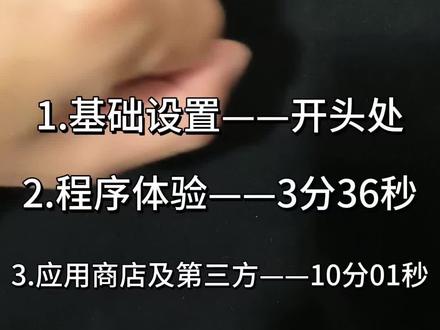 10:37查看AI文稿AI文稿
今天我们来分享小米手环九 pro 的 使用体验和功能介绍。首先就是桌面 长按表盘可以进行切换,然后右滑就是一个小主键的界面,跟小米手环八 pro 不 一样,它是上下切换,而不是左右切换,同时长按 也是可以进行编辑或者排序的,拉到最底下可以进行添加,最多好像是可以存在二十个小部件。 好,我们右滑就是一个设置,上面那一个是插到手机手电筒, 可以进行闪烁,然后台湾亮屏设置闹钟, 它可以同步你手机的节假日。接下来就是设置桌面可以看表盘进行更换,小部件展示过应用布局,可以选择图标列表或者文字 下面震动模式,然后显示亮度,可以调整屏幕亮度,也可以进行自定义息屏时间,台湾亮屏,持续亮屏, 下面这个是遮盖息屏,同时也可以打开息屏显示。 那接下来勿扰模式可以定时打开,或者选择睡眠勿扰 快捷手势, 但是会减少睡眠时间。 下面运动识别, 心语广播使用偏好, 应用管理, 设备密码 是设置六位的电池可以选择长续航模式,系统操作。下面这个就是关羽, 这个是续航模式设置,下面这个是 word 模式, 下面持续亮屏,同时也可以进行编辑排序或者删除, 上滑就是信息,下滑就进入到我们的一个程序界面, 我们接下来看一下小米手玩九 pro 的 一个小程序。 第一个火力指标,可以看一下你的每天的一个身体情况, 下面就是运动,具体的运动数据,跑步数据对比可以看我之前的视频都有详细的介绍,这边是看一下他的设置, 运动目标可以精确到小数点后面一位,然后时长 卡路里, 下面间歇训练 可以按距离,距离同样也可以精确到几百米, 可以循环缓冲。 下面运动提醒, 心率可以直接设置, 然后能量补给 时长。 下面这个虚拟兔子可以选择配速, 包括跑步中具体的操作,然后距离比对,都可以在我之前的视频找到,总体来说距离是偏少的。下面运动记录, 跑步课程 看下进阶跑 训练状态,最近用的比较少。 心率可以看最近三十天的一个尽心心率,心率设置,同时有心脏的健康监测,好心率的一个提醒。 下面元气值 血氧 也可以进行全天候监测,下面就是睡眠, 包括你一个五岁他都会统计进去,罪名情况也会进行记录,下面压力 由全天候监测。小爱同学今天星期几, 下面是小爱同学今天星期几,他的反应是很灵敏的,但是需要连接手机使用。下面就是天气 也是需要同步,但是同步之后可以看未来七天左右的一个情况。 日历 可以看历程安排,但是需要手机导入。下面闹钟也是能够有节假日的一个选项, 你家我这边没有就不展示了。 支付宝,然后微信支付设置,之前看过了,代办,这也是需要连接小米手机的, 卡包也是需要小米运动健康导入的。然后微信训练。秒表, 下面这个是控制手机音乐播放世界时钟 指南针,手机静音遥控拍照,不是小米手机也能用。 下面找手机倒计时, 同样它也是可以自定义的,精确到秒, 下面就用手电筒看过了,然后这些就是我第三方下的一些应用,下面我们来看一下小米手玩久不久都能安装哪些应用,这是已经下载好 十几款的一个游戏,然后一些 另外买小米还有个好处就是第三方应用是蛮多的,具体的安装方法可以看我之前的视频都有详细的介绍,里面有差不多一千多种应用吧。
 00:17查看AI文稿AI文稿
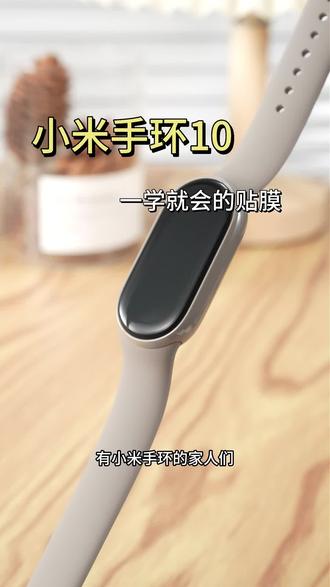
有小米手环的家人们一定要少用诺威顿家的膜,因为我怕你们会后悔为什么不早点遇到,贴起来真的太方便了!分段式的贴膜,新手小白一学就会贴,有小气泡,不用担心二十四小时内会消失,也不会翘边磕碰划痕,都不用再怕了,贴完触感依旧很灵敏。
3洛威顿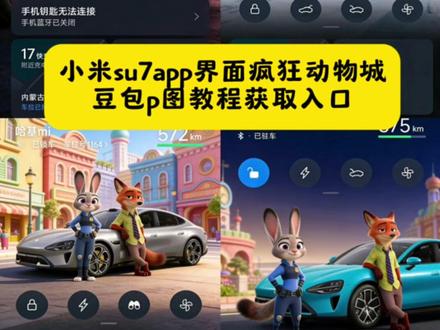 00:15查看AI文稿AI文稿
姐妹们,小米苏奇亚这面背景疯狂动物城你还不会制作吗?教程我给你们找来了,先敲下这里,再敲下这里,然后打开豆包,在这个位置上传图片,然后复制这段指令,指令我给大家放评论区了,点击生成,等待几秒就可以了,效果不错吧,期待你们的返图哦!
7星辰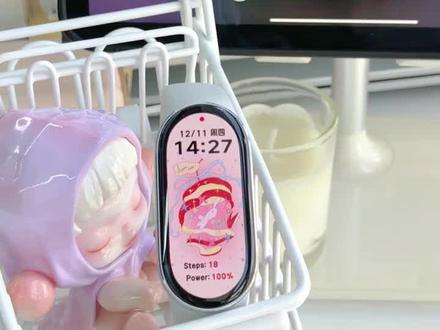 00:26查看AI文稿AI文稿
大家分享小米免费表盘来咯!一、红苹果小猫很 nice 的 感觉,我喜欢这种壁纸。二、可爱甜心小熊,小熊睡得好甜呢!三、薄荷烘焙小猫清新蓝色和小熊也很配哦。四、 愉快小猫,大数字时间的粉色表盘也可以呢。五、小猫治愈日记嘿嘿,我也想和小猫一起躺平了。
 00:19查看AI文稿AI文稿
看好了,你们都想要的小米 s 七 app 界面背景,疯狂动物城还不会制作的,我来教会你。首先跟着我的手指步骤来操作,然后打开我们的豆包,点击这个小加号,上传一张照片,接着去粘贴这段指令,直接发给豆包,稍等一会就好了。我把指令放评论区里,快去试试吧,期待你们的反图哦!
1岁月凝香


