bento blocks答案在哪

粉丝177获赞2729
相关视频
 07:44查看AI文稿AI文稿
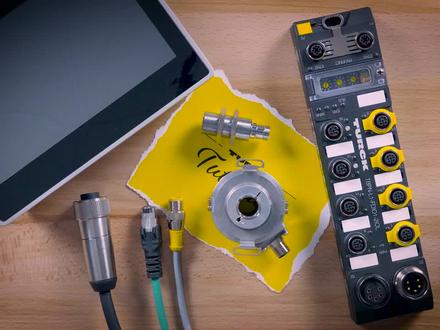
codices is a controller development system the flexibility and powerful tools of this software have been a game changer in controller applications codices can be used to program bl20 and bl67 programmable gateways, tx, hmis and ip67 tben plc blocks in this tutorial, we are going to use a codisus ladder logic project to program a tbn plc to count five cans and then turn on an indicator light we will also have the ability to reset the counter by activating another sensor you'll need a tbn plc a 24 volt dc power supply cord set an ethernet cord set two capacitive sensors to detect the cans and to reset the counter an indicator output light and a laptop or pc first let's download install turk software manager by going to www com turk com tsm with turk software manager opened click the plus symbol next to fuel bus technology and click the selection box next to dtm for field bus io systems then click the plus symbol next to control and hmi here's where we download codices and all the necessary package files in this example, we're going to use codices 3.5 service pack 8 so we will check the selection box next to it we will be using the tb and plc block, so we'll also download the codis psp for the tbn plc first follow the prompts to download and install codisis with codices downloaded and installed open codices select tools and open package manager with package manager opened select install then go to where the package file was extracted to and select it the choose setup type box will then pop up click next then click next again once the setup is complete click next then finish the code as this package for the tbn plc should now be seen in the package manager screen, we now have all the necessary software and are ready to go plug the two sensors into port4 and port5 then with an m12 chord set plug the light and deport 6 next connect the tbn plc to a 24 volt dc power supply cable you will notice the leds in the block will light up the next step is to connect the tbn plc to your pc using an ethernet chord set we first need to configure the ethernet port on your pc you can do this by going to control panel on your pc and then accessing network ensuring center click on the local area connection your blog is connected to and click properties in the local area connection properties window click on ethernet protocol version 4 and then select properties ensure the ip address is within the 192 168 1 sub net open codices first click file and then click new project in the pop up window select standard project provide a project name and then select ok in the standard project pop up window in the device drop down select the tben lx plc 11 we will also select latter logic program in the plc program type drop down menu then click the ok button the configuration will show up on the left under devices next double click on the tbn plc device this will bring up the communication settings in the gateway drop down menu select the gateway the tbn plc is connected to and then select scan network this will find the turk device you have connected connected click on the device and select okay notice that you will see the device connected on the network in the communication settings window this is indicated by green indicators on the gateway and on the tbn plc device we are connected next under local io double click on dxp then click on dxp io mapping this is where we assign tag names to the io remember we have the sensor counting cans plugged in on channel 8 the reset sensor is plugged in on channel 10 and the indicator light is plugged in on channel 13 undervariable we will call input channel 8 count sensor input we'll call input channel 10 reset sensor input lastly, we'll call output channel 13 light output, but the name's assigned double click on plc prog the plc program window will now open this is where we set up the codices program you will notice on the right there's a toolbox click the plus symbol next to function blocks and drag the ctu counter function into the workspace by placing it on the start here indicator first, let's give this function blog a title in this case let's call it my first counter in codisus these two symbols here are called contacts and they represent our inputs to assign variables click on the question marks and click on the box with three dots the input assistant window will open click on the plus symbol next to io config globals mapping then click the recently created count sensor in input click ok then click enter next we are going to set our reset sensor input using the same method and selecting reset sensor input pv is the process variable the count input sensor is going to count to five before turning on the light so we're going to type in five and click enter on the right side of the function block we're going to have our output right click here and select insert coil in codices coils are our outputs once again to assign variables click on the question marks and click on the box with the three dots click on the plus symbol next to io config globals mapping then click the recently created light output click ok then click enter cv is our current value let's make this attack for future monitoring let's name this current value click enter and then click ok in the pop up window to declare the variable as a word next let's compile our code by clicking build this way we can check to see if there are any errors as you can see no errors are found next let's log into the device by clicking online and then log in to run the program click the play button at the top of the codis screen we are all set let's test the program as you can see when i activate the sensor five times the indicator light turns on the second sensor resets the counter and resets the light you can also see in the codis's program when the sensors and lights are activated and the current counter value thanks for watching。


