Kontakt7demo如何激活
welcome to contact 7 in this video we'll take a look at new features explore the new browser effects and the completely redesigned contact factory library 2 contact 7 is the next evolution of this industry leading do it all instrument platform your gateway to both native instruments, nks libraries and the creations of hundreds of independent instrument developers more than a sampler this shape shifting software has powered two decades of blockbuster film scores and chart topping hits contact 7 runs as a standalone app and within your digital audio workstation access a huge selection of sampled instruments or build your own to bring your musical ideas to life finding the right sound starts with contact 7's new browser resizable and compatible with high dpi and retina screens use the browser to deep dive into the content of your libraries use the powerful text search that supplies relevant results as you type search for specific developer library instrument preset name, instrument type and more within these selections choose sound type and character tags to narrow down your search you can even select more than one tag by holding the shift key presets are listed to the right of the browser and can be easily favoured each has preview audio to give you an idea of how preset sounds without even having to load it perfect for quickly auditioning instruments and patches just click to preview and click again to load, load and play instruments and presets whilst keeping the browser on screen pinning it in place import non contact player libraries, legacy products or your own creations into the contact 7 browser and their appear as tiles alongside fully licensed libraries and you can access and favorite individual instruments of a library in the same way as player libraries this gives you a comprehensive browsing experience all in one place save snapshots and they'll appear in the custom libraries browser then view and edit your own personal presets and tags in the all new info pain completely updated and refreshed contact factory library ii contains close to one thousand professional instruments to explore and inspire each of the seven collections has been overhauled with newly recorded samples updated high dpi interfaces and more flexible functionality one particular standout is the brand new orchestral collection completely replacing all legacy content from the original factory library these new instruments have been developed in collaboration with our friends at orchestral tools we've designed a specially curated suite of woodwinds brass strings and percussion instruments using samples from their berlin series all captured on the tell deck scoring stage these special instruments deliver a rich cinematic sound for authentic media scoring presented as one cohesive collection all instruments feature a range of dynamics, multiple, short and long articulations and extensive editing functions the choir collection is rejuvenated with redesigned instruments and additional choir sections with samples taken from our collaboration with stress of sampling choir omnia the beat's collection features newly designed interfaces with added functionality to shape and color your beats and hundreds of new midi loops with a new browser for easily accessible grooves you can mix the match across kits and genres to create exciting hybrid beats newly introduced with contact 7 you can now drag and drop the midi into your own door for further editing contact 7's acoustic collection is where you'll find performances from across the globe with many brand new and re recorded instruments alongside the redesigned interface you'll see auto chord playing options, sound shaping and a selection of authentic instrument ornaments assigned to key switches since have always been the stars of contact and with contact 7 we've added a whole new category of soundscapes each instrument category sees additions from classic gear and workstations explore the new interfaces, midi loops and synth drum kits additions to the band collection include six new guitar patches alongside new medidrom loops all wrapped in a new interface with extended options more classic sense have been added to the vintage collection including juno 106 corgexd odyssey and profit 6, alongside the 32 new patches 5 new vintage drum machines can access the midi loops of contact factory library 2 with full midi export before we finish let's take a peek under the hood of contact at some more useful editions time stretching algorithm updates improve the performance of tempo based sample manipulation there are also two new effects to try delay from guitar rick 6 transforms any sound into world reversed and pitched ping pongs across the sound stage another new effect we've added ring modulator to contact 7 perfect for spicing up synths and guitars you can add these effects to existing instruments or build them into your own high resolution creations for more information about contact 7 including a full breakdown of all new features instruments and effects head to native instruments com。

粉丝130获赞675
相关视频
 01:55查看AI文稿AI文稿
学编曲实战,关注音乐人钟祥。今天给大家分享一个康泰克非标准音色库入库的一个小技巧,我用的版本是康泰克七点七零版本做演示,更新到七之后呢,发现非标准音色库很多都不能入库了啊, 就算是用三方入库工具,右上角也会显示未激活的状态,强行使用的话,音源有时候会变得没声音,有时候也会在右上角显示 demo 字样。 那我教大家一个方法,首先之前入库但未激活的姻缘,先使用三方的入库工具,把它一键卸载,我们再点击这个,再点这个,再点第二个,单击右键,点属性 点,兼容性点,更改高 d p i 设置,把这个勾给选上,选上系统确定,单击右键与管理员。 我拿这一款陶笛音色给大家做演示,我们把陶笛的名称复制下来 粘贴粘贴,任意写三个数字或者字母, 点击创建点确定。我们再来看一下这个,下面就有一个陶笛的 nicnt 文件,我们把它剪切过来 粘贴。再点击一个 f 旁音色库,备份音色库,陶笛, 确定一款音源入库成功点,确定。关闭关闭关闭关闭关闭移除。我们再来看一下, 这个时候就有了一款陶笛音色, 好了,已经入库成功,感谢大家收看,再见!
271音乐人钟祥 06:22查看AI文稿AI文稿
各位老师好,这期视频分享一下康泰克七点七点零的一个版本啊,这是一个呃,最新的版本吧,十一月份更新的啊,然后我这里给大家准备了安装说明啊,这里点开就可以了, 下载资源的话,大家可以看我的主页签名啊,或者是视频下方的简介,按照这个安装说明,一步一步来啊。呃,首先运行这个 好,然后我们 next 啊下一步,然后把这个点一下 next, 这里我只安装 v s t 三 a x 的,不安装。然后下一步,这里我选择默认 位置啊,其实也可以挪在别的位置的,大家自行选择下一步。 好,我们把这个关掉就可以了,然后复制这个文件到这个位置,这个文件夹啊,我们把它复制一下 这,然后找到 c 盘这个文件夹,这个这个,然后粘贴 继续。好,可以了啊,然后我们再回到地盘啊,然后这里啊需要退掉杀毒软件,我建议各位啊, 就是在下载这个资源的时候,这个资源解压的时候,就把这个杀毒的这个软件退掉,或者是系统自带的这个也也也退掉啊,不要让他运行着,然后我们打开这个文件夹, 然后运行这个右键管理员身份运行,如果你不右键管理员身份运行的话,直接就是打开,直接打开的话 把这个声音啊,可以直接打开的话运行一下, 那他会提示我这个康泰克七这个曾经在运行,因为他没有权限去访问这个文件夹,所以说他就是不能替换一些关键的东西啊,所以没办法,这个只能是用在管理员运行, 把这个都浮掉啊,浮掉啊,我重新以管理员身份运行啊,以管理员身份运行,然后下一步。 因为我这里呢,我没有安装 a a x, 就是刚才在安装的时候 a a x 我没有安装,所以他这里提示我没有找到这个文件。我们这里因为没安装嘛,所以直接点否了啊。 然后这个是刚才需不需要替换这个这个这个这个就不需要替换啊,把这个否一下就可以了, 然后 nex 退出就可以了。然后这时候我们打开这个桌面的这个图标啊,看耐克的七个图 标,打开看一下,那有没有爱国成功,然后我们怎么验证呢?我们点这个 help 最底下这个这里变成 for, 这个字母变成 for 是你爱国成功了。如果你这里是 demo 的字样, 你是没有成功啊,你还要继续弄,我们把这个关一下,然后我们弄一下这个入库,入库工具是这个 去。嗯,是这个,这个我们复制到这个位置啊,先复制,复制 好,这里写了,复制到这个位置,这里这个位置其实就是康天科的默认安装目录。嗯,你看他跟我们这个位置是 对上的。 c 盘,这里这里这里。然后我们把这个粘贴过来, 我们可以给他创建一个一个快捷方式啊,如果你用的勤的话,直接在桌子创建在桌面上了,然后我们改个名, 哎,好, 我这里呢准备了一个一个小小的这个音源啊,我们把这个导入一下, 点击这个找到。我们这个音源是在 d 盘, d 盘的这个 啊,这里提示已经导入成功了,他会下次打开 contact 的时候会有这个音源,把这个关掉,因为我现在没有打开,直接把这个退掉啊,打开 contact, 我们可以看到这里是看不到的,为什么?因为新版的他就是,嗯,就是这样,但是如果剪辑这个变成老版的。 好,这样你就可以看到这里有这个刚才导入的这个,这个这个音源。然后我们再去这个宿主里看一下啊, 在速度里插入一个 vs 七三看一下。打开速度之后,我们在右边的这个浏览啊,浏览里面找到乐器,乐器里面有个 connector 啊,我们这里也同样把这个改成这个,改成老版 啊,这里就能可以看到我们的这个录的这个库了。那么本期视频到这里结束了,感谢各位收看我们下期视频,再见。拜拜。
12彦小逸 08:27查看AI文稿AI文稿
各位朋友大家好啊。呃,好久没有更新了,前段时间一直在这个生病啊,感冒, 然后按理说应该是康泰克 windows 版,完事之后是这个麦克版,然后期间插播了一个莱斯康的一个混响啊,然后这期视频呢,就是康泰克麦克版的一个安装视频啊, 下载资源的话可以在我的主页签名或者是视频简介线方可以看到这个跳转链接啊。然后下载好之后,我们双击打开这个, 然后首先安装这个啊,双击运行,然后这是一个七点七点一的版本啊,然后这里点击允许继续继续。同意, 呃,这里这个只安装 vip 三就可以了啊,继续安装,输入电脑密码。 好,已经完成了。安装完成之后啊,我们把这个这个拖到桌面上来, 一会我们稍后讲,然后把这个,这是一个入库工具,我们以前的麦克版入库呢,是需要用终端的一个代码去入库的,那用这个工具呢?他就不需要用进行终端代码入库了,我们把它先拖,拖到这个应用程序里边,把这个 关掉就可以了,这个记得要拖出来啊,然后我们在访答里看一下,要不启动台里看一下,这里已经进来了,把它拽进,哎,拽进去,然后打开一下 contact, 打开康耐克之后怎么查看你的这个?嗯?是否爱,是否这个爱国成功啊?那我们点击康耐克的这里啊,这个 这里显示负就是爱国成功了,如果你这里显示的是这个 demo, 你是没有爱国成功了,当然麦克版是没有这个这个这个 这个这个这个爱国方式的啊,这是直接就是爱国成功的,然后我们这里可以看到版本是七点七点一,这个版本他修复了一些 一些小 bug, 我们我给大家看一下啊,好,我们可以看到这个官方的一个更新动态啊,这是一个七点七点一的版本,修复了这个主要是 logic pro 里面缩放的一些故障,还有一个一些 其他的一个故障,主要是进行了一个 bug 修复,然后在这里七点七点零的版本有很多,这个添加一些版本更新,大家可以暂停看一下,然后我们这里按下布表了啊, 那么安装好之后,我们把这个退掉,我们在宿主软件里面看一下啊, 看一下速度软件里面它是一个什么样的状态。打开我们的 studio one。 好,我们进入工程之后,我们点击浏览浏览找到乐器,乐器里面有一个这个,然后把康家克加进去啊,把这个拽一点 好转进来之后我们可以看到他是已经可以正常使用了,然后我们在这里看一下,也是 four, 然后七点七点一,然后好,我们把这个关掉,我们讲一下入库啊,那么开头我也讲到了入库,我们有一个小工具可以给他进行一个入库啊, 这是不用终端代码这么一个一个小小小软件,然后我们打开运行一下,就是这个 输入我们的电脑密码,这个软件是每次你入库的时候都需要你输入电脑密码的,然后我们找找我们的, 我的是在下载的这个里,然后点击选取好,这里已经提示我们入库成功,那么这个提示呃, 他会在告诉我们是否要添加更多的酷,就是更多的音源,然后我们这里点击关闭就可以了,因为我没有更多的音源了,我只准备了这一个好,关闭就可以了。 然后我们打开康泰克看一下啊,我们库是否添加成功,我们可以可以在这边看到。然后我们不在这里看啊, 我们可以看到这里有一个我入的库,这是一个阿卡阿卡贝拉的,一个人生的阿卡贝拉,当然我这个是在远程听不见声音啊,我们可以看到这个能量桥在动啊,但是我们听不见声音,因为是远 远程的,这个家里电脑就简单看一下就可以了,然后删除库的话,我们可以用一这个终端代码,然后也可以用其他的一个小工具啊,我也给大家准备了,我把这个退掉, 这个这个软件他只能进行添加库,他不能做到管理或者是删除库啊,这个是做不到的。那么视频开头我给大家说,我们把这个文件要拖出来, 就是这个文件要拖出来,拖到我们桌面上,然后把这个推掉啊,我们打开看,这个是我给大家准备的终端运行代码,这个是添加库,然后这个是本机访问,这是这个 是删除库。那么我们现在演示一下删除库啊,打双击运行之后,我们打,打开,找到我们刚才添加这个库的位置,然后选取输入密码,这个密码是看不见的, 回车。好,这里已经完成了,我们打开 contact, 再看一眼是否删除成功。好,这里已经删除成功了,我们在这里看一下。好,现在是没有的。 然后我们再用这个入库工具,终端代码的入入库工具,我们再入库一遍,双击运行,同样找到我们这个库的文件位置,选取 啊,在这里输入密码。 好,这里已经进程完成了,然后我们打开 connect 再看一下,看看这里已经有了,这个也可以推掉了。然后我刚才说过了,我给大家准备了一个管理工具,酷的管理工具,就是在这个, 我们把这个拖进去啊, 然后打开启动台,把这个拽进来,我们打开看一下, 你看到我们这里这个阿卡贝拉的这个已经拖进来了,然后我们在这里 在访达里面找到我们的库, 把它拽过来,拽进来之后我们可以看到这个是删除库啊,这个是添加库,第一行是添加库,因为我们已经添加了,所以他这个是灰色的,然后这个最底下是刷新这个库的列表, 然后这还有一个能替换你这个壁纸啊,还能替换这个壁纸的 还有这个 snp id 这个号,当然这里我就不弄了,大家可以自己下去去玩一下,然后拿这个拍照翻译的软件去翻译一下这个文文字都是什么意思,然后我们把这个关掉就可以了, 当然这里还有一些其他的软件,大家可以去自己下载好之后去去玩一下看一看。啊。那本期视频到这里结束了,感谢各位收看我们下期视频,再见。拜拜。
2彦小逸 02:10查看AI文稿AI文稿
大家好,这里是英灵雾的使用教程系列,从这几个开始呢,我们来讲康泰克,那康泰克是什么?他有什么用呢?那你要记住他是用来做音乐的,而不是治病的啊。其实呢,他是一款软音源残氧器, 可以独立运行,那么也可以作为 bst, a x 等插件形式呢,在各类四轴里面打开使用, 他本身呢是没有任何音色的,装好以后你打开它就是一个空壳,那么你就可以下载康泰克格式的音乐,用康泰克呢去入库他。 那么这样的好处呢是只要是康坦克应援,就用康坦克直接入库就可以了,也不需要再独立安装那个应援了,非常的方便啊,所以可以说康坦克是现在编曲人必备的插件了。 那么彩阳气除了靠那个呢,其实还有 n 卷坦克等,但是现在都没有靠那个出名啊,并且靠那个他能加载的 应援数量是远远超过其他所有裁员及能加载的应援总量。如果你对 bst 插件并不了解,那也可以在英力屋公众号后台回复安装避开,先学习一下。 那么康奈克姻缘呢,又分两类,标准音色和非标准音色。那么注意啊,非标准音色呢,也是康奈克姻缘,那之前有同学呢,就误以为非标准音色他就不是康奈克姻缘了, 并不是。那么标准音色呢,他其实就是一个正规化的音源,非标准的就是不正规化,甚至民间我们自己呢也可以去制作这一类的音色, 但不是说非标准音色他就不好啊,那非标准音色里面的也有很多应援是很优秀的,比如比较典型的就是艾利亚吉他,那么怎么判定这个应援呢?是 vst 的还是康奈克格式的呢?那我在这呢随便找了款康奈克应援的文件夹,那么点进去 他是这么一个姓氏,第一个文件夹呢,他就是一个一些框架 pdf 帮助文件,第二个是乐器,第三个三 boss, 他是一些彩样,那么里面的很多文件的后缀呢,都是 nk 开头的,基本一眼看到这些呢,就能判定他是唐太可英元了, 或者能在我们网站应领。优点,看我们下载应援的话,都是会告诉你是不是康泰克因死,如果是的话,他是标准的还是非标准这些呢都会有写,如果你对这款采用器感兴趣的话呢?
515音律屋 10:46查看AI文稿AI文稿
哎,旺叔聊英文啊,咱们今天来讲所有的音乐人都离不开的一话题, contact contact 我们也做成了一张图啊,包括所有的界面,上面的翻译,全部的设置,甚至还包括编辑模式,你几乎可以从这一张图里找到你所有想知道的东西。 咱们不仅有康耐克的翻译图啊,还有其他很多姻缘的,只需要加群免费领取啊,加这个,如果你有什么想让我聊的姻缘呢,也可以发在弹幕上,或者打在评论区里,人多的话我就会优先讲他。如果您觉得我聊的好呢,还希望您给我个一键三连,在这先谢谢您了,这就是我做一局的最大动力了。好,废话不多说,咱们现在马上开始,很有精神, 你可以点左下角的章节,快速跳转到你想看的地方。开始之前呢,我先多说两句啊。而我发现很多同学其实不了解音源到底是个什么东西,其实音源就是把真正的乐器,所有的音高,所有的力度全部都录成音频,这种行为叫做采样。康纳克呢,就是把这些采样打包成他能读取的格式,然后用它加载这些音色库。所以这种 软件呢,叫做采样器,它是用来加载采样然后播放的。大家看左边那些花花绿绿的,其实就是各个公司,包括康达克自己的公司 native instrument 去制作的各种音色库。音色库在英文里边就叫做库 libris, 康达克自己出品的这些呢,就叫做原厂音色库,但是其他公司出品呢,就叫做第三方的音色库。 active instruments, 简称恩爱公司。恩爱原厂的音色呢,无论是鼓、吉他、键盘还是管弦乐,电子音色,人声都是非常经典的,被用在很多音乐当中了,你可以单独去购买,但我觉得更棒的方式是去买合集啊,叠个假没拿钱,不是广告啊。他们家的合集叫 complete, 共有四种版本,你可以选择自己合适的,里面都包含不同的音色。当然国内也有很多代理,像是飞来音还有叮咚音频,大家也都是可以直接去购买的。虽然我接下来说的话呢,可能会让很多人关掉视频,但是我还是得说啊,我们做原创音乐的呢,还是要多多支持产权保护啊,这不仅是对整个行, 也是对我们自己更负责任。在这确立一个我的观点,学生党们没有资金来源,用 pro 姐倒也还说的过去,只是你不要到处宣扬并且以此为荣,这是不光彩的。不做商业作品,你用 pro 姐也不是不行,但我希望所有有能力的从姻缘和编曲里边获得了快乐的人, 为你的快乐付出一些力所能及的,也会有一个更好的心态。谁的姻缘也不是一天买完的,都是慢慢慢慢攒起来的,对吧,当然消费不要盲目啊,不要像我一样变成一个音色收藏家。好吧,选择自己真正需要的力所能及就好了。希望大家都去支持正版啊, 如果您跟我的意见不合呢,您可以关掉视频不看了啊,千万别生气,别往心里去啊。好,那咱们现在进入正题啊。首先,如果你购买了他们家的音色呢?那么你打开康纳克以后,会看到左边的音色已经入库了, 想要加载音色呢,只需要点开音色下面的 instruments 文件,加找到里面后缀名为 n k i 的文件,双击就可以加载了。这时候你想要换乐器的话,偷动其他的乐器到之前乐器的图片上, 松手就可以替换了。如果这时候仍然双击的话,就是在他下面添加一个新的乐器。有些音色库不只有 instruments 文件夹,还有一个 mutes 文件,这是多乐器的组合,后缀名是 nkm。 多乐器会加载很多乐器啊。这边又加载了两个, 是官方给你的一些搭配模式。在 library 右边有一个 fils, 这是从你的系统文件夹中直接去找到音色所在位置,上面是层级浏览器,下面是列表浏览器,我的音色都做了分类。同样打开你的音色文件夹以后,第一个 documentation 是乐器的一些文件,然后是刚才看到的 instruments 文件夹,里面打开当然是 n k i 文件,后面的 sympos 是 打包成了康纳克可以读取的音色库的文件,里面都是一些音频文件,一般来说,只要有这两个文件夹,音色库就可以被读取。音色库分为非标准和标准两种,标准的是必须得入库的,非标准的话你只可以在 feels 里面加载。如果你要强行入库的话,那种 pro 界的方法我的视频里边是不教的,你 可以去看其他 up 主做的 pro 姐的安装教程啊,我这边只是安安静静的做一个音源讲解的教程啊。打开这个最重要的浏览方式,这个是康耐克其中新引入的一种浏览方式,有三种分类锁引。第一个是品牌,品牌也就是录制这个采样音色的公司, 只要你购买过的品牌的音源,他就会在下面出现。第二个是声音的类型,包括环境,贝斯、公弦管乐调制类的什么乐器啊,循环之类的。第三种是声音的特征,原声的,空气感的,排音器的,比较低沉的,明亮的,就是一些听感的感觉。 三个所以目录是联动的。假如说我们在第一个目录里边选择了恩爱公司的原厂音色,上面搜索一栏就会出现刚才选择过的之后的几种声音的类型。选择贝斯, 那么就会出现两个 tag 下面的所有音色,也就是恩爱公司中拥有贝斯的音色。他的搜索并不是按照音源的名称,而是按照音源里边真正有什么乐器去搜索的,所以真的非常方便。我们也可以点击 tag 直接取消它,每一个层级中只能进行单选已经足够用了。当选择好 tag 以后,右面会出现中间的所有音源里边的包含你上面选择过的 tag 的所有预制,我们可以直接点选听它, 你也可以给他标记成最爱,下次在这里就可以直接找到你的最爱了。我们的图里边也把所有 tig 都做了翻译啊,当然最好还是熟悉这些名词,对吧?左下角还有一个预览时候的音量,你也可以静音,他这个搜索方式非常强大,如果你的音色库足够多的话,你会在右边的一栏找到你之前很多没有用过的音色。 我们再次点击浏览方式切换回主界面。第二是保存界面,我们已经在图里面翻译了,这就不多说了,然后我们跳过选项按钮去看后面两个,这个是界面上面显示什么,比如可以显示键盘,或者关掉侧边栏,当然也可以调整界面大小。最右面是最小花式图,点击以后就只保留信息,还有键盘。接下来右边的是商城,上面 面是发音数,可以看到我现在有几个音符在发音。下面是当前的内存的使用量, cpu 和硬盘的占用率,你也可以初始化引擎。这边查看信息。之后选项界面里的这些功能呢,我都已经写在图片里面了,大家有需要的话暂停观看啊。当然你也可以来加我们的群,直接获取这张图, 我在这就不占用所有人的时间了。而我们夹杂了两个音色,我们可以看到两个音色是不一样的,这个窄一点的是老版的,看他可有一些新版的音色,非常漂亮,界面也非常大,两个音色的抬头也是有区别的。 我们先来看这个老版的,这边的左右是切换音色,也就是在这里切换。这边的这些信息在康德克七里面已经都有了。之后这个是输出的通道,这是 mid 输入的通道,如果有多个乐器的话,你可以把第一个选成一,第二个选成二。 mid 鬼里面同样也选成一和二,这样每一个 mid 鬼就会单独关联一个音色。我们回到乐器轨, 这边有一个快照按钮,可以把当前的设置保存下来啊,可以输入一个自己的名字,方便之后调用啊。这边有一个可以修改加载项的,第一个是播放过的彩样,会被标记为已使用啊,这个是重置播放标记,比如说你再播放的时候,他会从零开始算。第二个是清除所有未使用的彩样, 如果我们做好了编曲,把工程播放一遍,点这个清除所有未使用的彩样,这样就可以释放款存啊,当然我们现在什么也没播放过,所以我们一点,它这边的内存占用量就会变成零啊。还有一种方法是我们可以先清除所有已经加载的音色,然后播放工程, 只要发出声音的他就会被加载,这样也是一种方法,可以节省内存啊,大家可以用起来。然后是老朋友独奏静音,这边是调音高,他是按半音调整的,这个调整音高是会调整整个乐器的音高的,假如我现 加的是鼓组的话,我调整的音高不光调整了军鼓,也调整的地鼓,如果是鼓组这种我们需要分开调整的话,一般不会去动这里面的 too。 调整声像之后,右边是一个电瓶表,可以看到音频爆没爆红色就是爆了。下面是音量调节,一般也不会动它。然后这边是最小化, 这边有一个 ax 发送轨,和上面是一样的,点开以后下面会出现四个发送轨的通道,我们可以选择哪个乐器进入发送轨,并且发送的量是多少。最后有一个 pv 是只保留抬头,和这边的功能是一样的。之后我们来看新的康纳克音色,新的音色在一个 nki 文件里边会包含多个预制, 在这边也可以快速的切换,当然上面这两个按钮还是切换 nk 文件的,其他的东西都是一样的,这些乐器都需要用 midi 鬼,并且分配好通道。当然现在流行的做法是直接添加一个新的康纳克乐器鬼, 每一个康泰克里边只加载一件一起,这个也是可以的。另外康泰克里边有一些旋钮推子是可以右键的,然后会出现一个 midi learn cc automation, 只要你有硬件的控制器啊,可以点他,然后稍微动一下你的硬件控制器,你的硬件控制器就会被挂上,就可以用你的硬件旋钮来控制他们了,再次点击 remove 就可以删除掉。 如果你没有音乐旋钮也可以啊。我们进入到钢琴犬连圈里边,我只演示 q 贝斯啊。在这里边选择你要使用的 cc 控制器,右键迷你愣在你的 cc 控制器上画一下也是可以控制的啊。 这个 ksp 有一个脚本编辑器,在这边,我们可以设置脚本,有和弦,还有 cc 到音符,改变键盘的力度曲线,玩法非常多啊,一个视频里边介绍不完,这个感兴趣的朋友可以自己去研究一下。 有些音色底下的键盘会变颜色,比如说像这套鼓下面,每一个键盘的颜色都代表了一种乐器,黄色是军鼓, 绿色是插片,红色是通鼓,这样就方便明了的可以看到。如果你有恩爱自己家的键盘的话,键盘上面会有一些灯, 加载康耐克以后,灯的颜色就会和康耐克的颜色一模一样,直接在键盘上就可以找到对应的乐器了,非常方便啊。也有些乐器会像这样,左边是 kiss which, 一般都会用红色来标注,右边音高的部分都是蓝色的。所有康耐克的乐器都有这个编辑器啊,点击它可以进到编辑模式里面有乐器的设置组编辑器、 映射编辑器,波形编辑器,同样有一个脚本编辑器是可以编辑界面的,下面还有乐器的总线,你可以给他加入各种效果器,最后还可以调制每一个音符的包落我们的表里,把编辑模式里面所有的按钮,功能, 包括所有的效果器全部都翻译了,当然也有乐器选项里面的所有的功能。视频里边就不再当说明书耽误大家时间了。我们主要说一下编辑模式里边的主编辑和映射编辑。 打开左边景,你可以看到这里面是所有的键位上面的每一个音色,我们点选每一个音色的时候,下面的效果器也会切换, 当然我们可以为每一个音色添加效果器了,我们也可以在这个列表中直接找到相对应的音色。之后我们打开映射编辑, 我们点击键盘让音色发声,会看到已经发声的音色变成了黄色,并且下面的映射中还会显示我们当前弹的力度。我们可以选择任意一个音色,会发现它有多个力度层组成, 这也就是采样音源的底层逻辑啊,用多个力度层去区分音色的动态的力度,音色层越多的音源,动态力度差别就会越大,音色也会越细腻,当然占的硬盘也会越多啊。 contact 作为采样器,当然也是可以创建自己的音色的, 在空白处直接双击就会建立一个新的音色,点击进入刚才的编辑模式,点击映射编辑来到这个界面,我们可以找到自己喜欢的音色,拖拽进来,拖拽 越向下,键盘的区间越小,向上可以增加键盘的区间,最大是一个八度,再往上达到顶峰的时候就会扩展到整个键盘,这时候松手,这音色就被加载到这个键盘上了,这样我们就可以演奏这个音符了。是不是也想用康纳克,赶紧制作一个自己的乐器了? 好,康塔克的使用基本上我们就介绍完了,怎么样,是不是对你手中最庞大的那个音色库有了基本的了解了?康塔克的功能非常强大,远不止于此,一个视频里边肯定是说不完的,如果 呼声高的话,我会把那些高级的功能做成一个视频的系列分享给大家。好,视频最后呢,如果您觉得我聊的不错的,希望您给我一个一键三连啊,在这谢谢您了,也希望大家多多的在底下留言评论啊,告诉我你想要做哪个姻缘,也别忘了加这个群来领取咱们这张图啊!好,关注二叔,给你带来更全的姻缘讲解,拜拜!
1691汪叔聊编曲 02:55查看AI文稿AI文稿
hey, everyone, brian here for native instruments in this video we're going to be going over contact seven and how to get the most out of this powerful tool, whether this is your first time using contact and you just don't know where to begin or your comfortable loading instruments and want to know what else you can do this video is for you we're going to start with the very basics of understanding what is contact and how to get it up and running to creating multi layered instruments and much more so sit back and let's get started before we dive into the inner workings of contact 7 let's first understand what is contact contact put simply is an instrument platform contact itself doesn't actually generate sound but is used to playback audio samples so essentially contact is a sampler contact lets you load instruments that were created using the contact platform or what we call contact libraries as well as letting you create your own custom contact instruments many of the instruments from native instruments were created using contact and there's also tons of other companies out there that create their products using contact now there are two different versions of contact 7 there's the player version of contact and then the full version of contact the first one we'll look at is contact 7 player so contact 7 player is completely free and you can actually get a copy of this from the native instruments website all of the instruments from native instruments that use contact will work with the player version of contact and there's also a handful of third party libraries out there that will also work with the player version of contact the full version of contact 7 has all of the same features as the player version with a few additional things such as the ability to edit and create your own instruments inside of contact now the full version of contact is a paid version of contact you can either purchase contact seven by itself or if you're purchasing a bundle like complete standard ultimate or the collector's edition contact seven is actually included in that bundle now if you're just looking to load contact libraries tweak some sounds and use them for a project the player version of contact should work just fine now if you do want to create your own custom contact, contact libraries or dive under the hood and and really tweak how the instrument works you would need the full version of contact so when purchasing a third party library just double check in the text specs or system requirements, which version of contact is required so as you can see for this product damage to it says that it works with the player version of contact so just。
 01:14查看AI文稿AI文稿
大家好,这里是英令乌的使用教程系列,这节课呢,我们继续来讲康泰克的使用,那么挺多人在加载康泰克姻缘的时候呢,遇到了这种无法加载的错误弹框,那么很多人就觉得呢是姻缘有问题,就放弃了,那么其实这个问题呢,很好解决, 我们呢先把第三个打上勾,然后点不让,找到存放这个音色文件夹的路径,选择好后呢点击确定,那么他就会进行扫描, ok, 这样呢就扫出来了,那么也可以正常使用了,很多人就会觉得这样就好了,那么哪怕关闭这个应援呢,再加载也顺利了, 那么其实这样呢,他并没有结束,如果你重启软件或者重启电脑,那么下次打开呢,就还会有原来那个错误的弹窗,所以说呢,我们还要再做一部,就是保存 一下路径,点击上面这个图标,点 siri, 然后再点击这一个,那么这边就要注意了,左下角一定要选择第一个,然后呢这边的勾要取消掉,不要打上啊,这样设置好以后呢点保存, 那么这两步骤操作完以后呢,这个音源在你电脑里永远不会弹出刚刚那个错误的对话框了,之后呢都能顺利下载了。好,那么以上呢便是本节课的内容。
423音律屋 01:31查看AI文稿AI文稿
大家好,我是零基础学编曲的阿彩,今天给大家分享的是康泰。客气,我们先双击彩色的这个图标,点击这个解压,解压完成后点击闪电图标,点击 next。 如果不用 pro to 四不选第一个,继续点击 next, 继续点击 integrate。 安装完成以后,桌面会有两个新出现的图标,双击彩色图标,先把这个关掉,点击右上角的 a、 d, d 这个选项, 找到自己建立康泰克的路径文件,选择文件夹,再点击第一个,它会自动进行扫描, 扫描的这些都是标准的音色库,如果是扫描非标准音源,先选 add, 选择存放音源的路径的文件夹,然后选择第二个扫描,这里可以修改名字,不修改就点 ok, 这个时候的音源就入 完毕了,然后点击退出,关掉对话框。如果想在康泰克里使用的话,先点击灰色图标,会弹出奥迪欧和 midr 的设置窗口,选择 sl, 然后选择自己的声卡, 为了录视频就选择不独站的模式。如果你有键盘,就选择键盘的名字,我没有键盘,所以点击 ok。 进入康泰课后,点击确定,点击左上方第一个图标,回到正常加在音色的界面, 再点击最后一个图标,就能看到加载的音色了。点 tboard 或者 f 三,可以调出键盘,随便加一个音源试试看。我都成功了,你也赶紧试试看吧。
147小阿彩 08:37查看AI文稿AI文稿
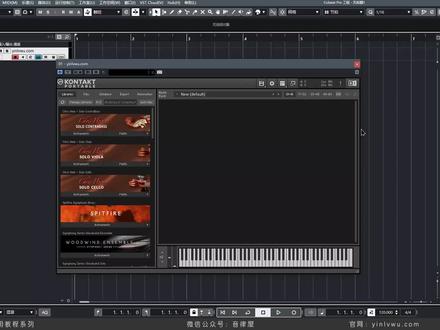
so the first thing you probably want to figure out how to do is find an instrument find a preset and load it into contact so the window that we're looking at right now this is the traditional view of contact so previous versions of contact like contact six and before this is the view that you've probably seen in the past if you've used contact now with contact 7 we've updated the browser making it a lot easier to find the sound that you're looking for so to access the new browser all you have to do is just click the icon here and this will bring up the new browser in contact 7 so this area down below where you see all of these individual contact libraries this is the same list in the traditional view where we had that list of instruments on the left hand side with the new browser it's basically broken up into you know nice product images and it's a lot easier visually to actually find what you're looking for so you can only scroll down on this list and if there's a contact library that you know of or you want to choose all you have to do is just click on it and the presets for the selected library will show up on the left hand side here now i'm just going to deselect this and just start with all of my presets so when viewing all of my presets, you can see in the bottom right i have over eighty five thousand presets to choose from so with contact sevens new updated browser we've introduced a filtering system that allows you to think of a type of sound rather than thinking of an individual contact instrument so let's say i'm looking for a particular sound what i can do is just click on the sound type here and say i'm looking for a base sound and you can always go one level further and select the character area and say i'm looking for a base sound that is analog now what's changed in the browser all of the instruments on the bottom section it's basically showing me instruments that have presets that match the base and analog filter and the presets list on the right you can see now that i have 756 presets to choose from so this is a huge improvement from the 85 thousand that i previously had without the filtering now what's also cool is any of the presets that you see here when you click on them you actually hear an audio preview so you know what the preset sounds like without actually having to load the full contact instrument so this is a huge time saver just because some contact libraries are extremely long and can take a little while to actually load so at least this gives you a sense of what the preset sounds like and you're basically able to find the sound that you're looking for a lot quicker so i'll just click on some of these now if you ever need to adjust the audio preview volume, you can always use the volume slider down below here so right now we're looking at all presets and these are all of the presets sets from all of these instruments that you see in this list here so you can always select one of the contact libraries in the center so let's just select analog dreams and now i'm able to see the presets that match the base in analog category specifically for analog dreams now you'll notice some of these presets have a star next to them and that's because i've favored it those presets so if we just take a listen to one of them all you have to do is move your mouse over and you can just click this star and it's going to add that preset to your favorites list so you might be scrolling through some presets and you hear something that you like, but maybe it doesn't quite fit the project that you're working on you can always favor it and access it at a later date so to access your favorites list all you have to do is click the star at the top here and i'm just going to deselect base and analog just so we can see all of my favorites so i have analog dreams still selected so i'll just deselect it and now you can see all of my favorite presets across all of these instruments here so you know over time you'll listen you'll find more presets if you like them just favorite them it's gonna be a lot easier to find them later on than you know hopefully stumbling upon it later on when you're working on another project, so all of these are sounds that i've liked and you know have used for a project or might want to use them for a project now that sounds cool so let's get out of the favorites and back to the main instrument browser in contact so if there is a specific instrument that you're looking for or the name of a preset, what you can always do is just click the search area at the top and type in the name of a contact library so for example, there's one that i always love using called far light and i can just type it in and there we go there's far light now when i select it one thing that also appears in the presets list is all banks so this area here it basically it's another level of preset filter refinement so with inside of far light i can select you know i'm looking for a pad sound and it's going to refine the presets list even more and all of these presets will be under the pad bank inside of far light you know what i like that sound let's favorite it for something else down the road so i'll just clear out the search area here all of the contact libraries from native instruments will appear in the main browser in the center now there's also other companies out there like spitfire output heaviosity orchestral tools all of them create instruments using contacts platform so if you've purchased these instruments from third party companies, before a lot of them will automatically show up in contacts browser for example for example, albion 1 is made by a company called spitfire so i can select it and view all of the presets for this contact instrument now there are some contact instruments out there that won't automatically show up in the main browser here, but with contact sevens updated browser you can actually load these and save these libraries directly in this browser or you can save it into your user folder here so with these libraries if you need to add them to the browser, or you want to add these instruments to your user folder, all you have to do is just click the settings icon here and choose between importing the library into the custom libraries area or the user presets so again the custom libraries area once you add the library, it will show up in this main browser here whereas loading something in the user presets area will show up in the user folder so as an example, i'm going to do the custom libraries and select add and there's a contact library that i have from a company called ado clocks that doesn't automatically show up in the main browser so from here, i can just select ado clocks click open and now if i close out of this window, you can see it's now in contacts main browser, so i can select it and i can view and load any of the presets from this contact library now one thing to note though is you may or may not hear an audio preview and that really just depends on if the person or the company that created this instrument included those audio preview files in their instrument, so in the case of ado clocks, there isn't an audio preview so if you want to hear the preset, you actually just have to double click on it and load it into contact and then be able to play it。
 01:51查看AI文稿AI文稿
哈喽大家好,这里是英利屋的使用教程系列,这节课呢,我们来讲康泰克的卸载,那如果康泰克出了问题需要重装,那么一定要把之前的版本卸载干净,不然重装呢会出问题。 那目前康耐克用的最多的两个版本的是安装版和便携版,如果你不知道你是什么版本的话,可以看这边 一般有内置了入库管理器这样一个界面的,他就是都是便携版,没有的话那就一般都是安装版了。我们先来讲安装版的卸载,这个呢会比较复杂一点,第一步呢,和普通软件一样,打开控制面板的卸载页面, 找到相关康耐克的都去卸载他,注意不要光找 k 开头的,你还要留意一下 a 能开头并包含康耐克的。第二步,按文字键加二姐,打开运行界面,那输入 i ag e d i t, 这样就能打开系统的注册表了。第三步,打开注册表以后呢,点第三个再找到 sto 开头的这个打开后呢,需要找到名字是这个的文件夹,有的话呢就删除。 第四步,打开恩爱公司的文件夹,展开来后呢,如果有康泰克的文件夹也删除。第五步,打开这个文件夹,展开来以后呢,如果有恩爱公司的文件夹,再展开来找到康泰克文件夹删除。 这些文件夹并不是说都会有,如果有的话删除,没有的话就继续下一步就可以了,那么这是安装版的卸载教程。接下来呢,我们来讲便携版,同样的,第一步,在控制面板的卸载页面找到康奈克主程序卸载。第二步,可以用火影像这类电脑全局搜索的软件的搜索,康奈克 说出来相关的文件呢?全部删除,这样卸载干净以后呢,我们才可以去重装。 ok, 那么以上呢,便是本年坑的内容,如果对你有帮助的话,别忘关注我们,我们下一期再见。
190音律屋 01:37
01:37 01:07查看AI文稿AI文稿
这个教程针对 windows 电脑和苹果 macos 电脑,当你看到这个视频教程,说明下载了 contact 音源, contact 音色有几百万种,但是入库方法使用方法一模一样。 首先我们访问二五一编曲网,在下载的姻缘文件夹里有个浏览器快捷方式的图标,就这个二五一编曲网资源下载,我们双击打开 或者打开自己的浏览器,在网址输入页面里输入三 w 点二五一编曲点 com 点确定网站进来后找到视频教程安装卸载,再找到 contact 入库功 工具,康泰克入库教程,打开这里面第二个就是我们的 contact 音源详细入库教程。第一个是 windows 电脑,下面是苹果 macos 电脑。
127251编曲网 01:05查看AI文稿AI文稿
首先这个加载文件库是暂时是没办法使用的,然后我们先打开看这个舞,看这个舞打开之后,然后这里按的那边,然后加载音色,比如说民族音乐,对, 后半你输入密码,好,这里加载成功了,然后桌面上会生成一个缓冲文件,这个缓冲文件你用文本编辑器打开,然后把他的名字给抠撇下来关掉, 然后从命名把刚才括片的名字给他粘贴上去,然后结尾输入第二 xm l, 然后把使用,然后这里加载完成之后退出看这个,然后会发现这里刚刚加载的颜色又不见了,他没有保存, 怎么保存呢?我们首先打开网吧,然后找到资源库,然后这个文件打开,找到看这个文件,然后这是刚才跟那个软件的名字是一样的,然后点开,然后呢把刚才这个文件 靠背进去, ok, 然后我们再打开一下看哪个,然后刚才加载的音色现在已经可以是正常的使用了。
 07:56查看AI文稿AI文稿
now that we know how to use contacts browser let's load up an instrument into contact and learn how to play it and start customizing the sound i'm going to load up something from analog dreams and let's just listen to a few presets and find something that sounds cool, so i favorite at this preset i like it it sounds good, so to load this into contact all you have to do is just double click it and it will load into contacts rack view so with analog dreams loaded there are a few ways you can actually trigger the sound and play this instrument really the first way is you know if you have a mini keyboard connected and configured properly inside of your daw you can just start playing the keys on the keyboard and you'll be able to hear some sound now contact also has a virtual keyboard which you're able to view by clicking the workspaces icon here and selecting keyboard and now down below we can see the virtual keyboard and if i use my mouse i'm able to click on any of the keys to playback analog dreams so in addition to the virtual keyboard being able to trigger the sound of the instrument you have loaded depending on what contact instrument you do have loaded it's actually going to provide you some visual feedback so i'm going to close out of this window quickly and load up a another contact library so this is the symphony series string ensemble and you'll notice that the virtual keys down here they're not all yellow i have red yellow green and blue so in the case of this contact instrument the color of the keys is actually letting me know what instruments are playing in those different sections so for example with the red keys these are the bass strings, yellow are cellos, green are violas and the blues are violence so depending on what contact library? you have loaded the visual feedback from the virtual keyboard will be different i recommend just keeping the virtual keyboard open you know if you do have a midi controller and you're using that to play at least you can use the virtual keyboard to give you some additional information about what contact library you have loaded once your instruments loaded this is the point where you can start doing some sound design and customizing the sound to fit the track that you're working on so every instrument every interface is going to be slightly different but in the case of analog dreams this interface is very simple where essentially i have these eight knobs that let me kind of refine the sound so if i play a note on my midi keyboard and start turning any of these knobs it'll start manipulating the sound now if you started tweaking the knobs and you still haven't really dialed in the sound or it's not exactly what you're looking for what you can always do is select another preset or what they're called in contact? are snapshots in the interface with analog dreams up at the top here this is your snapshot selection so i can just click this triangle and now i have additional filtering options so before this was a base sound but i could choose something different i could select pads and let's select iceberg so i'm in the pads category right now and if you quickly want to go through the different snapshots within this category you can always just use the left and the right arrow here and just start finding the sound that you want so this one sounds pretty cool let's just tweak some of the knobs here and see what we can get out of it all right so some really rough sound design now we've used the mona lisa preset as kind of our starting point we've turned some knobs and essentially created our own sound out of it now, what you can do is actually save this as your own snapshot and it will get saved to your user library so, if you've adjusted the knobs and you want to save it all you have to do is click the save icon here and you can name the preset whatever, you want so in this case we'll just say it's brian's amazing pad and click on save now to access any of the user snapshots that you've created once you have an instrument loaded again in this case it's analog dreams when you click the snapshot icon here before we only had factory but now we have user so any snapshots that you create and you save will appear in the user tab down below and the user tab is instrument specific so if i do load up a whole other contact library and click on the snapshod strap down you may or may not see user, but you're not going to be able to access the analog dreams preset that you created now if you ever just want to load a completely new contact instrument there's a couple ways that you can go about doing this so first if you want to clear out this instrument you can just click the x icon up here and it will remove this one from the rack view we previously also learned that you can just click the save icon here and just say reset multi and it will remove anything in the rack view in the center now another way to load a completely new instrument is you can either go back to the new browser in contact or we can also just use the traditional browser on the left so if i want to let's say load for these very own keys i can just click on instruments click on the dot nki file and just drag it on top of analog dreams and it will replace whatever you have in the center here now occasionally what will happen is you know maybe you just double click on one of these contact libraries what will happen is it's gonna add this library just below the existing one that you have now there's a very good reason for that which will be covering next but in the event that this does happen what i would recommend doing is just removing both of them and then just reloading the instrument that you were originally just trying to load so now we only have one instrument inside of contacts rack view。
 09:43查看AI文稿AI文稿
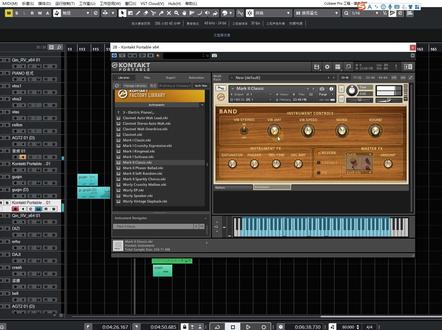
好,那这一刻呢给大家来分享一下这个康泰克原厂音色啊,这个呢我相信大家很多啊,这个把它下到硬盘里面装了啊,可能都从来没用过啊, 但是呢我觉得啊,这个姻缘呢,看你怎么用啊。呃,而且呢,我觉得他的这个分类啊,我觉得很不错啊,特别是大家在刚开始学的时候啊,也不知道市面上有哪些乐器啊,那这个分类呢可以带给我们很多的这种,呃 怎么说呢,这种经验上的一个学习啊啊至于你用不用他,我觉得呢他是另外一回事啊。那首先比如我们看一下这个康泰的原厂音色,首先他的分类啊,第一个呢,其实就跟乐队相关的伴的啊 啊打开之后呢,呃我找一些典型的音色说啊,比如说像什么原声钢琴 啊,这个可能啊,大家都有啊,这个有很多钢琴,吉他,贝斯鼓啊,那这四个东西呢,我们就不用听了啊,一般用的话我们肯定不会用它啊, 这个声音肯定是吧,可能就比咱们 q base 自带的好一点点啊,但是呢我们不用它,但我们可以用到里面的哪一些呢?比如说如果你现在这首歌里面需要一个 sax, 那我以前就用过哈。呃比如说 像这种声音呢,加点混响 好,它其实在关键时候呢,你也可以用到它啊,比如说写 demo 的时候啊,如果说,呃你真的很难找着啊,这个 sax 音源或你电脑啊也装不下了啊,这种小玩意啊,我觉得很好用啊, 对把混响一加稍微的啊。 呃用一下啊,替代一下,我觉得也还可以啊,也还可以,当然是吧,你有更好的音色,当然我们可以会用更好的音色啊,但是如果说你现在这里面有一套啊,这个康泰原厂哎,我觉得你可以从这里面去 找一下它分类里面的一些呃具体的小音色,然后呢,你觉得你对这个音色感兴趣,你再去针对性的去找更好的音色啊,不然你可能永远不知道啊,有这样的一个 sax 或者有这样的一个小号啊这种东西对吧 啊,包括很多同学啊,在跟我学的时候呢,老师有没有电钢琴啊,其实这里面电钢我觉得也还可以用啊,比如说 啊,只要你不对比啊,基本上都没有问题 啊,带 有一些蛙音的啊,电钢好 organ 啊,风琴 好这个呢,做一些这种啊,你想增添一下你的这个编曲的想象力的时候啊,可以先尝试用一下,不一定上来 要搞个两 t 的盘,对吧,里面的音色个个都是很精华的啊,也没必要啊,刚开始的话呢,在刚开始学的时候呢,你可以啊把这个音色好好的听一听 好,然后下面这个呢合唱类的音色啊,那这里面呢其实就是关于人生合唱的一些啊,听一下。 哎,我觉得这个声音很不错啊,因为这里面的这个合唱音,是啊,我觉得呢啊关键时候都是可以用到的啊, 很华丽啊很华丽好,第三个管弦啊,嗯,我刚才为什么说这套音色比较好呢?因为它分类啊 还算可以啊,就是我们即使不用里面的音色,但我们也知道啊,你看这个管弦啊,里面大致的分了什么啊,大家可以去听一听啊, 弦乐,木管铜管打击乐啊,管弦打击啊,这个键盘类的音色啊, 大家都可以听一听啊, 而且音色也不大啊,如果你现在没有那么大的盘,刚开始学习啊,你这个,嗯有一套那个四大件啊,比较比较相对好一点的四大件,再加上这一套康泰克原厂,我觉得够用了。 好,这个里面大家可以自己听一听啊,然后呢这个里面合成器音,是 啊,大家呢给他装了音色之后,大家总在问啊,我有没有合成器音色啊,其实都在这个里面我们可以听得到啊, pad 好,比如说你看这个音色非常棒, 又有高频的这种啊,这种点缀出来的声音啊,也有一些这种中低频的这种嗡嗡 pretty 的声音,哎,如果你现在没有很好的音色,或者说没有很呃,很听过很多音色啊,这个音色把你记住啊,很好用又不大 哎,这种作为氛围来讲我觉得都还不错啊, 所以说大家呢千万别啊嫌弃这套音色啊,非常棒。下面呢啊,比如这个是什么 合成器类的这种合唱啊,呃,因为我们刚刚听过吗,这个里面呢无非就是带有一些合成类的一些味道啊, 也可以作为这个 pad 啊类型的东西来使用好,包括合成股, 哎,当你没东西用的时候呢,这块啊,我觉得真的很好 好对,千万不要看着,哎,别人用啥你 用啥,其实像嗯,选音色啊,自己呢其实可以有一个独立的判断啊,然后呢,包括我现在也在极力给大家做一些这种嗯, 不是那么复杂的一些音色的一些推荐啊,然后呢大家可以呢,这个,呃,适当的啊,参考一下啊,但不用完全跟我一样啊。好,这个什么啊,关于打击类的啊, 比如这里面有什么,呃,这 kick 啊, snare 啊,这军鼓,骶鼓, clap 啊,这个呢,也是大家老在问的,拍手, 只不过这个音色啊,稍微差一点,那万一你找不到音色的时候啊,来这里面来玩一下啊,我觉得挺好。 好,这个比较经典的音色啊, 啊,就是很早期的那种合成器的啊,那种经典的音色,大家可以在里面找啊,大胆的玩好这个世界 word。 哎,这里面呢, 哎,音色虽小啊,但是呢他的这个技法啊,我觉得都很有 啊,很让我们能够产生一些想象力啊。好,那这套音色的话呢,大家如果硬盘里面有的话呢,大家可以多听一下,然后呢找到你喜欢的音色。 嗯,可能有一天你觉得他不够用的时候呢,啊,在对应的这种音色类型上呢,去找到更好的音色来替代他。呃,我觉得都是一个很好的一个方法。好,那这一刻关于这个 ctrl 原厂音色的这个简单的推荐和普及呢,我们就讲到这里。
72Amu音乐


猜你喜欢
最新视频
- 10.5万浪漫寄于情诗