奥之心om-1二代C~AF怎样设置

粉丝3589获赞2.9万
相关视频
 03:20查看AI文稿AI文稿
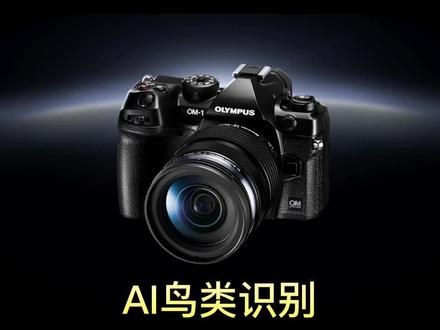
哈喽哈喽,大家好啊,本期给大家带来的是啊 om 杠一这款旗舰机的 a i 自动识别,首先呢给大家带来的是鸟类爱识别,我们大家都知道啊,在 em ex 机身上是由鸟类 ai 识别的,那在我们的这款机身上呢,也是沿用了这个识别,同时还有一个更高的提高。 首先我们按一下 ok 键啊,把这个自动对焦区域区域可以给他放大一些。第二呢我们可以把对焦系统给他变成动体追踪对焦。 第三连拍方式我们一定要给他放到 shrshr 呢,可以达到每 一秒连续对焦,连续拍摄五十张啊,每秒最快五张,可以说是非常快的。按动麦角彩点键,选择 a f, 把自动对焦区域提示一改为开二, 然后我们在这里边可以看到拍摄对象检测,我们可以给在这里边选择鸟就可以。大家也在这可以看到旁边有一个新出的一个 a, 就是我们的这个猫和狗的一个检测,可以多了一个检测的一个物体。 那好,我们把这个都选完了以后,我们回来看到我们的屏幕上,我在任不做任何操作的情况下,相机就可以识别出画面中的鸟类,并且有一个主块,如果要办完快门的话,那我们的这个相机就会跟着我们的鸟进行连续进行连续对焦,我们可以看一下 我现在是在北京的动员进行拍摄啊,比如说天鹅,我相机自动识别出来以后,我搬完快门,我的相机就会一直锁定我的这只天鹅,并且呢主动会找他的眼睛和鸟和和头部, 然后再三再放开,办完快门的话,他依然会去继续锁定目标 进行拍摄,只需要我们按动快门就可以了。那在我们的快捷菜单设置上呢,也有很多的一个突破,比如说我们按动 ok 键, 然后选择齿轮,然后我们选择啊任何一个快捷键以后按 ok 键进入,我们可以把这个 线给他换成我们在这里边的任何一个快捷菜单,比如说还有一个检测对象,我们选择他好以后我们退出来, 我们按住选择好的这个按键拨动后轮,我们就可以看到我们的 a 识别检测对象可以从快速的从鸟类变成猫或狗,或者是火车,或者是飞机或者是汽车,哎,进行一个那个自动识别种类的选择,就不需要在菜单里边进行去找了, 在他的这个对焦的精度和快速的呃,性能方面也是有一个非常大的一个提升啊,等待大家去使用了,好,谢谢大家, 大队。
57王子龙 03:47查看AI文稿AI文稿
哈喽哈喽,大家好啊,我是奥之星的王子龙,那本期呢,给大家带来的是曲线功能的调整。 那说到曲线功能,大家肯定都知道,在我们奥之心之前的相机,像 em 马克二, em 马克三, em x 啊,包括 em 系列, em 十系列金身内部呢都有一个调曲线功能,那这个曲线呢,是可以调节我们画面里边高光和阴影的对比反差度的, 那在我们 om 一的这个旗舰机身呢?哎,大家可能会发现,哎,我可能找不到了,对吧?这个功能是不是没有了?其实不是, 我们需要通过一个这个快捷键的设置,就可以把这个功能调整出来。首先我们按一下 ok 键,调中我们的快捷菜单,然后把光标放到齿轮这个档位上, 这个档位呢,我们看到了叫做那个按钮功能,也就是调节我们快菜快节菜单键,按 ok 键进入以后,通过上下键选择,我们可以从从图上的黄点看到 黄点指上机身的哪个键,那我们就是在设定这个按键是什么功能,比如说我选择了这个 iso 键,机身背面的 iso 键,按 ok 键进入,我们从上往下找,能看到很多功能可以设置,那设置成哪个功能呢?我们这个按键就是什么功能了, 我们只需要找到这个,我们看到上面啊,像上面选择多功能,选择这个,按 ok 键,我们出来以后就会看到 iso 的这个按键,现在设置成多功能的这个功能了。好,我们办完快门出来以后,只需要按一下 i 搜,我们的这个高光和阴影就出来了,我们可以通过前轮调整高光,通过后轮调整阴影的对比度,同时呢我们还可以再按一下音分键,调整我们的灰,接整张照片的这个灰度,我们可以进行调整, 按住 ok 键,两秒钟自动归零,再按一下音符键,又回到高光和阴影的调节啊,我们可以从画面上直接的看,非常直观的看出来的他的变化,比如说阴影,我可以让他更多一些,哎, 这个高光更少一些,这样的话会感觉反差会小一些,那我把阴影呢调的更暗一些把,把高光调的更亮一些呢,这样我们会感觉反差会更大大一些,那这个呢,就是我们高光阴影的调节,那它这个功能啊,叫多功能, 我们只需要按住后边的 iso 按键,拨动一下前轮,大家看屏幕下方就会出现很多功能调整,这个时候我也是一直按住那个 iso 多功能那个按键的。 好,我拨动前轮,选择好某一个功能以后,我放开我再按一下这个按键,我就调出呼唤出我刚才选择好的那个按键了,那那个功能了。比如说现在这个色彩创造, 如果要想调回这个高光阴影的话,我只需要按住 iso, 拨动前轮,再把光标放到高光阴影的这一档位放开,再按一下我们设定好的 iso 这个快捷键, 就可以再调再次呼唤出我高光阴影的这个功能了。这点只需要大家现在再重新给大家说一遍,就是一定要注意 ok 键齿轮, 我们想把这个多功能放在哪个按键上,就在哪个按键上去选择设置就可以啊,都可以进行设置的,都可以进行设置的。好,本期呢给大家带来的是多功能高光阴影的调节,我是奥之心王子龙,我们下回再见,谢谢!
26王子龙 04:27查看AI文稿AI文稿
哈喽哈喽,大家好啊,我是奥之星的王子龙,本期呢给大家带来机内 r 一 w 格式的处理方式。首先我们可以先拍一张肉格式的照片,大家可以看我这已经选择肉格式的照片了, 拍摄一张当前肉格式的照片,然后我们进入回看,找到这张肉格式的照片,大家可以在这里面看到,然后我按动 ok 键选择第一个啊,按动 ok 键以后,对话框就会出来选择第一个肉格式编辑, 然后我们可以选择不同的这个编辑内容,就自定义一,自定义二,还有我们的这个呃绿艺术滤镜,我们可以在自动自定义一里面进行一个设定,右键进去,然后呢我们可以 在屏幕的左侧通过上下键选择调整我肉格式变成 gopg 格式,只拍个格式的模式,首先第一个 lsf 是最好的模式,最好的 gpg 格式,那第二个呢?压缩比相对来说差一些,第三个是全像素压缩比更差。第四个无论是压缩比还是像素都是最低的,适合于我们去拍摄一些 传输一些网络的拍照,那我们呃尽量要选用 l ls f 最好的一个勾 pg 模式。 第二个呢是色彩模式啊,比如说这个呃风光啊,比如说这个人像啊,比如说变成黑白呀啊,我们都可以进行选择,包括我们的艺术滤镜都可以在这里边进行选择啊,都可以,然后呢,比如说我选择黑白吧, 然后再往下,我可以调整我的白平衡啊,在我机身里边调整我的白平衡,包括我的这个自定义白平衡白平衡模式,比如说我选一个阴天,然后还可以调整我的曝光补偿,通过我的前轮调整我的曝光补偿, 我们再进来调整我的曝光补偿啊,我可以加,我可以减,通过左右键或前段都可以调整, 再包括我的高光,我的阴影,也就是我们平时调的曲线啊,我可以让阴影更暗一些,我可以让高光更亮一些,这样的话我的对比度会大, 然后再包括我的中央领调,我的这个照片的比例格式啊,包括我高杆降噪啊,要弱一些,强一些,我们选择强一些。色彩空间 s rgb 货啊,都别 rgb 在这里边也是可以调的,包括梯形湿针补偿都可以。当我们调整好以后,按动 ok 键,大家看 相机就直接生成按照我们的意愿调整好的一个后期照片了,如果选择执行的话,相机就会把它保存下来, 保存好以后,相机会问我们是否要重设,就是你对当前的设置是否满意,不满意的话我们还可以重新再设置啊,我们都当然是不不需要了,选择这个时候大家看相机就存下来一张哎 s l s f 的那个 勾 pg 格式的照片,也就是我们调整完的照片,还有刚才的肉格式原始照片,如果要不同不嗯,不满意的话,我们还可以通过 ok 见肉格式照片编辑,继续在这里边 进行编辑,如果要满意的话,我们直接退出就可以了。那我们生成的勾 pg 格式的照片呢?我们 ndok 键还可以继续继续进行一个那个编辑。 当然了,勾皮剂格式的编辑呢,就不如肉格式编辑的比较多了啊,他可以调整阴影的调整啊,包括这这都是阴影自动调整啊,包括我们的这个红点补偿啊,还可以进行一定的裁切啊,黑白把它变成黑白模式啊,棕色模式 啊,包括我们的色彩啊,色度古筝啊,这些呢,都是我们高飞机模式,可以进行一个那个就是调整的啊,调整好以后我们也是按直行就可以了。那以上呢,就是我们在回看键里边对肉格式照片转化成 勾 pg 格式照片的一个使得操作方法啊,希望能对大家呢有很大的用处。我是奥之心的王子龙,谢谢大家,我们下期再见。
12王子龙 04:36查看AI文稿AI文稿
哈喽哈喽,大家好啊,我是奥之星的王子龙,本期给大家带来的是多重曝光的使用, 首先我们在我们的相机内按一下麦妞菜单键,在相机二可以找到多重曝光这个功能,按 ok 键进入,我们在画面上可以看到三个菜单,首先我们要选择多重曝光,打开 第二个自动修正,我们一定要给它打开,打开以后我们的相机呢就可以对我们的照片进行一个非常合理的曝光调试, 选择好以后搬完快门退出来,这个时候我们就可以看到屏幕的左上方就有一个多重曝光的一个标志了。好,我们先拍摄第一张照片,拍摄好第一张照片以后,我们就可以移动我们的相机进行二次构图了。 啊,我,当然,我现在在我的这个办公室里边,我呢就手动的挪一下,大家可以看到啊,我刚才第一张照片的虚影就已经就已经留在我的相机上了,这个时候我在移动对焦点进行对焦,进行二第二张的一个拍摄 好。拍摄好以后,大家可以看到这个时候两张蝶眼就完全都留在我们的一张照片上了,这个呢是实时拍摄多重曝光的一个方法,我们还可以进行一个什么样的拍摄呢?叫做哎半后期的拍摄, 我们按一下麦妞彩蛋剪,然后选择多重曝光,把它打开,打开以后第三项图像浏览,这个是一个什么功能呢?当我们的相机里边有 肉格式照片的时候,这个功能就可以选择了,按 ok 键选择打开,这个时候屏幕上就会出现我刚才所有拍摄过的肉格式照片啊,肉格式照片,那这种情况下呢? 在这种情况下我就可以随便的把一张照片哎给他调到我的这个屏幕上,然后和我当前的照片进行一个叠加 好,比如说我选择他,这时候大家可以看到我就把刚才的那张照片进行啊进行调出,然后和我当前的 场景进行叠加进行拍摄,那这个时候我再移动我的对焦点进行拍摄,哎, 这样的话我就可以在我照片里边的肉格式和当前的场景进行一个二次叠加的一个拍摄了。除此之外呢,我们还可以进行在纯后期的一个叠加,比如说我现在在拍摄一张肉格式的照片啊,我把它放在这里, 把这个变换一下我们的场景,这个区别一下刚才的照片,我现在拍摄一张照片,看肉格式的 拍照好了以后呢,我按回看键,找到一张肉格式的照片啊,在这边有显示,在这里有显示肉格式的,按一下 ok 键选择图像合成, 这个时候我们相机可以提示我们可以进行两张合成或三张合成,比如说我选择两张合成好,我就可以看到我所有肉用肉格式拍摄的照片,我通过上下 左右光标键就可以进行移动选择,默认是选择了这一张了,那我们还可以选择一张啊,比如说这个进行选择,选择好以后,相机就自动把我的这个照片来进行一个合成, 同时可以通过左右键选择,然后呢调整我的亮,按每张照片的亮,或者是按大家可以看上下键 选择量货之上,上边的图像是实时可以看清楚的我们调整的样子, 然后调整好以后按动 ok 键进行执行,那我们的相机就合成了一张纯后期的啊,二次叠加的照片啊,而且呢是勾皮记格式和肉格式,同时都给我们留在留一张在我们的内存卡里边,是非常智能, 在这种情况下我们就可以在后期无限制的进行一个照片的叠加啊,非常方便,也是非常人性化的。那以上呢就是我们的多重曝光的使用和讲解,我是奥之心的王子龙,希望对家对家,能对大家能有帮助,我们下期再见。
10王子龙 03:33查看AI文稿AI文稿
哈喽哈喽,大家好啊,我是二中心的王子龙。那今天呢,跟大家一起聊聊色彩。 那要想了解色彩的话,我们就得先了解一下色彩的由来。我们之所以能看到各种各样的颜色啊,首先呢是由于物体的光线的反射,其次呢是我们大脑的一种啊,视觉合成 光是由不同的色光组成的,物体会吸收其他色光,而反射物体固有的颜色。反射出来的色光呢,进入到我们的眼睛,感光细胞受到刺激,即在我们的大脑中呢产生了色彩的印象。 好,那我来举一个例子。首先我们画面中的耳机盒的固有颜色是红色,我们的光线中也有红色,耳机盒吸收了 其他颜色,反射了红色光,这样我们看到的耳机盒就是红色的。那当我们改变一下可近光源的颜色变成蓝色的时候,那蓝色里边没有红色,耳机盒是反射不了红色光源的,所以他就变成了黑色, 我们再恢复可以看一下,就又变成了红色。那么影响我们的相机色彩的功能都有哪些呢?像白平衡,像影像风格 啊,色彩创造,包括咱们的艺术滤镜。那这几种功能呢,都是可以影响我们相机色彩的,首当其冲的呀,那一定是白平衡, 我们平时用白平衡的,用的也是相对来说更多一些。大部分情况下呀,我们使用呃自动白平衡就可以了,但是在一些特殊场合,比如说像婚礼现场,灯光 比较暖,但是相机呢,你要用自动排平衡呢?可能拍出来的颜色呢,就是领垫,相对来说冷一些,这个时候我们就需要拿出一张白纸进行现场白平衡的一个补货。 好,大家看啊,我当前的室内灯光呢,是一个偏黄的管灯的一个光源,那我先使用自动白平衡拍摄一张照片, 然后我再进行一次白平衡补货,然后点击 ok 键,选择白平衡里面,然后往后找,我们来找一个白平衡补货。对, 在这里边呢,我们将一张白纸放在正相机前边,然后按音符键进行白屏补过,选择直行,这个时候我们用它再来拍一张照片,两张照边际心眼对比,大家一下就能看得出来了,很明显 我们用白平衡补货确定的三千六百 k 值就要比自动白平衡更准确一些。那除了白平衡,我们相机内置的影像风格啊,色彩创造,包括艺术滤镜都可以改变我们相片的颜色和风格,尤其是艺术滤镜,只得一说, 奥之星的艺术滤镜呢,一共有十六种,那每一种艺术滤镜还分不同的一个级别,那每个级别呢,我们都可以去尝试的一下拍摄,这样拍摄出来的照片呢,就相对来说更有一些张力。我们再来看一下摄影师拍摄的作品。 好,大家看时尚摄影师西川老师呢,就用不同的艺术 去拍摄人像和风光,得到了不同颜色和不同风格的照片。那本期视频大家学会了吗?其实摄影很简单,我们下期再见。
15王子龙 03:56查看AI文稿AI文稿
哈喽哈喽,大家好啊,本期给大家带来的是快速删除的功能,我是奥之心的王子龙,很高兴在这里又跟大家见面了 啊。那首先我们在删除照片的时候呢,通常的操操作是我们按动一下回看键,然后按一下我们删除键,选择直行就可以单独删除这张照片,对不对?那好我们再看一下啊,在我们的卖牛菜单键里边, 在我们的回放这个模式下,有一个快速删除默认式关闭的,那我们可以把它选择打开,这个时候我们再看一下我们回看照片,按动删除键, 直接就会删除掉这张照片,没有那个再去选择执行的那个步骤了,可以让我们更快速的 进行一个照片的删除啊。当然了,如果你要想再确认一下照片的话,我们就要把这个功能关掉,把功能打开的话,就是按一下删除键就直接删除这张照片, 除此之外,我们还可以对照片进行勾选,勾选好了以后,然后进行批量删除,比如我现在在回看模式下,我按动我相机前面摄像键的那个红色的按钮,相机顶部的红色按钮,这个时候屏幕的右上角就会打出一个对勾, 我可以通过方向键,然后继续找照片啊,大家看底下的数字,我按左往前往下找一张,如果这张照片我想删除掉,我再按这种红鸟给他打上对勾,我可以一直往前找找,打上对勾,打上对勾,我大家看底下的数字是一直在 变化的,我一直在拨动照片的,只要我想删除的照片,我都可以给他给他打上对勾,打上对勾以后,按动 ok 键,选择最后一项删除所选照片,也就是说我们勾选上的照片在这个模式下就可以进行批量删除了, 那这样的话,大家可以看到底下的右下角那个照片的数字啊,已经是删除掉了刚才我勾选的这个照片了。还有一种模式呢,我们可以触握触碰触摸屏,然后呢 我们可以触摸触摸屏,然后进行一个触摸屏的一个星级的一个选择。 嗯,点击右下角的这个方块标志,然后呢 我们可以把我们想删除的照片都打上勾,在我们的触摸屏上都进行打勾, 看到了吗?然后再按动我的删除键,选择删除所选张数。那这样的话,刚才我打上勾,我通过触摸屏打上勾的就都已经进行删除了啊,我把这个操作再重新操作一下,大家再看一下, 好,我回看照片,然后呢碰动碰触一下触摸屏, 选择右下角这个方块,把我的照片变成小的图标,然后再把 o 变成二选择,这个时候我就可以选择我想要删除的照片, 哪个都行,哪个都可以,都可以,都可以,然后按动删除键,选择直行进行批量删除, 所以两种快速删除的方式,一个是按红点打勾,还有一个利用触摸屏选择照片进行批量删除,在这里边都给大家介绍了,那么希望大家能够很好的运用我们的快速删除照片功能,我是奥之心的王子龙啊,请咱们下期再见,谢谢。
38王子龙 01:37查看AI文稿AI文稿
哈喽哈喽,大家好,本期给大家带来新款 om 杠一 iso 值的调整方式,首先我们按住 ok 键调出快捷菜单,在快捷菜单的右上角我们就可以选择 iso 值这一选项, 那我们通过左右键可以选择 so 的数值啊,最左侧呢就是我们的自动 so 啊相呃相机屏幕上会有一个建议,就是建议大家在当前光线下使用这个 iso 数值两百, 那我们依次往右进行拨动,首先我们看到就是扩展的 so 值最小我们可以用到八十一百,那从两百开始呢,我们就是原生态 so 值的从两百开始,我们一个一个 可以往下翻,我们也可以按住方向键的左键或右键,那就是快速往下翻转挨搜值,那我们可以看到原声是按在这款相机上,由于使用了最新的杯罩对战式 c 貌斯和出品格 x 的图像处理引擎,我们 原生态 so 值最高可以用到两万五千六,但是有一个非常大的一个提升,那我们再往后呢,扩展的 iso 值我们最高呢可以用到十万零两千四这个数值,所以在 iso 这个方面的话,可以选择的余地是要非常非常大的, 那这个呢,就是本期我们 iso 值来调整给大家带来的内容,谢谢。
15王子龙 08:47查看AI文稿AI文稿
so a couple of big news items today first off, i have the om one on loan from om system and that is because i've recently become an om system ambassador so i'm super happy and just so grateful for this opportunity and i want to say thank you so much to all of you who have been watching my videos for the support the likes the comments sharing everything i am sure that it is a big part of you guys that has made this a possibility for me so thank you all first of all what this means for my youtube channel it's not really gonna be any big changes i may do a couple more videos on the om system but i've done that previously as well, but i want to stay focused on the experience taking you guys with me out into the field for wildlife photography and just immerse myself in nature and bring you guys along for the ride that is the main purpose of this channel and that's what i wanted to be so every now then i might throw in a little bit of review and things like that especially when we got a new camera like the om one so i only had this for a couple of days, but i want to share my kind of first impressions and a few of the things that i was really curious about if you want to know more about full specs and everything there are tons of good reviews videos out there i'm going to be focusing on how this camera performs from me in the field as a wildlife photographer two of the biggest things for me that i've been looking forward testing out with this system one of them is the autofocus and the animal and bird detection and tracking of the eye and the other one was iso how you know how far can i push this when it comes to low light when the bird tracking first came for the m one x i was really excited and you know i had some ok results within the beginning but after using the bird tracking on the m one x for a while i realized that most of the time i could do better with continuous autofocus and just using my one point in the middle and there will be certain situations when i would use the bird tracking however with this camera i'm happy to say that i haven't tried it for two days i use the animal and bird tracking all the time and i only turn it off for certain situations when i thought it looks like i can do a little bit better here and those were quite extreme cases like yesterday i was lying down on the shore on nearby lock and i was photographing birds that were backlet and most of the time the bertracking worked fine it was only when the sun was really low and right behind the bird and you got this really big contrast from light to dark that's when i had a little bit of problem and i had to turn it off i was photographing birds and water, a lot fronted and backlit and i picked up focus on the birds consistently it was only the one the birds get far enough away that's when the bird detection started to fail a little bit but in those kind of situations there's so far away you're talking about really really small in the frame so if you really want to nail focus then i find it better to use manual focus and zoom in digitally to see like a shockness anyways i also tried this out in the forest here where i feed red squirrels and i used the new animal or the cat dog tracking i have to say just check this footage out it works perfectly and you can see the box hovering over the squirrel and the little box for the eye and it's only when the squirrel moves or goes away and catches it right away again so really impressive there and i can't wait to try it on other species that i haven't come across yet overall i am incredibly impressed with how this camera performs with the auto tracking for animal subjects and it is my go to so i use that now as my default i only turn it off when i have to and i'm really pushed and i'm really struggling to get focus and over the couple of days that i've had in now those are rare occasions so besides acquiring focus more often using the animal detection that also makes it much easier to compose my images in the field because it means that you know wherever the bird goes in my frame i don't have to worry about that i just have to hold my focus in and i can compose the scene it doesn't matter where the bird of the mammal is in the frame i can actually worry about composition and that means that i have to do less cropping imposed than i will keep you know a much better quality image in the end one of the reasons why i switched to limp is in the first place is the lightweight the portability of the system and yesterday i was out of my bike of course i took this with me had in my backpack and also a come across a red kite took seconds for me to get off my bike my camera out and since i had the bird tection and everything ready to go and i managed to get a few shots of the red kite as it was flying past the focus just locked onto it immediately so i've never had a system that can actually do that before so i'm super happy with that and you can check out this photo here of the red kite as i think this is cropped a tiny bit so it was very close, but i picked up focus on it one of his further away as well and all the way till it came close to me now it's not particularly a good photo anything like that, but i love having the chance of those opportunistic birds and flights you know chances when birds takes off and all you have to do is just point focus shoot and you know a little bit further on at the same situation i came across a buzzard same thing i had to get my camera out of my bag but i had all the settings ready and it was just a point and focus so i'm super impressed with the af detection for animals birds and mammals alike all right then let's talk about iso capabilities and noise this red scroll image was taken with an iso of twenty five thousand six hundred absolutely amazing i'll bear in mind this is worked on i've you know i process this image that it was a noisy image i'll show you the original one right here this is what it looks like in light room right away and as you're maybe where i think there are still updates waiting to come for this camera within either light room and the noise dx or whatever you are using this is using limpus workspace which has done such a nice job of removing the noise i'm probably not gonna go around taking photos normally at an iso is twenty five thousand six hundred because you do lose some detail and there is a lot of noise seeing the results this is an image that i'm perfectly happy to share online it's absolutely incredible that i know that i can actually push the camera that far and get decent results with it another improvement with this camera that i was excited to try out was fifty frames per seconds with continuous autofocus now that is absolutely incredible and that expends the pro capture as well, so i took this camera out in the garden and i just had a play about and it was a dark overcast day but since i can push the eye so up it didn't really matter i could still get images with a high shutter speed to capture birds and flight and you see there's donek here on the fence just before lift off use the pro capture on that i think i had an iso five thousand and to me that looks really good and this is cropped heavily as well, i'll show you the original as well, there is noise presents, but i've rounded through top as the noise this is the end result if anybody is considering picking one of these cameras up and you're in europe please consider using the link below i get a small commission really helps me out and i really appreciate it if you pre ordered before the seventh of march twenty twenty two you also get an extended five year warranty and you get an additional blx one battery now if you're getting this camera and no matter if you use my link or not i will put on free group live calls that you can join and we'll go through some of the initial setup some of the settings that i use and a q amp。 a for wildlife nature photography if you enjoy me on any one of those live sessions follow link to my website sign up to my newsletter and you'll get an invite in your email and if you haven't seen my adventure from double guy norway please check it out i had such a good time met up with some other fantastic photographers of them you may know from before i was mostly using my emo next then i got some incredible images and experiences that i'll never forget over the next couple of weeks i will continue to explore this camera and try out the features for all it's worth i'll go a little bit deeper into some of the topics that i already discussed here so if this anything you want to know if you want me to test out, you know leave it in the comments and i'll do my best to answer you thank you guys so much for watching i'll see you next time。
42M43小Z 02:19查看AI文稿AI文稿
哈喽,大家好,最近收到了顾客送过来的一台二零八四相机,这是目前二零八四里的最新型号,奥之星 ome, 那么本期视频我们就来简单看一下这款相机是如何无线连接手机的。 老规矩,我们还是先在手机的 app 商城里面搜索奥林达斯,将传照片的软件下载到手机里,然后我们点击相机上方的麦六键,进入菜单,然后找到上面的单数图标, 然后往右找到 wifi 连接, ok, 选择设备连接,然后 ok, ok, 好,正在启动,然后进入到二维码的状态下,我们打开手机软件,打开软件,我们选择导入照片,然后选择连接,然后选择 扫描,用手机这个白框对准相机的二维码进行开始设置,然后等待链接就可以了。 好,蓝牙设置完成。呃,问现在问是否加入这个滤网,选择加入 长短连接 wifi。 好,现在已经连接好了, 然后我们再选择导入照片, 那么现在这个手机里就可以显示相机里的照片跟视频了,我们挑选需要的下载就可以了,然后点击下方的导入就可以下载到手机里了。 点击软件上方的齿轮标志,然后这里有一个导入照片,那么这里可以选择改变传输照片以及视频的尺寸和格式, 然后还有一些其他的这些选项可以根据自己的个人喜好设置就可以了。那么本期二零八四相机无线连接手机的方法就讲解完了,感谢大家的观看,咱们下期再见了,拜拜。
64这李卖相机 04:53查看AI文稿AI文稿
我们在摁动回看键以后,会打开回看照片,摁动 ok 键,在这里边会有很多选项,首先我们一个一个来看,首先是勾 pg 编辑,我这个这张照片的格式是勾 pg 格式的, 点击 ok 键进去以后会有很多可以调整的内容,比如说阴影调整,红眼校正,剪裁样式,黑白棕褐色啊,色彩不正,比如说拿黑白来举例的话,把光标放在这里,点击 ok 键, 那照片就会被被相机调整为黑白色,如果要不想要这个颜色的话,点击取消就可以。那第二个预约分享,如果我要是选择预约分享的话,摁摁向上键啊,屏幕的右上角就会出现 一个钩皮机预约分享的一个标志,在这种情况下,如果要是有这个标志的话,我们在和手机进行连接,使用 osl 软件的时候,这张照片就会预约优先进行分享, 再有照片锁定,如果要选择锁定的话啊,我们还是选择这个功能键,然后按上下键可以进行锁定和消除锁定的这个选项。选择锁定以后,普通的删除照片是删不了我锁定的这张照片的啊, 必须要格式化才可以,我们要想再删除这张照片的话,就需要解除锁定。那还有一个就是录音,我们选择录音以后可以选择开始录音,请开始你的表演。好,录音结束以后按 ok 键, 这个时候我们这张照片就是有我们辅助声音的,我们可以听一下, 请开始你的表演。好,录音结束以后 啊,如果要想删除这个录音的话,选择录音键进来删除,那刚才的录音就会消失,我们可以用这种方式给照片进行一个声音的一个备注,再往下是旋转照片可以进行可以对照片进行一个啊三百六十度的旋转, 再往下是打印拷贝和删除一张。 按动牦牛菜单键,我们在齿轮第一里边,然后有信息显示,设定右键进来以后,第一个就是回看音符 键的一个选项,在默认菜单里边是没有这个这个和这个三项的,我们把它都勾选上以后,我们可以看一下会发生什么。可以看照片摁动音符键, 首先是我们可以看到照片详细信息的一个界面,再有这个就是我们的这张照片的一个直封图的一个显示,如果要不勾选在菜单里边不勾选的话是没有这个的。 再有是高光阴影的一个显示,再按印花键就是灯箱,可以将现在我看的这张照片 于我别的照片通过方向键可以进行选择进行对比,那后波轮键可以进行两张照片的同步放大,进行一个画质的一个对比。 好,这就是我 第一期照片回看的内容。 首先我们按动相机的回看键,然后可以通过左右键寻找我们要删除的照片,找到照片以后,我们可以按动相机顶部红色按钮,也就是摄像键选择照片,当按动摄像键以后,相机屏幕上就会有一个红色的小对勾, 我们还可以继续寻找照片,如果想删除的话,都可以通过按动这个小红点摄像键进行选择,打上对勾, 选择好以后摁动 ok 键,可以对已经打成对勾的照片进行批量编辑,比如说预约、分享、锁定、复制和删除所选照片,如果要选择删除所选照片的话,摁动 ok 键选择执行,这样这样的话勾打上对勾的照片就都会批量删除了。还有一种方式就是在回看照片的模式下,向左搓动后轮,这样就可以将图片最小化。触摸屏,点击向上箭头 把菜单打出来。触摸屏,按动 out 键选择我要删除的照片, 只要出选择删除的照片,都会有这个红色的小对勾标志,然后再按动删除键执行所选择的照片就都会删除掉了。


