ChemdrawNH怎么变
啊?各位大家好。呃,那不知道大家有没有遇到在就是用 camb joy 呃这个绘图的时候呢,粘贴到这个 word 或者 ppt 里面的时候呢?有这样的一个情况,就是你 呃用文本写了一段话,哎,比如说这个反应条件这种的,然后你粘贴在这个 word 或者 ppt 里面之后的话呢,你的这个文本的话呢?它本来是一个横横着的这个文本,它变成这个竖着的文本这种的,比如说我们拿这个举例啊, 呃,我们比如说这个打开来它是这个样子的,呃,比如说我们这个,呃,比如说我们现在稍微移动他一下子啊,然后呢我们呃复制一下啊,我们再把它关闭。呃那么这个的话呢,会出 出现这样的一个情况啊,就说他这个相当于被放大的啊,就说这个视角的话呢,变成了这个,呃视角变小了,就是一部分的这个东西抄出来的。这个我之前在之前那个这个视频里面讲的一个问题啊,呃,比如说我们这个把它粘贴在这里, 嗯,好。那这个这个现在的话呢,你看,呃这里出现了一个啊,比如说这个演示图样,对吧?这个图样的这个样呢跑到了第二行那线上,在我们打开的时候呢,你看他这个啊,还有这个地方啊,这个验证报告这个也是的 啊,他就是换行了啊,就是出现这样一种现象,这就是我们这个视频想讨论的这个问题啊,那你我点击这个文本,然后再点进来呢,他就会 会恢复正常啊,那这个的这个现象的话呢?呃反正根据我自己的经验的话呢,是这样的,就是说如果你的这个文本,嗯,就是处于这个,比如说这个是这个是两页吗?这就有一条虚线,那这个的话就是这一页的这个边缘, 那么当你的这个文本处于就是很接近这个边缘的时候呢,他就会有可能会出现这样子。我们刚才讲的这个现象就是说你复制到粘贴到这个 word 或者 ppt 里面的时候,他就会出现这种换行的现象啊,或者说有的时候的话他干脆就变成这种 啊,就是就是我们比如说把这个拿过来一个啊,他可能就是,呃,哦,这这个放大缩小了啊,他可能会变成那种,就是 这可能会变成这样,变成这样子啊,就是说,呃,你本来在这个画,呃就是编辑好的话,是这样的一个横向的,对吧?然后的话你可能这个粘贴到这个 ppt 或者是这个 word 里面的时候呢, 他就变成了这样子一个,呃纵向的啊,有的时候会出现这种情况,主要的话呢就是你这个文本的话呢,他就是啊接近于这个页面的这个边缘啊,有的有的时候你可能画一个图啊,比如说这个啊,画一个这样的结构,然后上面比如说你,你 比如说我输一个这个输进机这种的啊,如果你的结构呢放在这个边缘啊,他是靠近这个页面的边缘,那么你这个再粘贴到这个 word 或者 ppt 里面的时候啊,呈现出来的效果的话,他可能就是一个 t, 然后呢第二行是一个 b, 然后第三行是一个,又就变成这样子的一个状态。呃,所以的话呢,这个时候的话呢,也就是,呃,反正我自己的解决方案呢,就是尽量的让这些,比如说我这个样子 啊,让这些个图,呃,就是这些个文本呢,就是呃远离这个尽量的远离这个边缘线啊,然后呢再比如说我重新呢把它呃粘贴到这个里面,我就先先把这个先关闭掉啊。 好,那你看这个时候的话呢,检查一下他是一个正常的。 ok, 那么你就直接保存啊,我就不再粘贴了啊,或者我在下面再粘贴一份的话呢,看一下子。哎,你看这个时候的话呢,就是这个地方啊,这个地 方的话出现了这个就是这个检查模型数据及其一致性,他就变成了一个竖着竖着的这个这个状态啊,就是这里的这个样子啊,那其实的话就是因为这个 啊,这个正好在这条线上面就靠近这个线啊,他就会变成这样子的一个一个东西。嗯,反正我自己目前的这个解决方案方法的话就是这个样子的。或者的话呢,我比如说把这个变成一个, 变成一个这个横向的啊,我看一下啊,就是这个。好,那变成一个横向的 边脸,横向的话呢,我们可以看到他就是整个都处于这个页面,处于这个页面中间了啊,但有有的时候你可能这个画的特别长,那他就算你是一个横向的页面,他也会在这 边缘啊,那这时候呢,我把它这个复制一份,然后呢我现在把它关闭看一下 啊,然后呢啊在这个粘贴一下, ok, 那还是会出现这个问题啊,就是这个地方你看呃这里的这些个 啊,你看虽然我们刚才改成了这个横向的,但是你这个关了之后,他又变成了一个这个呃,纵向的这样子的一个一个状态啊,所以这个这这个的话呢,好像还是一个比较麻烦的这个不太好解决的一个一个一个事情啊。 呃,反正在 kmj 里面怎么去设置能够避免这种情况呢?我,反正我暂时也还不知道啊,如果大家知道的话呢,可以在这个留言里面啊,评 评论区里面留言啊,替就是解答一下子啊。啊,我们在这个粘贴啊,你看他还是这个样子, 呃,反正有的时候就就像刚才这个样子,突然就可以就有点有一点靠运气的这种感觉啊,就反正就是可能需要不断的去调整他的一个位置来解决这个。嗯,那这个的视频的话呢,我们就讲这些东西啊,希望的话呢对大家有所帮助啊。

粉丝2348获赞7697
相关视频
 04:54查看AI文稿AI文稿
今天给大家介绍一下拍不到十四点零左侧的这个工具都是什么意思?上面这两个呢是 选择工具,这个选择工具呢一个是方框的,一个是这种圆圈的,这两个呢有一些区别,这个区别主要在哪呢?在选择的时候,我们比如说要选择下面这整个结构的话呢,我们就选这个方框型的,这样拉一下就好了,这个比较方便。 但是如果说我们只想选择这个结构中的一部分,比如说下面这一部分怎么办呢?我们就必须要选用这种套索型的, 用这种圆圈形的这种套筒工具,然后比如说我们选中之后呢把它颜色改为红色,这样的话呢这个不规则,我们不可能通过拉来选择这一部分,所以说呢这是这两个区别,这个呢是一个立体立体视图,就是 说我们选中了之后呢,我们可以通过推拉,然后呢看他的这个立体的结构,立体的旋转。 下面这个是单件,这个呢就就是说我如果说我们要画单个画眼线的话呢就选这个,然后这个呢是橡皮擦,就是说呢我们想要把某些东西擦掉来选这个就行了,我们可以点点着不不松,然后呢一直划,然后呢我们所有的东西呢都可以划掉, 然后这个呢是化学键、双键、三键粗细键,然后呢要持续键等等呢这些化学键都在这里面,这个呢是一个文本输入的内容,就是说如果说我们想要输入一个文字的集团,比如说输入按键, 我们需要先点击这个,然后呢在合适的地方,比如说这个蓝色光标出现的地方呢,点 a 选一个 a 区二,这个呢就是 可以了。下面这个呢是虚件,这个呢是钢笔工具,钢笔工具,这个呢是也是一个虚的键啊,这个一般用来做这种立体结构的。然后这个呢是箭头,箭头呢有好几种,比如说这种 这种这个双电子的,或者说呢箭头大一点的,小一点的空心的,然后呢弯弯的,这种表示单电子转移的那种鱼钩型的,鱼钩型的箭头包括可逆反应的箭头等等,有很多种类, 这个呢是谢行界去的谢行街,这个呢是轨道,就说 s 轨道、 p 轨道的轨道等等这类的轨道,那轨道的下方呢是各种图形,这个呢大家需要区别区分一下,这个图形里面呢有圆、椭圆,然后呢方框等等,还有这种实心的, 包括这种长直线,长虚线,然后波浪线,还有这种弧形线等等,这个呢是十的线形键,虚的线线线。然后呢这个是波浪舰,波浪舰呢一般表示断剑,对吧?比如说我们这个想要在这断一下,然后我们就选中这波浪舰,哎,在这点一下就好了。 这个这个地方呢就是比如说是括号,有方括号、大括号、小括号等等,好了再往下面呢,这是电子,各种各样的电子符号,表示正电和负电荷,分电子、自由基,双电荷等等, 这个呢是表示对已有的图形的进行进行标注的,这个呢是画表格的 a b 图,比如说呢比如说我们在这画,或者说呢你点击一下,然后他让你写 几行几列,比如说这是二行字列,比如说写三行五列,然后 ok, 然后这个新的表格就出来了, 这个呢是画那个波桑斯湖版的,波桑斯湖版的这个呢是画长的这种链状结构的,比如说我们要画一个正几弯,正几弯,六个碳,对吧? 六个菜呢?我们这样画的话呢,这个比较慢一些,如果说我们直接选中这个结构,然后直接往右边一拉, 哎,这六个碳已经出来了,这个呢是模板,模板里面呢有很多内容啊,大家看一下这种彩色的这种人体的结构和玩死不要撞,然后氨基酸的侧链氨基酸,还有这种人体结构,小动物,然后方环球环,定环等等,还有常用的这种 实验室的仪器啊,小飞虫,然后各种玻璃仪器,然后各种构像帽环,就是说芳香环,帽环,然后那种大的 放完听电 a, 然后各种关灯团,然后各种各样的,反正这里边呢有各种各样的这种就是 我把大家用的时候呢可以找一下,然后再往下边这一部分呢,就是这三用环、四用环、五用环、六用环、七用环、八用环,包括正九就是缓解完以示勾向,还有这个环环的吸合 比较懂啊,对吧?这是我们常用的这一部分结构内容,这个结这个工具呢,我们就说到这,谢谢大家。
376伯仲叔 03:18查看AI文稿AI文稿
啊,各位大家好,那么这个视频的话,我们来讲一下这个 campgo 里面的一个缩放的一个功能啊。呃,比如说我们有的时候呢,画一根箭之后呢,我们想让他这个这个可能觉得这个,有的时候呢,比如说我们画 perfect 键的时候呢,觉得这个键可能比较短啊, 那么你选中他之后啊,呃,选这样选中他之后,他会出现这样一个蓝色的这个框啊,我们先放大一下啊, 就这样子一个蓝色的这个方框啊,把它框住,然后上面有一个这个,呃,当你把这个鼠标放在不同的位置的时候,他可能会出现不同的这个鼠标,就会变成不同的这个图标啊 啊,你要变成这个手的时候可以移动,对吧?然后你放在这个地方的时候,你如果双击他啊,他会出现一个旋转对象,如果是在这个,比如说这样子的一个缩放的这样子的一个啊,其实你直接拉也可以, 可以啊啊,就是这样的话是个不啊不定式的这样子一个缩放,你看他有一个缩放的这个比例,对吧?呃,然后的话呢, 如果你这个他图标变成这样子的一个可以拉伸的这样子的一个双箭头的一个图标的时候呢,你双击啊,他会出现一个这个缩放的这个对话框啊。啊,这里的话你可以看到他的一个缩放的这个这个长度啊, 比如说他固定的这个键长是零点五零八厘米啊,你看他现在的话是一个零点五五啊,但你也可以选择按比例的缩放,比如说缩放,呃,百分之两百这样子,好,你点击这个缩放啊,他就这个变长了,对吧?呃,但是如果你 这个,比如说啊,如果在这个这样子的一个结构里面啊啊啊点快了, 那如果你在这样子的一个结构里面,如果你比如说我对这个其中一个键进行一个缩放的时候啊,比如说这个给他增加一点这个,比如说零点六啊,哎,那他可能是朝这个方向去缩放的 啊,那这个样子的话呢,就这个方向不知道怎么控制啊?那可能我比如说我对这个下面的这个来进行缩放看一下啊 啊,比如说零点六啊,那他就是给往下的这个,呃,他可能就是一个呃固定的 一个方向去缩放,所以的话你可能在该进行缩放的时候呢,要去对他进行一个这个呃,先把他转到一个合适的位置啊,你看这个样子,所以刚才我们对上面这个键进行缩放的时候,他就往下走,然后就把这个中间的这个点呢就往下推了啊, 所以的话这个可能还是需要注意些这个技巧在里面啊啊,或者像这种的话,你选择之后呢,你去看他的一个缩放比例啊,可以直接去对他进行一个拉伸啊。 啊,那么就是这样子的一个情况啊,这里面的话呢,你可以反正就是这几个选项啊,你可以都去进行一个尝试啊。呃,希望的话呢,对大家有所帮助啊,谢谢大家。
41DJ_Tokyo 01:09查看AI文稿AI文稿
这期教程给大家带来的是如何快速将左边的化学分子结构式转化为右侧的三维球棍模型。我们首先打开 camera, 绘制我们的二维化学分子结构式,我这里已经事先绘制了两个作为例子,我们先选中第一个化学分子结构式,打开 cam 三 d 粘贴进来, 即可看到该分子结构式的三维球棍模型。这个结构式比较简单,我们再来尝试一个复杂点的,选中第二个化学分子结构式,将其复制到 camcid 中。可以看到该复杂分子三维球棍模型也很快就出来了, 我们可以对这些三维球棍模型进行修改。单击菜单栏上的箭头图标,选中小球,右击选择颜色,在这里你就可以更改小球的颜色了。单击菜单栏上的手型图标,即可随意移动三维球棍模型,单击旋转图标, 在三位求过模型上按住鼠标左键,即可进行各种角度的旋转。最后我们想要输出图形的话,只要单击菜单栏中的 fire, 选择 c、 v、 x, 在保存类型中我们可以输出多种格式。以上就是本期视频的全部内容,我们下期视频再见。
2607Return3656 02:42查看AI文稿AI文稿
大家好,今天自学一下,就是开门做这个软件的一些功能啊,我们一般就是画化学式的话,一般是把在 vo 这一块,就是把这几个画上对号,就让它显示出来。 嗯,然后在那个 vivo 这一块的话,我是今天感觉特别有趣的一个功能,就是,嗯,他的那个 taplase, taplase 里面有 他可以画一些就是功能性的集团呀,然后还有还有还可以画小动物,就比如这个 mos, 你点开的话, 这里面有很多不同的小动物,你就可以随便画了点一下,然后就可以画上去了,我感觉特别有意思。 嗯,下面看一下这个 structure 的里面的功能,就是它里面有一个功能,就是 convert name to structure, 也就是 直接你输入那个,假如你想,你想就是直接就是用他的英文名字,然后转变成结构的话,就是直接输入他的英文名, 比如写个饼胶纸的英文,点击 ok, 他就会直接出来饼胶纸的结构啊。如果进一步你想知道这个呃单体的那个核磁的那个谱图的话,就是 选中它,然后再再点击 structure 里面的 protector 这个和呃预测核词清谱, 然后点击他就可以看到他的核磁清谱的大概普图。那如果我们是要将这个 ctrl 里面的结构,然后复制到这个核磁核磁里面的普图上的话, 不能直接就是选中,然后靠配,然后进去,然后直接粘贴,这样的话就是那个碳那个那那些原原子就是出不来的,而是在 ctrl 里面选中它之后, 然后在核磁软件中点击 idator 编辑,然后是呃 pastor special, 然后是选择这个 cs camera 装领,然后 点击确定,然后再点击,然后这个图就出来了,现在就是过来的图,就是跟 ctrl 里面的图是一模一样的。
387一觉睡到小时候 00:58
00:58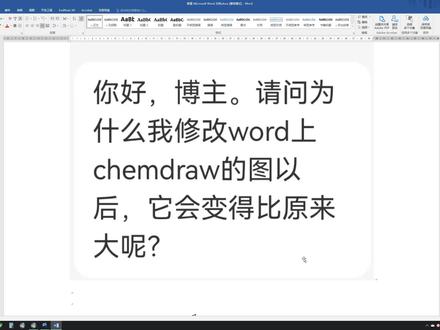 03:07查看AI文稿AI文稿
啊,各位大家好,那么最近的话呢,有小伙伴在这个某个平台上面留言啊,说他这个修改他的这个 word 上面的这个 camera job 的图以后呢,呃,他会变得比原来的更大啊。 啊,那比如说这个我们这里随便画一个图啊,然后比如说我们双击点开来,我们进行一个修改啊,可能比如说我加上一个,比如说我加上一个别的什么结构在这啊? 啊?我们假设这里加了一个本在这里啊,然后呢?呃,我们就这个点保存,然后呢再这个把它关掉 啊,你看这个时候呢,就是这个图虽然没有变啊,就是就是有的时候我们会碰到这种情况,就是这个图呢,他会突然间就是他的这个 呃变大,实际上就是相当于你的视角变小了,他就只显示这个,比如说只显示这个一部分,其他的部分呢就是显示到这个,就现在这不有个虚线的这个框吗?其他的部分可能显示到这个框的外面去了啊,就是他这里所说的这个变得变得比较大的这样一个情况。那这个 这个的话呢,其实我自己也是经常遇到的,有的时候我们可能比如说在这个 word 里面或者 ppt 里面啊,我们这个就是和这个科目交有关联的情况下,我们这个可以双击打开这个进行个编辑,对吧?有的有的时候可能我们对这个结构呢进行这个编辑,比如说 啊,可能我比如说这加了个假机或者怎么样子的,然后你再把它关掉之后,然后有的时候的话呢,你可能刚关掉的时候没有变化,但是你点保存之后啊,点了这个保存之后,哎,他突然就变掉了。就是, 呃,比如说我们现在这个这个虚线的话呢,这个虚线框相当于我们这个,呃看这个结构的这个视野大小,那这个视野大小可能是不变的,但是这个图的话呢,可能就是有时候会被就是他这里头说的会被放大, 被放大之后的话呢,那很多的这个一部分的结构都跑到这个虚线的外面去了,那你就在这个虚线内啊,他只显示这个虚线这个矩形框内的这个内容啊,那么跑到虚线外的这个内容就显示不了了。那么这个问题的话呢? 呃,我也不知道他为什么会这个出现这样的一个问题啊?但是我的我们自己的一个解决方法就就是你可以这个呃全选,然后呢 ctrl c 复制一下啊,关掉之后呢,你把这个删掉,然后再重新粘贴一下啊,这样子就可以, 然后再去保存,那么通常的话就可以就是解决这样子的一个问题啊。呃,至于说他产生那个原因的话呢,我也不是很清楚啊,但是呃确实我们在使用的时候经常会遇到这样一个情况啊。 呃反正我自己的方法就是重新再粘贴一遍啊,这样的话呢就可以了啊,那么希望的话呢,对大家有所帮助啊。如果大家呃有什么别的这个解决方案的话呢, 或者说知道这个原因,然后知道他的一个解决方案的话呢,也可以在评论区留言啊。呃希望的话呢,对大家有所帮助啊,谢谢大家。
 02:10查看AI文稿AI文稿
啊,各位大家好,嗯,那么今天在 b 站的这个评论区的话,有这个小伙伴问这个 camb jo 里面这个花括号怎么去设?设置它的一个粗粗细啊? 那比如说我们画一个这个画括号,对吧?啊?然后呢我们在这个选中这个画括号的情况下,然后右键这里有一个对象设置, 那么这个里边呢?这个第一项中文里边有一个这个限宽啊,你比如说现在这个是零点二一,对吧?比如说我给他设置成这个,比如说零点八一, 他好像是啊,他必须是怎么样是跟这个必须要大于这个 啊?据说这个必须要大于这个,那这个我看刚才设置的有点大了,比如说我把它设置成零点五, 他就是说这个宽度必须要比这个这个要大啊,那么刚才是设置的这个反过来了,那不行啊,你看这样的话他这个就变粗了一些,对吧? 啊,那么这样子的话,你像这里面的这个其他的这些应该也是可以啊,按照同样的方法呢,进行一个粗细的一个设置啊。啊,把这个给他设置出一点, 那么同样的,比如说你这个画了一个这个结构啊,比如说我想把这根键呃这根键突出显示,比如说我想把它设置的粗一点啊, 也是可以的。那当然这个对于这个化学键他的一个粗细的话呢,还有一个默认的选项,就是在这块啊, 这是一个粗的这个键,选中它之后再点也可以把它加粗啊,那么对于其他的一些对象的话,你可能就是用这个啊,右键里面的这里有一个对象设置这个地方啊, 那么啊,这个就是这个视频的内容呢?希望对大家有所帮助啊,谢谢大家。
27DJ_Tokyo 14:48查看AI文稿AI文稿
hello, everybody, my name is pierre and this is my advanced kendra video tutorial that is intended for everybody using this software who would like a way to draw molecules a little bit faster to show you what i'm talking about and what you actually can do with kendra as an introduction i am going to draw viagra under twenty seconds so you're probably wondering how i'm doing this while that is the point of this video and i will cover that very soon and we're almost down here and that will be less than twenty seconds now so to be fair i could have also done this under five seconds as i happen to know the genetic name of viagra is sealed in a field i type select control shift n and i get the structure and this way you can also double check that but i didn't do anything wrong before we get into details i'll start with general shortcuts let's just draw a molecule quickly here this is l syrian so with the market all selected if you double click on a molecule you select the whole molecule and if you hold shift while you move it it moves it straight, horizontally or vertically when you have a molecule selected if you hold control and then drag you will quickly make copies of the same molecule so of course now we can combine both control shift and then drag and you will quickly make a line copies of the same molecule if you hold shift and continue double clicking you will select defined objects and double clicking again on it will deselect them now a small trick for reactions let's say we have a reaction like this and this reaction with reagents and conditions so if you take the marky tool and double click on the arrow you select the entire reaction including what stands above and below the arrow and this way you can quickly copy entire reactions now a couple more shortcuts let's change molecules for this i'm going to go with trip to fan yes, i like amino acids so with the molecule selected if you hold control shift out and then h you flip the molecule horizontally and with the v you do the same vertically note that if you do not hold out only control shift and then h or v you flip them all here but you do not retain this tv your chemistry a convenient feature of this action is that you can flip only a part of a molecule so for this i'm going to introduce another shortcut to the lasso tool when you have the market tool selected if you hold out it switches it to the lasso tool so this way you can conveniently access only part of a molecule selected like so and now if you press ctrl shift out h you flip only a part of the molecule lastly, i'd like to cover the cleanup function and for this i'm going to draw quickly your porefriend scaffold i'll draw a couple of five input drinks here that i connect and if you're wondering how i'm doing this i am simply holding out down while i'm using the solid bond tool and it allows me to get the bone length that i want so now i'm going to select the molecule press, ctrl shift k and in journal i'll have to press it several times to get to something that i'm satisfied with so now we're going to double check the structure as usual i write porf hearing i select press control shift n and i get the structure there you go okay let's not move on to the real thing and that is the hotkeys hotkeys are the reason why i'm able to switch between drawing tools like this without even reaching the toolbar also this is how i can modify bonds and atoms for example by default if you go over a bond and press two you make it a double one if you go over an adam and press o you get an oxygen and press n to get a nitrogen so it's all very intuitive but in practice i'd prefer to have it customized my way and this is what this video is about to customize things you need to find one file named hot keys xml to locate it you have to go to file then preferences then directory's tab and that will give you the pat to several kendra folders and you have to follow the one that ends with kendra items now for windows user you have to be careful about one thing is that program data is a hidden folder by default, so you need to enable show hidden folder options in windows okay, so once you have found that file you go to hotkeys you open with a basic text editor and this is what things look like inside so it's important to know that one given hotkey can have up to three different actions and this is why in this file you have three different sections so the first section here object type equals atom is where we're going to find all the shortcuts that apply to single atom in camdrow in the second section object type equals bond is where we're going to find all the shortcuts that apply to bonds and the last section the generic section is where we're going to introduce shortcuts to quickly access drawing tools so to show you how to customize things yourself i'm going to fully customize one hot key that i don't use and that is the hot key u so first i'm going to go to the first section and just copy paste one line like here and now i'm going to change the hotkey value to you the command is label takes so it modifies an atom and i'm going to change it to see you so now when i will go over an atom and press u it will label it with a copper to show you that things are case sensitive i'm also going to introduce another hotkey capital u, that will label an atom with let's say the word awesome don't worry about the description what is written inside the description part has absolutely no impact on the hotkey or the shortcut itself now we're going to go to the bond section and here i'm going to copy paste again one line like so and i'm gonna assign the hotkey u the command is bond order and i'm gonna give it the value force so now when i will press u over a bond it will transform it into a credible bond so now i'm gonna go over the last section and i'm gonna introduce well, you can see that i have already quite a few things customized myself so i'm gonna copy paste one line and i'm gonna introduce the hotkey you as a generic action it will select the tlc plate tool so the command is tool mode and the value here now is tlc plates and i will show you the different commands a bit later so now we're done i'm going to close and yes, i want to save the changes so now we're gonna check that everything worked properly i'm gonna draw a couple bones like this now i will go over this atom and press u and then i get a copper over this one i press capital u and i get the word awesome if i go over this bun and press u i get a quadruple bund and now over nothing i press u and then i get the tlc plate tool and you're welcome important note before you start playing with that file and suggest you make a copy as a backup so here copy paste and be original and emit backup so rule number one if you change the syntax of the hotkeys file none of the shortcuts you've made will be accessible so for example the hotkeys backup file that i just created will not be recognized by kim joe anymore rule number two customize your keyboard one key at a time and make one change close safe and make sure that it's working as you want also stick to letters and figures no symbols or punctuation among all the commands available in kendra, there is the sprout command that i find to be the most useful one and yet not many people know about it so by default if you position yourself over in adam and press zero you sprant one bond if you press nine, you sprant two and if you press eight you sprant three but then of course i have it customized a different way the very nice feature of this command is that it works when you have other drawing tools selected for example i have the bentin ring tool and i can just sprout one bon here and then a couple others like this without changing the tool and this way i draw a trital group very quickly another very interesting feature of this command is that it applies to the last active atom meaning the last atom that was either generated or touched with the cursor for example i can quickly generate an out yell chain by positioning myself over this adam moving away and then pressing repeatedly the hot key corresponding to sprout one bond same here and the same here additionally you can label adam and continue spreading bonds for example i spread a couple once i introduce an oxygen, a couple more more oxygen and then i want to end dimethel so i'm going to introduce a nitrogen and then press sprout two bonds and then of course i can continue, but i have to be careful about one thing is not too type two different characters too quickly one after the other otherwise the software will assume like here that you're trying to type something and the text tool will come up it may also happen that the bonds you're generating with the sprout command close into a six member drink and i don't have an answer as to why it happens sometimes yes, sometimes not but my advice is assign a hot key to the asyclic chain tool like this and when you have an al gail chain to draw then just use that tool and also by the way when you have this asyclet chain tool selected if you hold ctrl, while you move it it follows the movement of the mouse you also have the possibility to quickly generate fused ring systems by positioning yourself over a bond and press five six seven or eight and by default if you position yourself over a bond and press zero you get a chair cycle hexane now one crucial detail is if the last cycle tool that you used was non aromatic then all the rings that will be generated will be saturated if the last cycle tool that you used was aromatic then everything you will generate will be unsaturated like this if you would like to customize these yourself then the command for that is fuse ring and it's present by default on pc versions of kendra, but not on mac where you have to input it manually in the hotkeys file and it may not work on early versions of kendra, if you're in interested here is my personal setup for kendra, and i have described things for aquarity keyboards i'm only giving the shortcuts that i use most often so you should feel free to use it as a starting point and customize it for your specific needs since we all do different kinds of chemistries if you want to customize the hotkeys with during tools i have written below here all the commands responding to each tool and i guess there are self explanatory remember they have to be placed in the third section of the hotkeys file and written in capital letters so in the last section i will go over another very useful feature of camdroh and that is the nickname i will demonstrate how useful nickname can be by drawing taxel here under five seconds there you go so of course the point here is that i drew taxole myself beforehand, but i only drew it once and then i created a nickname for it and now if i need to draw it again i can just type this and and the label you're already using nicknames yourself when you type the name of protecting groups for example the buck group or tvdps here kendra understands which group you are drawing because their structures have been pretty fine to check what they are you can just select the labels individually or a whole molecule and then go to structure like here and expand the label or the shortcut version of this select out s then e, but more than protecting groups you can also define nicknames for large molecule that you may use on a daily basis for example combat seat, attramethel, rotamine or tamara is a commonly used fluorescent group and right now i am just drawing it quickly using all my shortcuts and i will show you how to create a nickname for that and there you go one important thing is when you define the label you need to select the molecule without a connecting bond and this is where the lasso tool becomes really useful remember you hold out with the market tool selected and then select everything accept the connecting bond then you go to structure define nickname and you type what you want in my case tamara be careful it's case sensitive and then you save now again the shortcut version since you may have noticed that i like shortcuts out s then n and then you define the nickname so we just sew a single connection label but you can also create a label with two connecting points and one convenient example of this would be if you use a polyethan like spacer let's just say that you use the backspace area like this one you need to press dot over the atom that you want to define as the first connecting point be careful with the order that you define as it will determine how the label is connected when you draw it later and i define this one as the second connecting point by the way you cannot define more than two connecting points now i take the lasso tool i select then shortcut out s then n and i defined the nickname as peg so now we're gonna make sure that everything worked properly i'm gonna draw lysine the lazy way i type lysine i select control shift n now i draw one bond and i write peg now another bond coming from the peg and tamara, and you will notice that nothing lights up in red and that if ask the molecular weight i actually get a number so let's make sure everything is properly connected i'm going to expand the labels and then some clean up with control shift k and there you go so that's it i hope you've enjoyed this video if you have please spread it around to your friends and colleagues who use kendra, if you'd like to know more about me my name is bl malu, i'm a unc chappell who graduate in pharmaceutical sciences and now opposed to okey msnol chemistry you can find me on linkton and if this tutorial has been helpful to you you can just drop me a line to say thanks now thank you for your attention and have a good one。
496Murphy 03:30查看AI文稿AI文稿
hello, 各位小伙伴们大家好呀,这里是阿光今天这期视频呢,我们来一起学习一下如何使用 camp draw 绘制球共模型,并导出无背景的清晰图片。比如下面他是一个化学结构式,我们如何转换成球共模型呢? 接下来进行我们的操作。首先我们打开我们的 camera drawer 软件,我们随便选一个化学结构式, 比如说我们还是选择我们刚刚那个图,就是那个结构式,然后我们绘制一下,绘制出来之后呢,我们选中它,这是选中了,点着复制,就是 ctrl 加 七。而在 view 这里,我们选择这个 show camera 三 d hotling window, 呃,这里是把它取消掉了,再把它打开,或者这个,你点击这个, 打开它这个升三 d 的,那它就会跳出来了,跳出出来之后呢,我们把空凑加 v, 把我们的这个啊化学结构式复制到 camp 三 d 当中,他就会显示出求故模型了,然后,呃,接下来,比如说 你如果想旋转他,他这里是可以旋转的,点击这个,然后你随意的拖动他都是可以的。 然后接下来,比如说我想修改它的颜色,我们选中他这个球,右键选择卡了,选择选择他的一个颜色,然后其他的一个颜色也是这样的。 呃,如果你想复制到 word 或者 ppt 上,你可以直接选中它, 然后直接 ctrl c, ctrl v, 你复制到这里,但是你可以看得到你复制进来,它会分辨率比较低,而且它比较相对于比较模糊一些,那么该如何解决呢? 然后我们点着 find, 这里点着 safe, 就是保存,比如说我保存到桌面,然后我们这里的保存 类型呢,我们选择偏居它的一个格式。嗯,在这里的话我们选择 dpi, 就是把它拉到最大,最大的话是一千二。那这里背景呢?我们选择去除它的一个背景,就是在这勾勾上它去除一个背景,点击保存, 然后保存,可能稍微需要等个几秒,把它插出来,再把它复制进来,看一下,他这个就保存出来了。 这是我们刚刚啊空凑 c, 空凑 v 的,然后再把我们这个 放进来,可以看得出来他是这左边的分辨率比较低,他这个是比较清晰的。 是的话就是这样操作的。后面的话我还会继续出 candle 的一些一系列的教程。好的,今天的内容就这么多了,感谢大家收看,拜拜。
871想看雪的瓜 04:00查看AI文稿AI文稿
演示一下 camera 中文版汉化软件界面。本软件分 windows 和 mac 系统两种,其中 windows 系统的已经汉化完成了。十八点二二零二一,二二版本的十九版本的就暂不考虑了,因为它跟十八版本是几乎一致的界面。 苹果系统由于 mac 的特殊性,低版本的就不考虑了,只汉化二一版本的。由于苹果系统我用着极度不舒服,忍着难受先汉化了主体界面好了,先直接演示下。 先演示苹果系统的偏好,设置这种对话框的暂时先不汉化,需要等我难受烦闷程度过了,我再做深度汉化, 功能均正常,画个错误结构,直接显示错误了 检查结构,这里也提示了修正一下,即恢复正常。 在演示下 windows 系统版本的软件, windows 系统的用户是比较多的,汉化程度就比较高了。我演示下,现在是二零二三年了,主要经历是汉化二一和二二版本的,二三版本的即将出来了,十八点二和二零版本汉化到此 就不再维护了,更低版本的就不考虑汉化了。本汉化包适用于英文阅读能力一般的学生,以及一些中学老师画图演示给学生使用的。当然了,上了年纪的化学老师主要还是在用 word 软件,家装化学金牌插件使用,这个不在解说范围, 像周期表这里我在考虑是否要汉化,毕竟看着英文也别扭。本汉化目前是全网唯一的,之前出了二二版本 v 一点零和 v 二点零测试免费版,现已停止发放,其他用户享用的,我这边是收费的。 需要说明的是,挑毛病的用户请勿使用,因为我遇过个别用户,他会问汉化是百分之一百准确的吗?我这里讲清一下,没有百分之一百, 哪怕你现在用的 windows 系统都有汉化不到位的情况。另外,每个人对翻译词汇理解是不一样的,就比如 char, 我们普遍认为它就是椅子,但是有极少数用户他不这么认为, 他就认为他老师教他的是方凳,他会认为你汉化根本不规范。像这些用户请继续使用英文版的即可。
38云若_靓仔 01:36查看AI文稿AI文稿
啊,各位大家好,那么最近的话呢,有这个小伙伴留言呢,问这个,呃, camber 里面如何调出两个画布啊?不是说这个不是那种页面变成两页的那种啊,是如何调出两个画布? 那比如说我们在开门胶里面的时候呢?你看正常的,呃,大部分情况下你的这个页面可能是这个样子的, 那么怎么调出两个画布呢?就是你看右上角的话呢,有两个,这个 最上面的话呢,是有一个最小化啊,向下还原和一个关闭,然后他旁边的话呢,还有一个最小化,然后呢向下还原和这个 关闭啊,那这是两个不同的这个,那最上面这个右上角最大的这些呢,是对这个整个软件进行一个关闭和这个 向下还原这种,那么所以的话呢,你可以点击下面的这个向下还原啊,他就会变成这样子的一个页面,对吧?然后这个时候的话呢,你再去新建一个,嗯,这样他就出现两个画布了,对吧?然后你再新建呢,他会出现第三个画布啊,这你可以出现好多个画布,你看这个画布你可以进行放大缩小等等 啊,这个的话呢就是呃,调出这个画布的这个这样子的一个一个操作过程啊,那你可以对其中任意一个任意一个呢进行放大啊,整个放大的话,他就会变成这个覆盖这个整个页面的,然后你 可以再把它还原一下啊,他就会又又会下来啊,好,那么希望的话呢,对大家有所帮助啊,谢谢大家。
 01:11查看AI文稿AI文稿
在绘制化学分子结构室,特别是有机分子结构室的时候,你是否经常会碰到某些物质的结构室过于繁琐,绘制起来要花一番时间。那么今天就给大家带来一个快速绘制化学分子结构室的方法, 让你五秒快速绘制出类似这样子的复杂化学分子结构式。我们首先查询想要绘制的化学结构式的 c s 号,比如这里的淀粉复制 c s 号,在菜单栏的 at ins 中选择第二个,在弹出的对话框中粘贴我们刚才复制的 c s 号, 单击 search, 这样淀粉的结构式就出来了,你可以在此结构式基础上进行后续修改。我们再来重试一个,比如这里的枣蓝素,用调等方法进行绘制, 我们同样可以在绘制好的藻蓝素上进行修改。有了这个工具,我们今后再绘制一些复杂化学结构式的时候,可以先从它的母体出发, 找到母体的 c s 号,再在母体的基础上进行修改,这样就会极大提升我们的作图效率。以上就是本期视频的全部内容,我们下期视频再见。
1411Return3656


猜你喜欢
- 1010清雨ʸ