bartender解压安装后打不开
this video covers installation of drivers by seagull drivers by seagull are available for download at seagle scientific com forward drivers when the driver package download is complete double click the file to begin the unpacking process select a location to unpack the contents of the driver package by default this location is set to a folder on your desktop for easy access and click finish the unpacking process will begin and a status bar will indicate progress after the unpack is complete the seagull driver wizard will appear the seagull driver wizard is a powerful easy to use utility it can install printer drivers for new printers upgrade drivers to replace an old version for a printer you already have or remove printer drivers that you no longer want be sure your printer is disconnected and turned off select the top option and click next the next screen allows you to define how you have the printer connected select the appropriate connection type from the list and follow the on screen instructions to proceed usb connected printers will automatically be detected while other types of printer connections like network connections require that you specify your printer model and printer port for this video we're going back to select a usb connection select usb power on your printer and allow it to complete the boot process then connect it to your computer with the usb cable the driver wizard will detect the printer and automatically advance to the next step app once the printer is recognized select it and click next when prompted to specify a printer name set a name for the printer as well as default and sharing options the seagull driver wizard can detect older drivers by seagull you may be using and offers you the option to update them during this process to save you time seagull driver wizard can also detect manufacturer's drivers and offers the option to upgrade them to a seagull driver if the seagull driver package for that manufacturer has been downloaded to your machine review your driver installation settings for accuracy click back if you need to make changes if you're satisfied with the settings click finish when the seagull driver wizard completes the installation you can choose to install another printer or simply close the wizard for more information and other training materials visit support seagle scientific com thank you for watching。

粉丝774获赞2884
相关视频
 02:33
02:33 02:35
02:35 00:51查看AI文稿AI文稿
值得收藏的波尔丹特安装教程,首先根据自己电脑的系统选择合适的版本, windows 十以上的系统安装十点一的版本, windows 七以下的系统安装九点四版本,双击运行 microsoft 四十应用程序,点击安装 双击运行安装向导解压硬,点击下一步,选择接受许可证,点击下一步,选择试用法安装,点击下一步,选择典型,点击下一步,点击安装耐心等待几分钟, 点击完成阅读八餐的使用手册之后关闭即可完成整个安装。关注我获取更多信息,有事可留言马可优,祝你做的更好!
220大瑜哥 01:15查看AI文稿AI文稿
复制安装包到我的电脑, 解压压缩包, 右键以管理员身份运行, 开始安装。 安装选项可以参考, 安装完成开始激活, 点击中间文字,观察左下角变化,激活完成。
11奇悦电脑科技 01:38查看AI文稿AI文稿
最近去修电脑的时候,好多客户跟我反映说他们的压缩包打不开了,说要收费,要开通会员才可以。我去看了一下,发现他们都被自动安装了一个这个压解压软件 啊,你点开解压文件的时候呢,他就会弹出你要你开通会员,你不开通会员的时候,你这个压缩文件是打不开的了。 其实我们电脑一般都会有其他正常能用的压缩解压缩软件的,他这个只是覆盖了你以前的, 我们只要把它删掉就可以了,你打开控制面板,添加删除程序里面找到那一个解压 压缩软件,点卸载它就可以了,把它卸载掉啊,它就会变回以前的可以解压的压缩软件了。 当然也有一些没有这个软件的话,那你就可以,比如说你装有三六零啊,或者其他杀毒软件的,他们的软件管家里面 找一下,找一下这个压缩的软件。哎,像这个三六零的压缩啊,呃, w i n i 啊,还有这个一二三压缩啊,这些都可以用的,我比较喜欢用 w i n i 啊这一个软件好了。
6234捉山猪 01:17查看AI文稿AI文稿
为什么下载显示的是压缩文件,然后打不开,安装不了? 首先很感谢这位小姐姐的关注,他是看了我这期关于怎么下载原版驱动的视频再来问这个问题的, 这是因为他的电脑没有安装压缩软件,所以是打不开压缩文件的,只需要几个步骤就可以安装到了, 注意看这份文件在没有安装解压软件的状态是打不开的。我们打开软件管家,在搜索栏里输入解压, 按回车下面这些,选择一个评分高的去安装,安装完毕后再退出桌面。看到了吗?原本那份文件图标 都变了,这样就可以双击或者右键解压出来使用了。所以说工友们真的会遇到很多棘手的问题,这就需要我们耐心的去想办法解决了,如果问题实在是太难的话, 也可以在评论区写下你的问题,在修老的能力范围内都会一一帮大家解决。感谢工友们的关注!
139速维数码~修佬 01:45
01:45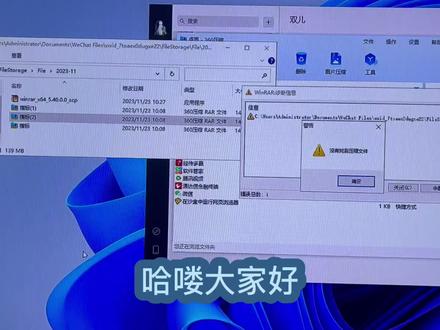 01:19查看AI文稿AI文稿
哈喽,大家好,我是二手电脑东哥,今天呢给大家演示一下,就是这个压轴文件的问题啊,然后这个呢是我们一个文件啊,它是一个炒股的一个软件,但是呢拿过来之后挤压是这样的一个情况啊,然后诊断这一堆英文的话,咱也看不懂啊,就没有压,没有找到压轴文件。 其实本身这个文件呢是没有问题的啊,因为有的电脑可能是不带压缩软件,或者是用别的版本的压缩软件。那下面的话,我们给他安装一下这个 这种原版的这个压缩软件啊,客户呢自己下载一个三六零压缩软件也是不好用的,那我们给他安装一下这个,看看好不好使啊?那下面的话我们就直接把这个关闭了, 然后呢把这个也关闭了。呃,点开这个,然后直接安装确定完成, 然后这个时候呢他的这个压缩软件,这个还是这个图标啊,所以说我们需要改变打开方式,然后选择这个压缩软件, 然后我们点指标,这个时候呢我们发现这个文件就可以打开了,其实遇到这种情况下,这个文件并不是坏了,只是这个压缩软件呢是不对的, 所以说这个问题呢就很轻松的解决。如果需要这个压缩包的话,可以关注我一下,然后我可以给你发过去,感谢大家观看啊,拜拜。
265二手电脑东歌 00:21查看AI文稿AI文稿
我们常在网上下载的 vr、 zipiso 文件都属于压缩文件,直接打开又无法查看,可以下载解压缩软件, 这样就可以打开我们的文件了。上火锻炼手指的一天从分享开始。首先我们打开压缩的文件,有机选择解压到当前文件,这样当前文件家里就有我们解压后的文件了。记住,专业的事找专业的人做。
527美科维修 00:38查看AI文稿AI文稿
好烦啊,这东西打不开,怎么看呢? 怎么了经理发我一个文件,我打不开,我看不了啊,我看看哦,你这个好像需要解压文件才可以看的哎,你别说来来来,走走走,我来走。看我操作啊。 首先右键以 vip 为后置的带解压文件选择全部解压缩选择题时,此时该文件就会被解压出来。之前无法打开的文件现在也可以打开了。 no, 搞定啊。不说不说,以后我就跟着你混了。
39策画师 02:23查看AI文稿AI文稿
佳博 cgo 驱动安装教程,把驱动放在桌面,右击驱动压缩包,点解压 dark printer 或当前文件夹, 打开驱动安装包,点击我同意,再点击下一步, 去掉第二个小勾勾,然后点完成, 点击安装打印机,再点击下一步,这时候驱动会自动识别打印机及 usb 端口, 检查无误后点下一步, 这里可以修改打印机驱动名称,即是否设置为默认打印机, 如无需要可直接点击下一步, 点击完成 再始终信任里打钩,再点击安装, 正在安装中,请耐心等待。 驱动安装完成,点击关闭驱动测试,点击开始点设备和打印机, 右击打印机,点打印机属性, 点打印测试验, 驱动安装测试完毕。


猜你喜欢
最新视频
- 3661IRON桃子